

Genies
Genies are AI agents that live in your Stacksync workspace. Each genie has a master prompt that defines its job, and skills built on your existing connections (Salesforce, NetSuite, Hubspot, and more) that the genie can use to get real work done.
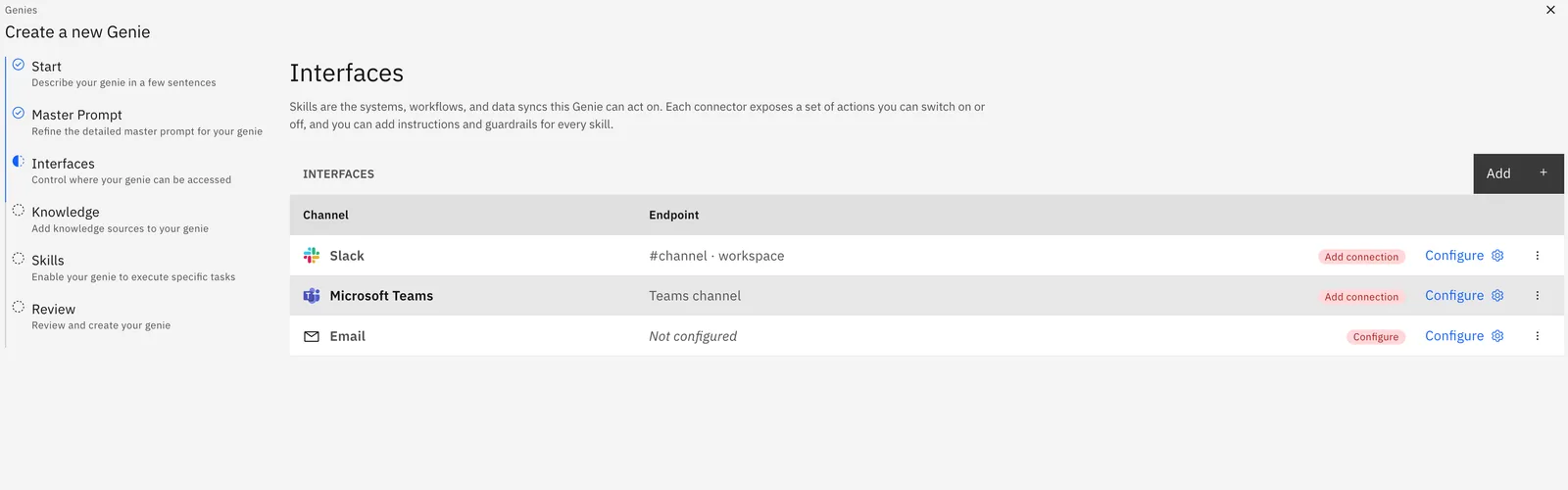
You talk to genies through interfaces: Slack, Microsoft Teams or Email. One genie can have several interfaces at once, the same copilot can answer a Slack mention, a Teams thread, and an inbound email.
Create a genie
1. Click Genie in Create Resources
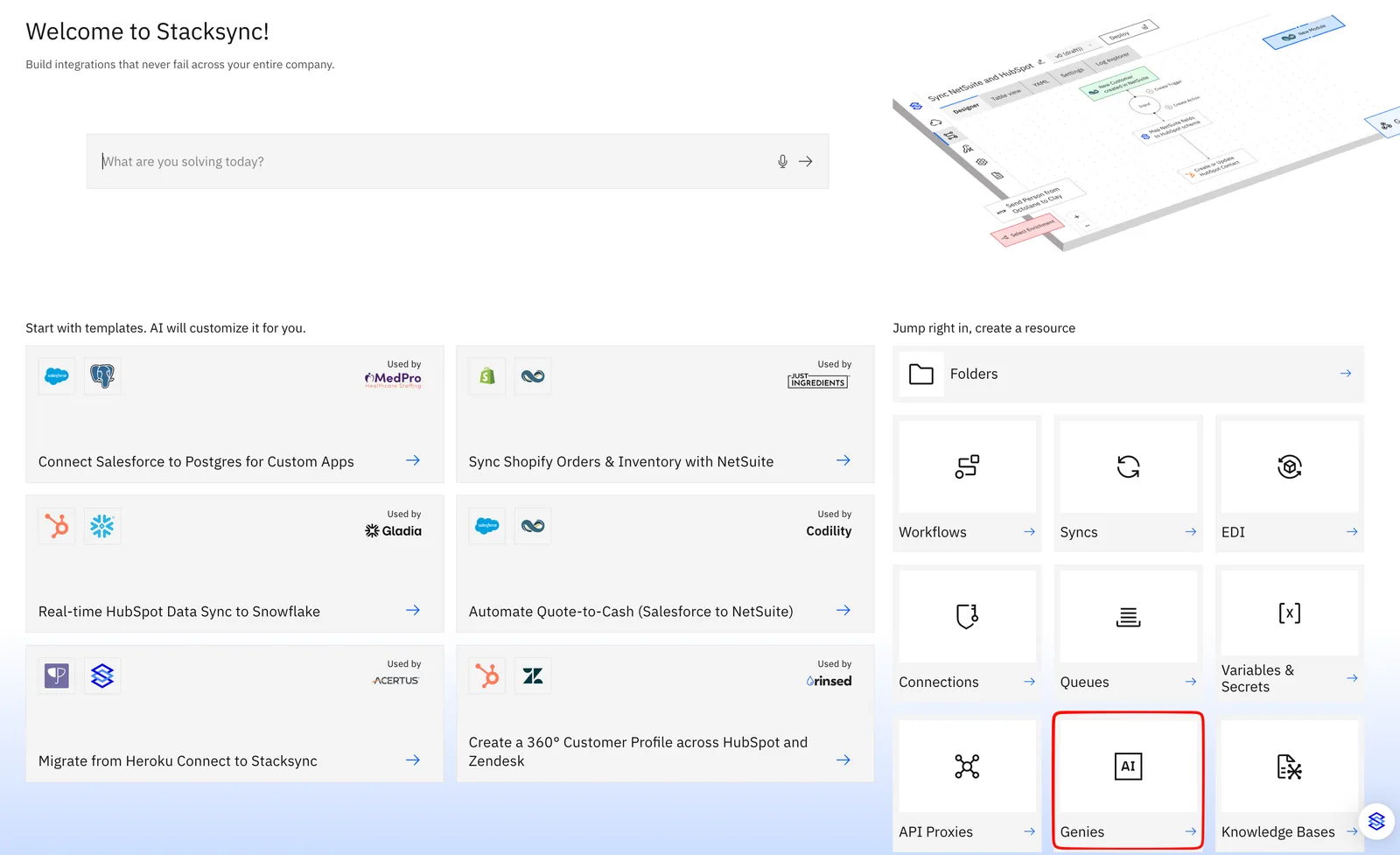
2. Describe the Genies task
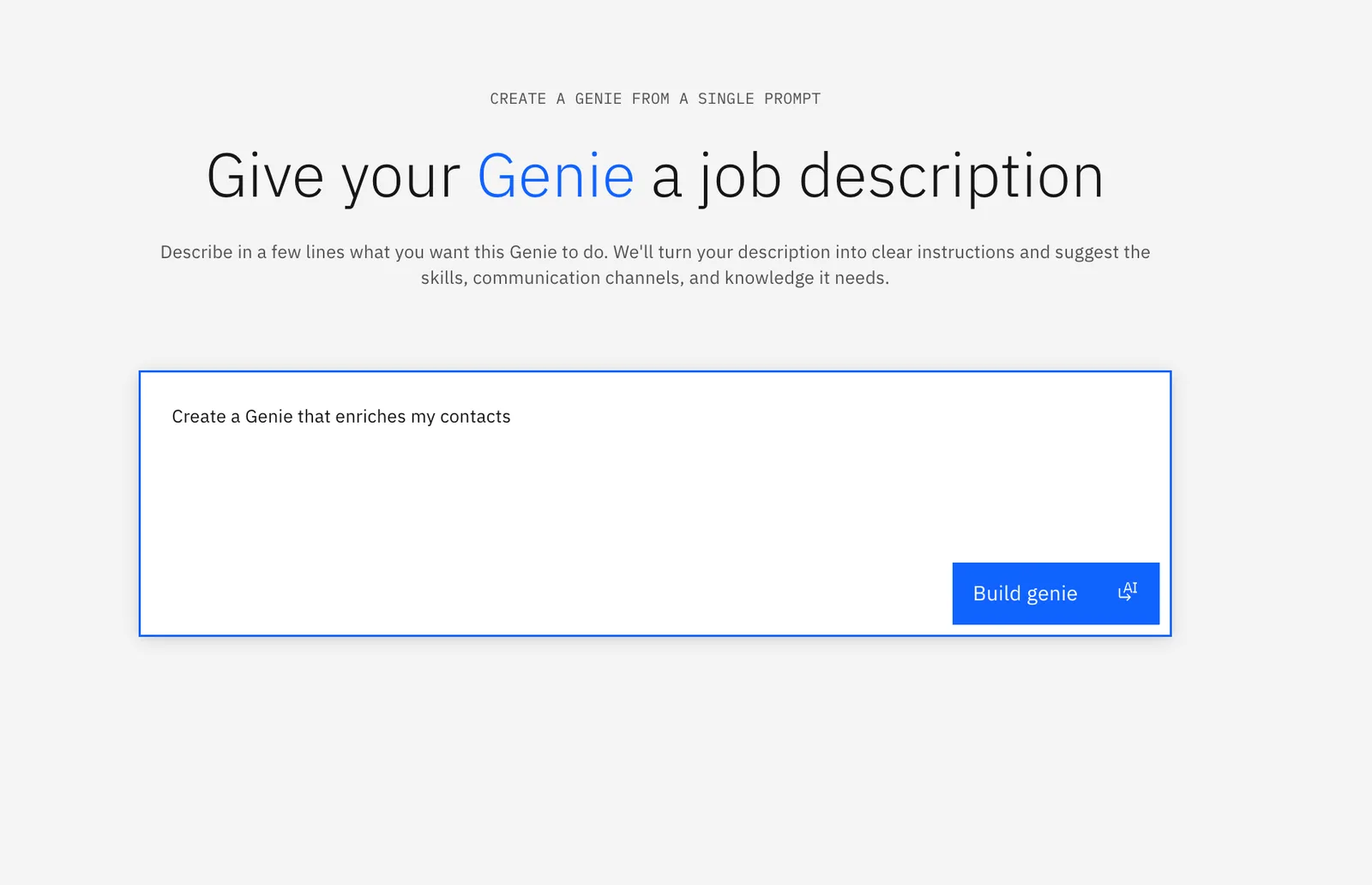
Click Build Genie and review the Genie's instructions on the next page
3. Add an Interface
Open the genie's Interfaces section and click Add. Follow the setup page for your channel:
- Slack
- Microsoft Teams
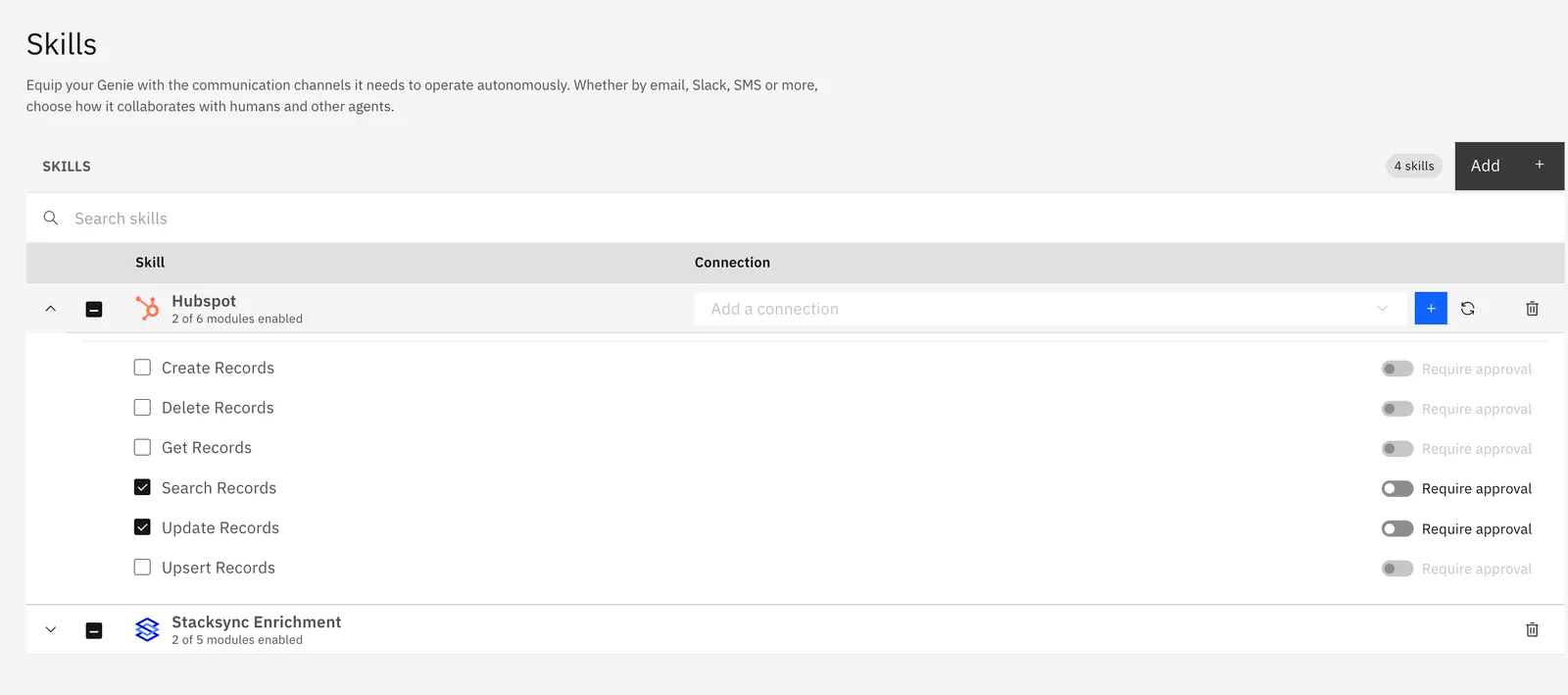
4. Add Skills
Skills are modules the genie may execute (create a record, send a message, run a query). Each skill uses one of your workspace connections. You can require an approval before a skill runs.
5. Review the Genie's configurations and Click Create
Your Genie is now ready to be used for your Enterprise use cases
Access rights
If your genie doesn't answer teammates, check this first. By default, a genie only answers people who are signed-in members of your Stacksync workspace. To let everyone in a connected channel use the genie, open the genie's Access rights tab and set Who can use the Genie to Public (authentication not required).
Status
The Access rights tab also has a status toggle. Setting a genie to Inactive stops it from handling new messages on every interface and suspends its scheduled tasks.