

Microsoft Teams
Connect a genie to Microsoft Teams and talk to it in team channels or 1:1 chat.
Setting up Teams has two halves: your Teams administrator installs the Genie app into your Microsoft Teams organization, and a Stacksync workspace admin connects it to your genie.
1. Download the Genie app package
Download the app package below. It contains the Teams app manifest and icons.
2. Install it in your Teams organization (Teams admin)
Only an Admin can upload the app on Microsoft Teams
Open Teams → Store → Manage apps
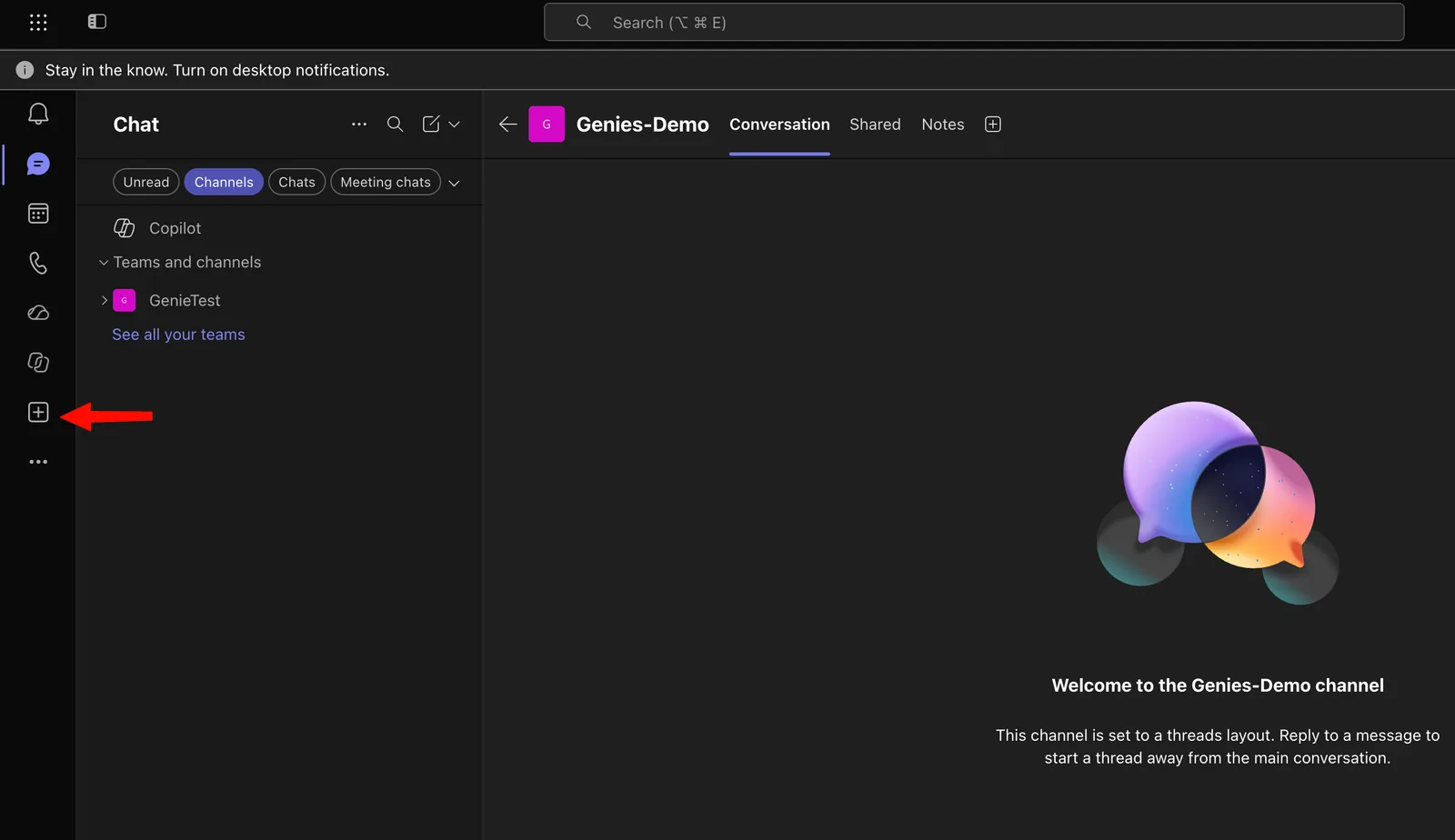
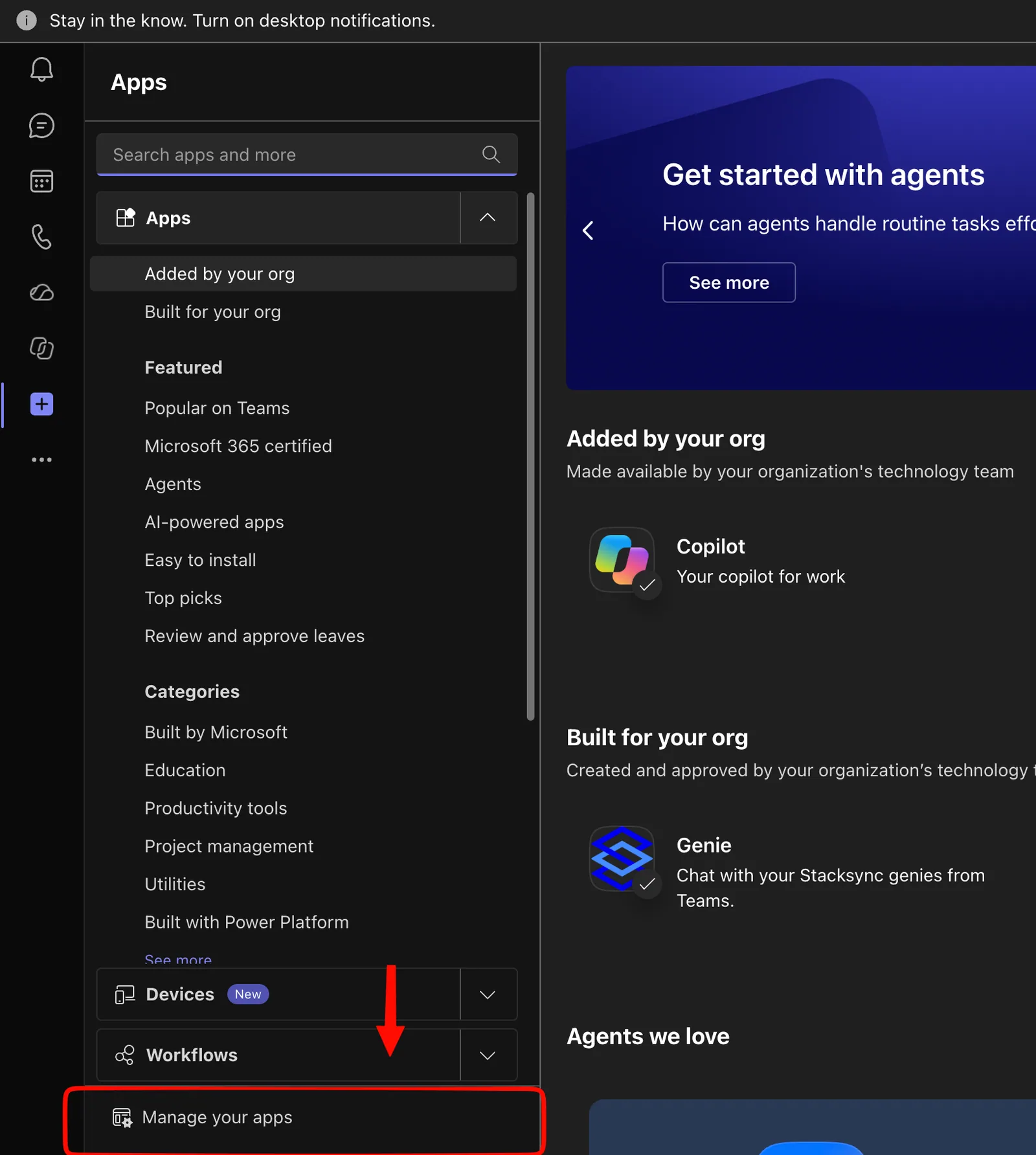
Click Actions → Upload new app and select the downloaded zip.
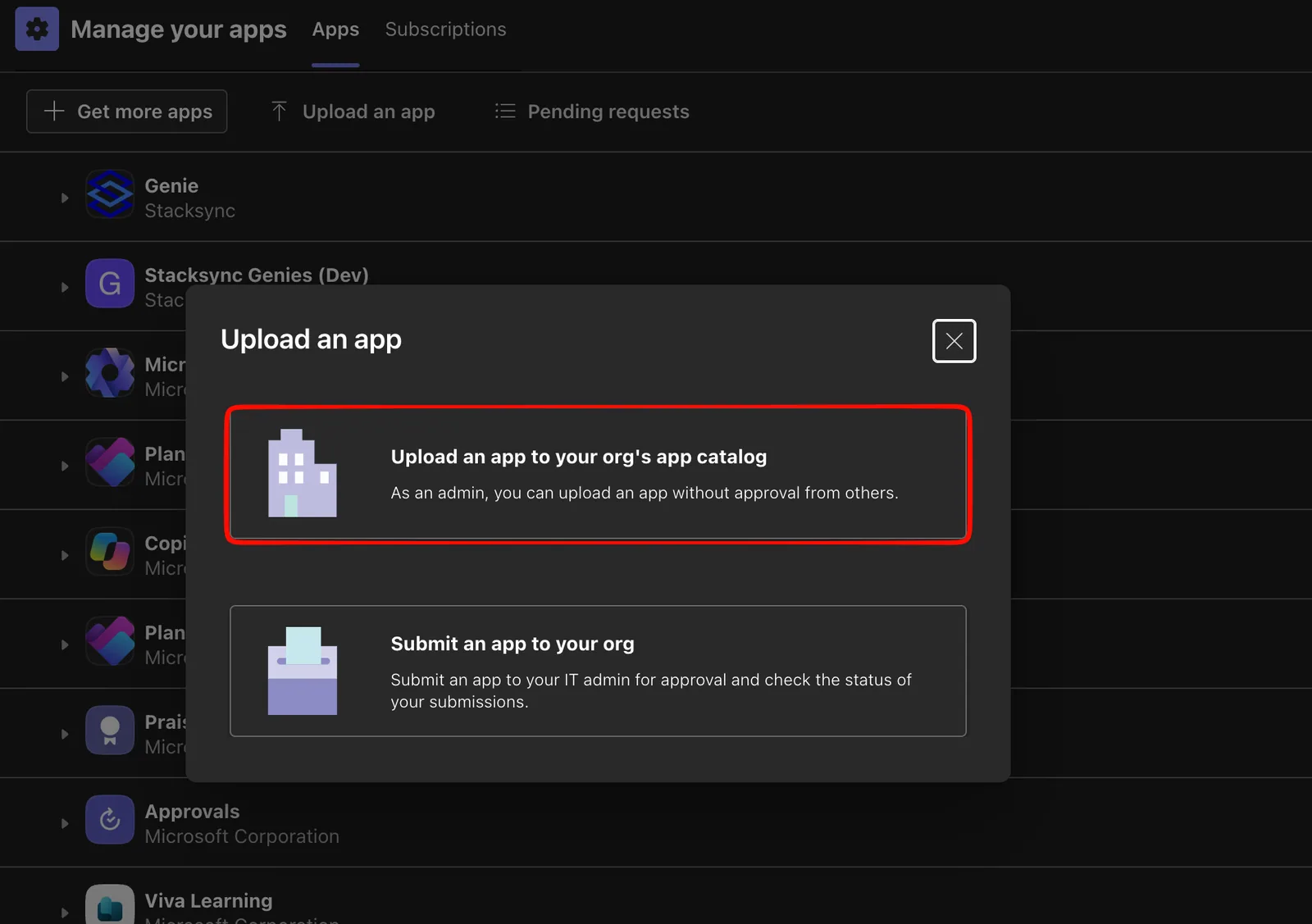
Once uploaded, the app is available to your organization. Users find it in Teams under Apps → Built for your org → Genie → Add, and can also Add it to a team to use it in channels.
On newly created Microsoft 365 tenants, the app management section can take a while to finish provisioning. If the upload option is missing, try again later.
3. Create the Microsoft Teams connection
In Stacksync: Connections → Create new connection → Microsoft Teams → sign in with your Microsoft work account.
The account used here must be able to grant admin consent
The connection needs organization-level permissions (such as reading channel message history for context). If the consent screen says "Need admin approval," ask your Microsoft 365 administrator to create the connection or approve the app.
4. Attach the connection to your genie
Open your genie → Interfaces → Add → Teams → select the connection → Save.
5. Set access rights
If your Teams organization includes people without Stacksync accounts, set the genie's Access rights to Public (authentication not required) — otherwise only Stacksync workspace members get answers.
6. Talk to it
- In a team channel: type
@Genieand select it from the autocomplete popup, then add your question. Typing the characters without selecting the suggestion sends plain text the bot never receives. - In a 1:1 chat: just message it — no mention needed.
The genie posts the reasoning message and then finally the answer. Replies stay in the thread.
Troubleshooting
| Symptom | Check |
|---|---|
| Complete silence | Is the Teams interface attached to a connection? Was the connection created by someone in the same Teams organization you're messaging from? |
| Generic answers that don't match your genie | Access rights — your message was handled by the default assistant because you're not a recognized user. Set the genie to Public. |
@Genie doesn't appear in autocomplete in a channel | The app hasn't been added to that team — add it via Apps → Built for your org. |