

Associations support
Associations link child records to their parent records across a sync. When a child record is created in your database, its parent may not exist in the other app yet, so the child cannot carry its parent's record ID. Associations tell Stacksync how to find the parent, wait for the parent's record ID to exist in the other app, and fill it into the child automatically.
Associations are configured on the Associations tab of the sync detail page.
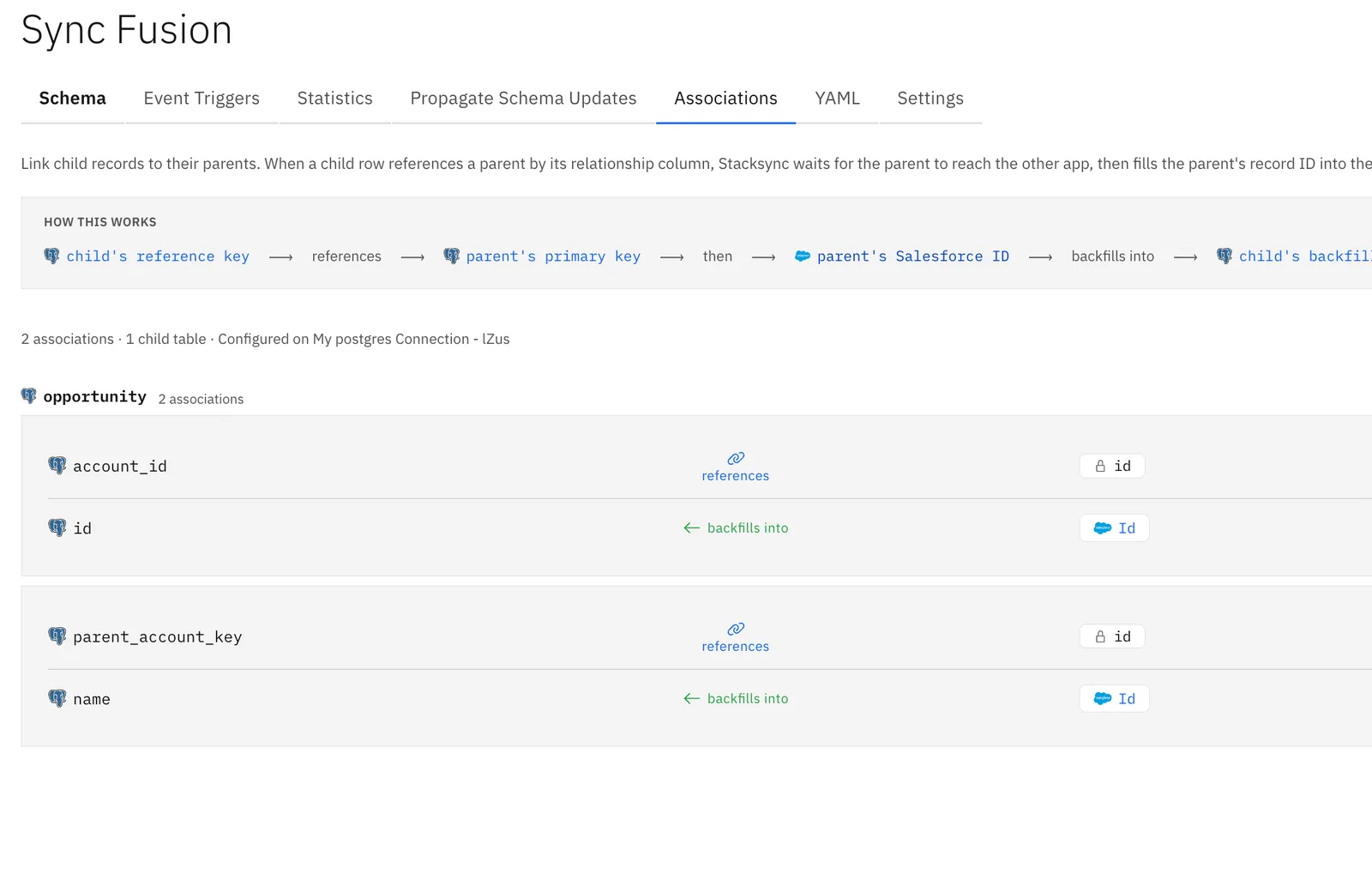
I. How It Works

Each association connects one child table to one parent table on the database side of the sync:
- Reference key (child): a column on the child table that holds the parent's key — for example an account number. This column is not synced; it only exists so Stacksync can identify the parent.
- Primary key (parent): the parent table's primary key that the reference key value is matched against. Assigned automatically.
- Backfill source (parent): the parent's record ID in the other app (for example the Salesforce
Id). Assigned automatically. - Backfilled column (child): a synced column on the child table that receives the parent's record ID.
The flow: the child's reference key references the parent's primary key → once the parent's record ID exists in the other app, it backfills into the child's backfilled column.
The order records are created in does not matter. If the child arrives before its parent exists in the other app, Stacksync holds the link and completes it as soon as the parent's record ID is available.
II. Viewing Configured Associations
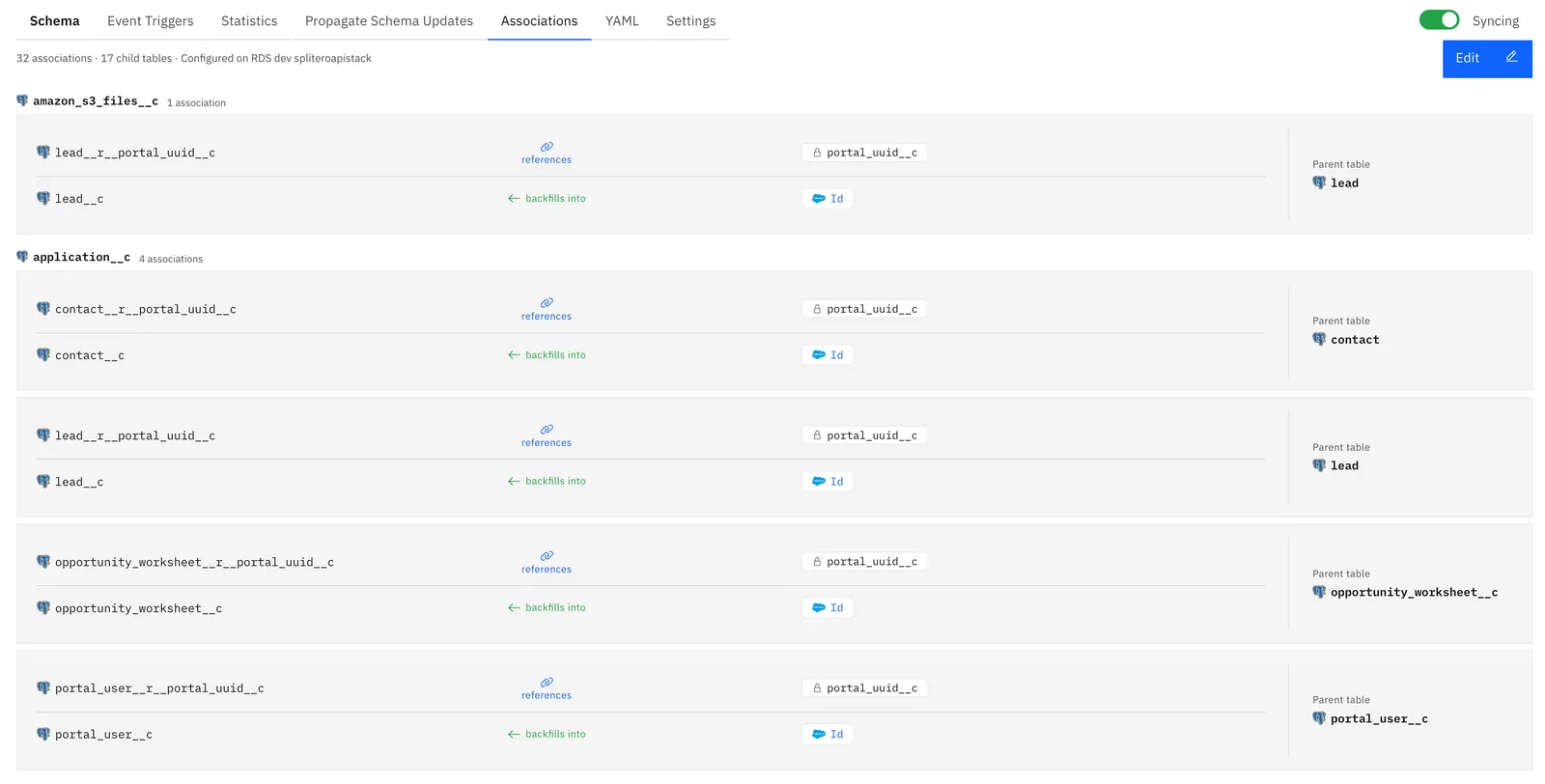
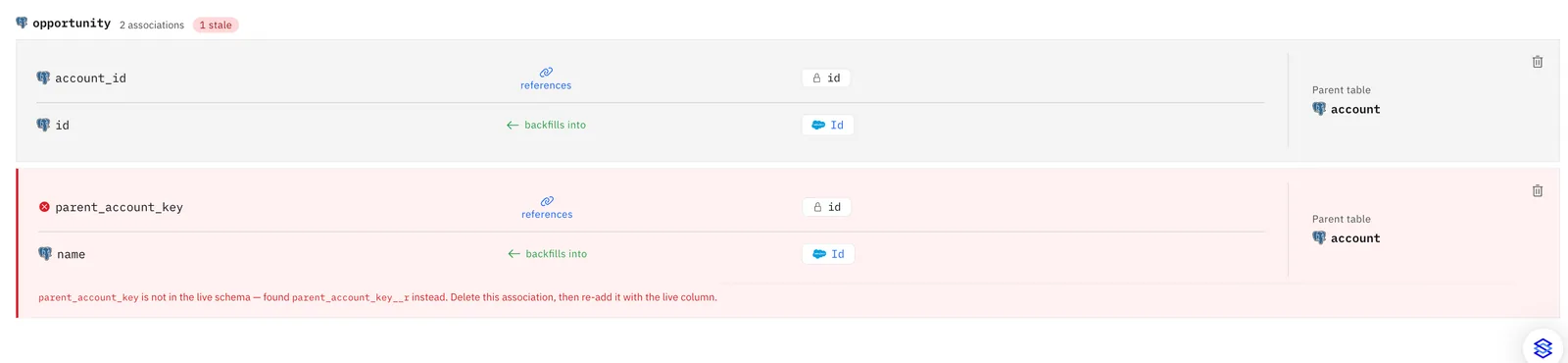
The Associations tab lists every configured association as a card, grouped by child table. Each card reads left to right:
- The child's reference key and the parent primary key it references.
- The parent table.
- The child's backfilled column and the record-ID column it receives (for example Salesforce
Id).
III. Adding an Association
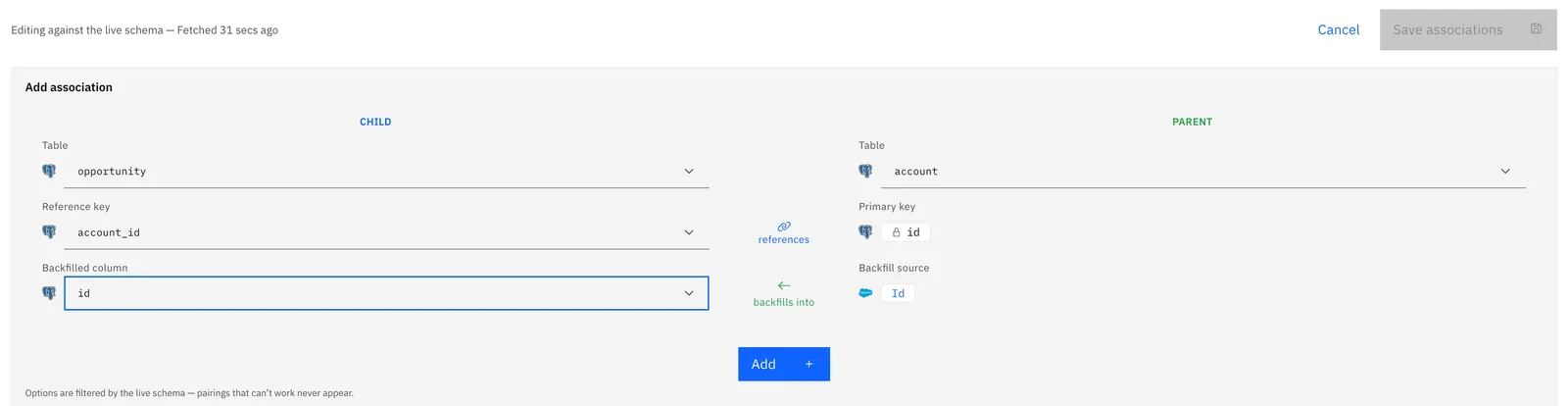
- Click Add your first Association or Edit. Stacksync fetches the latest schema from both apps
- In Add association, fill the Child panel: the child table, its reference key, and the synced column that should receive the parent's record ID.
- In the Parent panel, choose the parent table. The primary key and backfill source are derived automatically and shown locked.
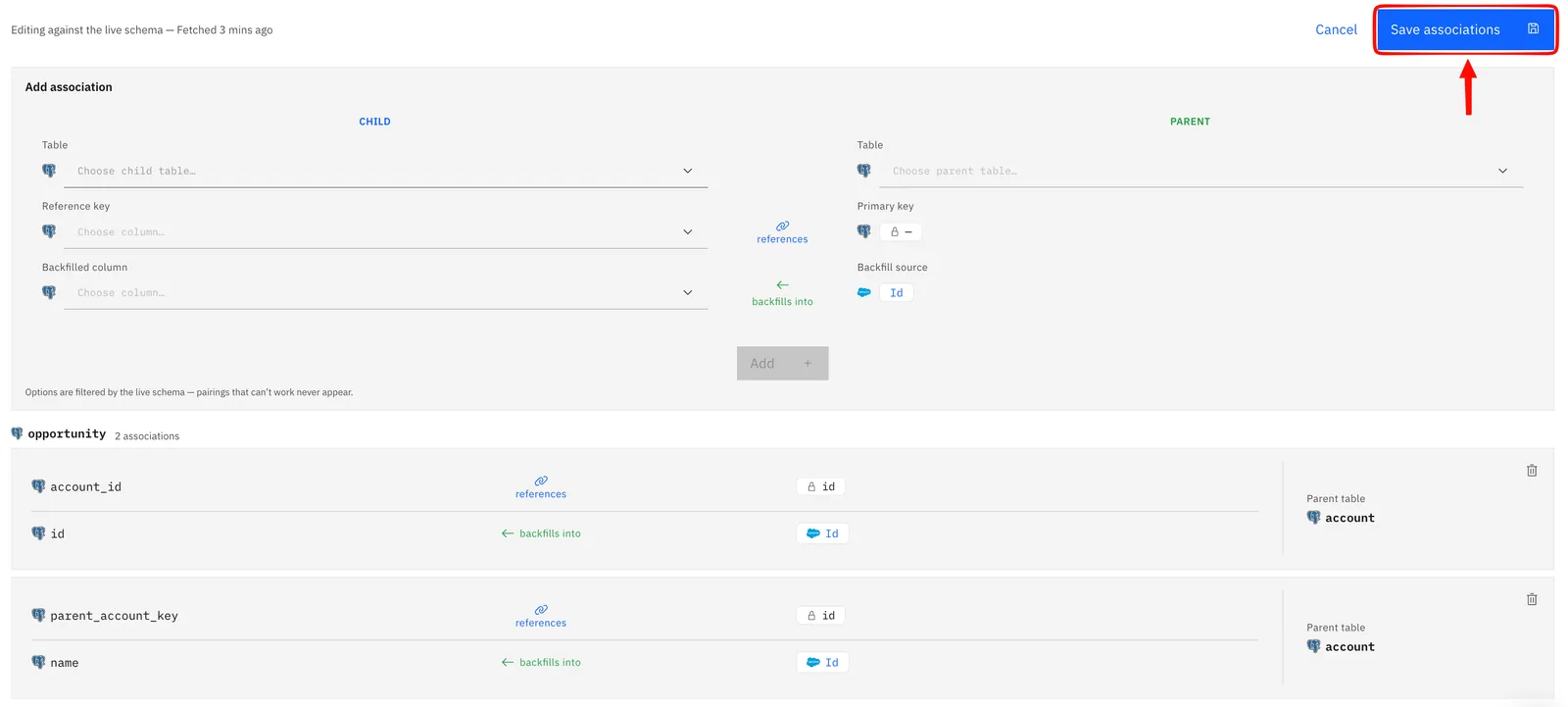
- Click Add, then Save associations.
Notes:
- Dropdowns are filtered by the live schema: the reference key list only offers unsynced columns, the backfilled column list only offers synced columns, and parent tables that cannot work (for example, no usable primary key) are disabled with a reason. Pairings that can't work never appear.
- Stacksync also detects unconfigured relationship-shaped columns (for example
parent_account_key) and offers one-click prefills below the composer. - Saving briefly pauses the sync while the configuration is applied, then resumes it automatically.
IV. Schema Changes and Stale Associations
If a reference-key column is renamed or deleted in the database, the association can no longer match records. The Associations tab flags such associations as stale when you enter edit mode, and shows the likely replacement column when one is found. Delete the stale association and re-add it with the live column.
Deleting an association only stops future backfills. It does not delete any column or data in either app.
If you have any questions, feel free to reach out at hello@stacksync.com, we are happy to help!