

MongoDB
MongoDB is the most commonly used NoSQL database. Here is everything you need to know to connect it to any of your other systems using Stacksync.
Prerequisites
- The primary key (
_id) must be a unique, auto-generated ObjectId.
MongoDB's built-in ObjectId is the only data type we support for MongoDB collections' primary keys. - MongoDB must be running as part of a Replica Set for Stacksync to detect changes from MongoDB
- If you use the Atlas Database, no further action is needed.
- If you self-host, or use a different managed service, make sure the MongoDB is configured as a replica set by running
rs.status()in a MongoDB shell. This is required even if you only have a single node.
1. To set up a single-node replica set, run:
mongod --port 27017 --dbpath /path/to/data --replSet rs0 --auth --keyFile /path/to/keyfile
This assumes you've already set up a key file, otherwise do:
echo "<YOUR_SECRET>" > /path/to/keyfile
2. Connect to the instance:
mongosh "mongodb://localhost:27017"(don't forget to add username and password)
3. Once inside the instance, you have to go through replica set configuration at least once. A simple example could be:
rs.initiate({ _id: "rs0", members: [{ _id: 0, host: "localhost:27017" }] }).
Check out the official documentation for more information.
The oplog and change streams are built-in tools managed by MongoDB and leveraged by Stacksync to track changes to your data in real time. Enabling replication is required to make them available.
- Allow Stacksync IPs
Stacksync services must be able to access your MongoDB instance(s). To avoid issues, make sure to whitelist Stacksync's public IPs. - A MongoDB user with the required permissions.
The provided MongoDB user should be able to create collections, read and write from them and also access the oplog.
In order to sync, track changes and keep data sources updated, these are necessary. Otherwise, data cannot be accessed.
- For Atlas Database, follow the official documentation.
- For all other deployments, you can run:
We strongly suggest using MongoDB's built-in read or readWrite roles. For more information on how to create and grant roles to users, check out MongoDB's official documentation.
// Grant user roles without overwriting existing ones (specific DBs)
use admin

const user = db.getUser("<user>");  // Change to your username

const updatedRoles = user.roles.concat([
        { role: "read", db: "local" }, // required to read the oplog and therefore read changes from mongodb
        { role: "readWrite", db: "<db1>" }, // when need to read and write to mongodb
        { role: "read", db: "<db2>" }, // when do not need to write to mongodb
        // Add the database(s) you want Stacksync to have access to
      ]);

db.updateUser("<user>", { roles: updatedRoles });
Access must be given at the database level for changes to be correctly replicated. Individual collection access is not currently supported.
If a collection you see in your database does not appear in Stacksync, or changes are not correctly replicated, one of the previous conditions is not met. Please double-check your setup in that case.
If you have any questions, don't hesitate to contact us at hello@stacksync.com.
Connecting your MongoDB instance
To connect your MongoDB database to Stacksync, you'll need the following data:
You can either enter these fields individually or simply paste your connection string directly. We'll take care of the rest.
-
Protocol: must be
mongodb+srv://ormongodb://. -
Host: the URI or IP where the server can be found.
-
Port (optional): the default is usually
27017. -
Authentication method
- Username: name used to authenticate with the server.
- Password: the password used to authenticate with the server.
or
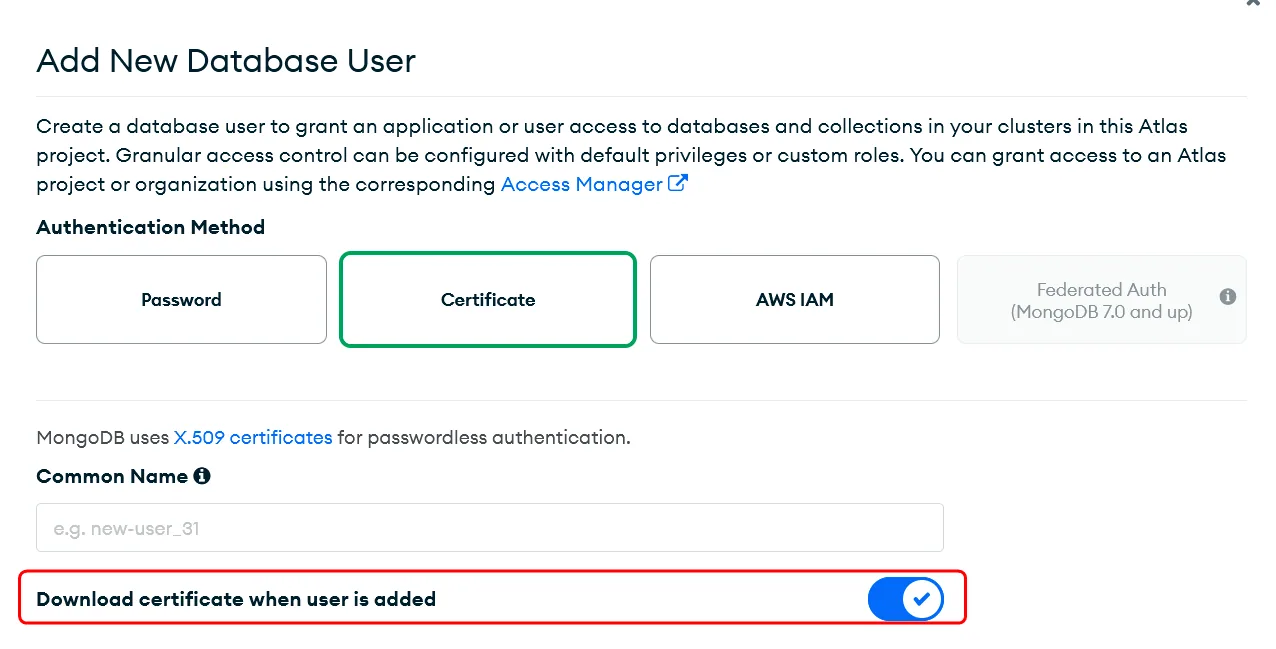
- TLS/SSL (X.509 Certificate): you must upload your public .pem file. In MongoDB Atlas you can download it when you create the user:
-
Database: the name of the database where data is present.
-
Connection options:
- Replica Set (optional): allows you to specify the name of the replica set to connect to.
- Auth Database (optional): the database that holds the user's info. The default is
adminfor username & password, and$externalfor TLS.
Other connection options are not currently supported. If you need special assistance, please contact us at hello@stacksync.com.
- SSH Tunnel:
- Username: The user Stacksync can identify as to establish the tunnel.
- Host: IP of the machine to SSH into.
- Public Key: Copy into your machine's
~/.ssh/authorized_keysfile. You can use ssh-copy-id or simply SSH into the server and paste it using your preferred text editor.
SSH tunneling is currently only supported for single, self-hosted MongoDB instances via the mongodb:// protocol. For any further questions, please contact us at hello@stacksync.com.
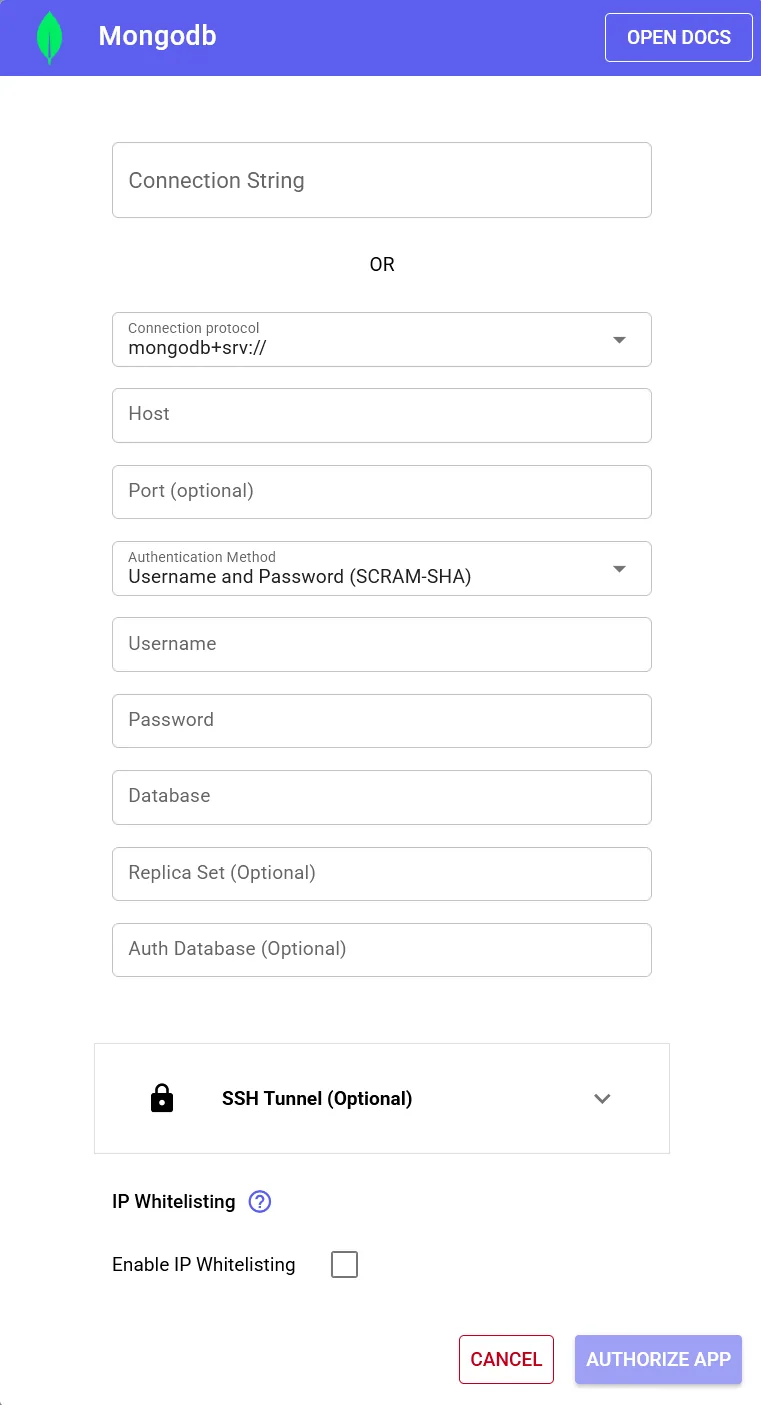
The connection setup screen for user+password
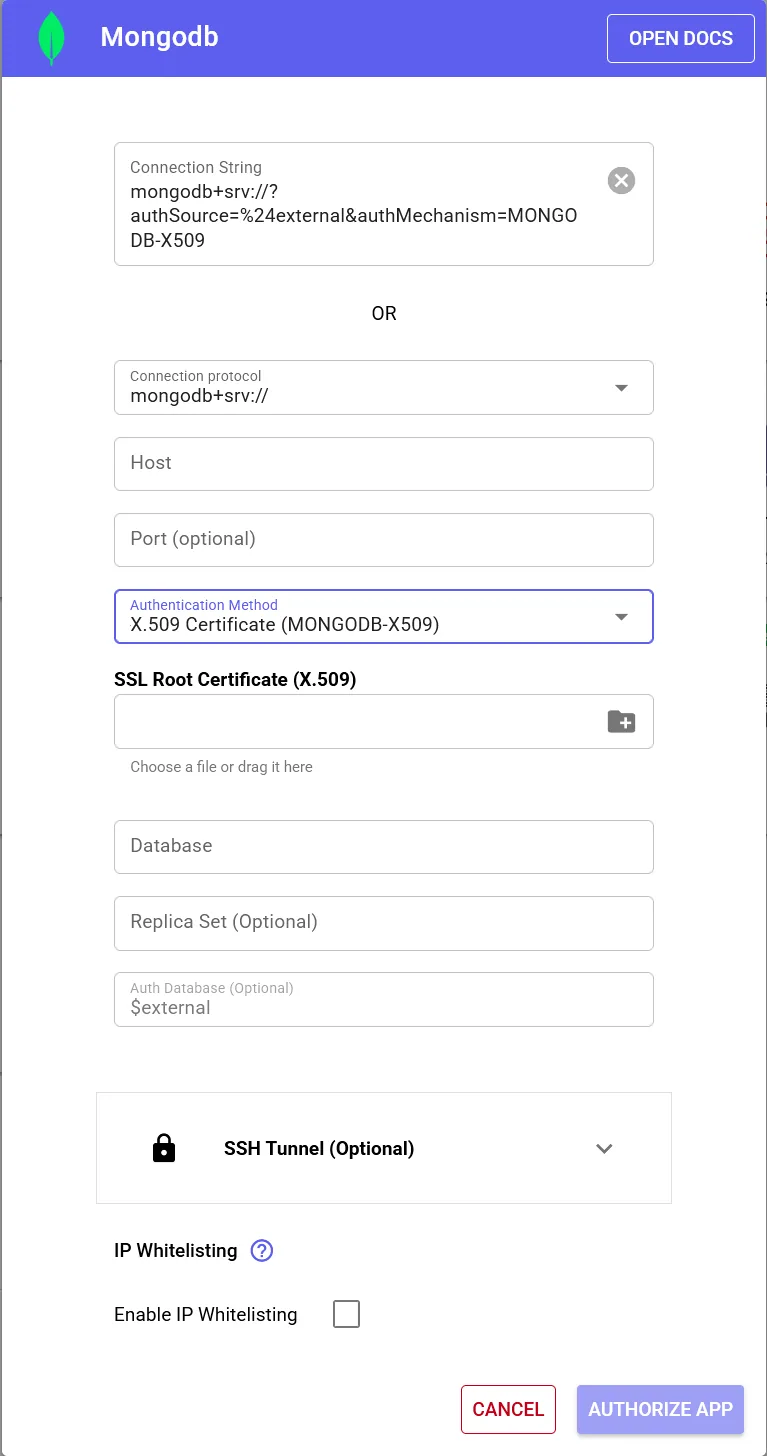
The connection setup screen for TLS/SSL
Connection strings
MongoDB has 2 formats for their connection strings. Make sure to pick the one that best suits your use case.
If you're not sure which format to use, we recommend using the (newer) SRV format.
- SRV:
mongodb+srv://[username:password@]host[/[defaultauthdb][?options]](elements in brackets[]are optional)- Example:
mongodb+srv://myDatabaseUser:D1fficultP%40ssw0rd@cluster0.example.mongodb.net/?retryWrites=true&w=majority
- Example:
- Standard:
mongodb://[username:password@]host1[:port1][,...hostN[:portN]][/[defaultauthdb][?options]](elements in brackets[]are optional)- Example:
mongodb://myDatabaseUser:D1fficultP%40ssw0rd@mongodb0.example.com:27017,mongodb1.example.com:27017,mongodb2.example.com:27017/?authSource=admin&replicaSet=myRepl
- Example:
Find more examples here.
Getting your connection string
To find out your connection string, check out MongoDB's official guide for MongoDB Atlas, or their guide for self-hosted clusters.
If you have any questions, don't hesitate to contact us at hello@stacksync.com, we're happy to help!