

Managed authentication
Secure application access with EOS sign-in, workspace policies, and user or group grants.
Make an internal tool available to the people who need it without building a separate sign-in system for each app. EOS managed authentication controls access to deployed applications on their Stacksync app routes.
For a business team, this makes a new tool easier to share. For IT, it provides a consistent application access layer: the people who use a workflow do not need permission to administer its code, credentials, or deployment settings.
Connect to your enterprise identity environment
Microsoft Entra ID and Okta connections are available through enterprise setup. Coordinate with your identity administrator and the Stacksync team to configure the connection for your organization. This brings EOS managed authentication into your existing identity environment and reduces the need for a separate identity integration in each application.
Enterprise identity setup and application permissions serve different purposes: the identity connection establishes who the user is; EOS workspace membership, app policies, and resource grants determine what they can access. Agree the sign-in and user-management configuration during enterprise setup, then use the controls below to share each application with its intended audience.
Workspaces without enterprise identity setup use the EOS sign-in flow described in the Quick start.
Configure application access
The app's Owner chooses an access policy in Applications → your application → Users and Access → Who can access the app?
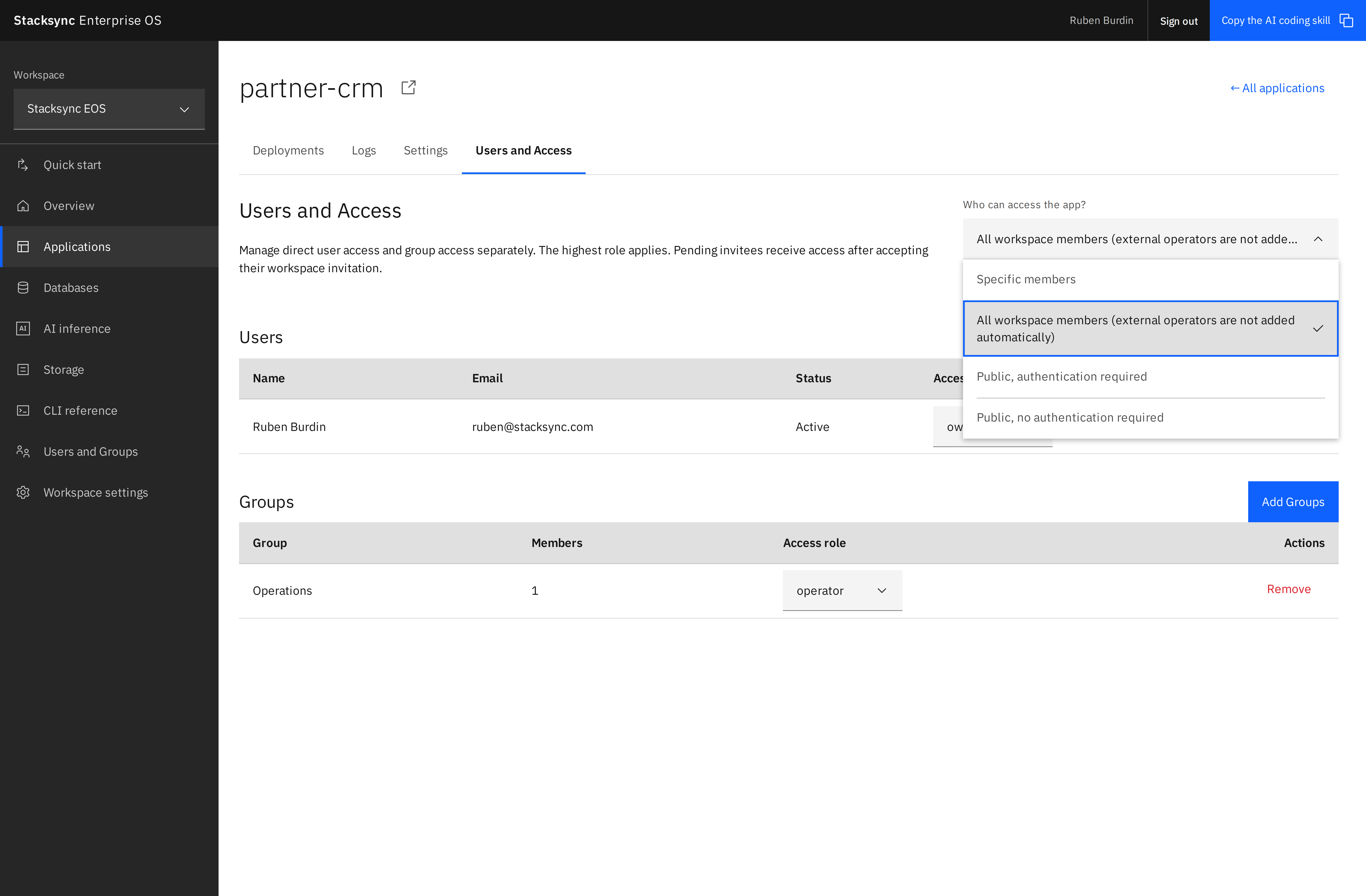
Choose who can use the app
| Policy | Who can open the application |
|---|---|
| Specific members | Active users with an applicable direct or group app grant. External Operators require an explicit Operator grant. |
| All workspace members | Workspace Admins and Members. External Operators are included only when explicitly granted Operator access, directly or through a group. |
| Public, authentication required | Any active EOS account with a valid sign-in credential, including people outside the workspace. |
| Public, no authentication required | Anyone, including visitors who have not signed in. |
New applications created in account workspaces default to All workspace members. Guest apps are public, and claiming their workspace preserves the public policy. Redeploying an existing app preserves its selected policy. Policy changes apply to subsequent requests.
For an internal finance tool, choose Specific members and grant the Finance group Operator access. For a company-wide tool, All workspace members admits the internal workspace automatically. Use a public policy only when the application is intended for that audience.
What a user experiences
- The user opens the application's Stacksync URL.
- If the policy requires authentication, EOS asks the user to sign in when no valid app session exists.
- EOS checks the user's identity against the current app policy and applicable workspace or resource grants.
- An authorized user receives an app-scoped session and can use the app. A user who does not qualify is denied access.
The check happens at the application access boundary. Your application still owns any business-specific permissions inside it, such as which customer records a salesperson may edit.
App use and app management are separate
Operator lets someone use an app without discovering or configuring it in the EOS management interface. Editor and Owner grant broader management capabilities. Public runtime access does not make the application's source, deployment variables, or management settings public.
Likewise, a broad runtime policy can still admit a user after you remove a direct grant. To restrict an application to a particular team, choose Specific members, then manage the relevant user and group grants.
Use groups for team access
- A workspace Admin creates a group under Users and Groups and adds its members.
- The app Owner opens Users and Access → Add Groups.
- Select the group and grant Operator for app use, or a management role if the group needs to build or administer the app.
- Use Specific members when only explicitly shared users and groups should be admitted.
Removing a person from the group removes access inherited through that group. Their direct grants and membership in other authorized groups still apply.
External Operators are useful for partners who should use a particular app without access to the workspace directory. Groups containing External Operators can receive only Operator grants on apps.
Call an authenticated app from a backend
Backend callers can use personal profile bearer keys. These identify a person, and the app checks that person's access against its current policy. Personal keys are different from CLI management tokens, AI inference keys, and storage keys. Keep them server-side.
Managed authentication protects Stacksync application routes. Treat any separately exposed origin or alternate URL as a separate infrastructure access boundary.
Continue with access and permissions for the full role model.