
See Stacksync in action with a solution architect. Book a demo ↗

Authorize Campfire Connection

This guide explains how to connect your Campfire environment to Stacksync.

1. Generate an API Key in Campfire

  1. Login to Campfire
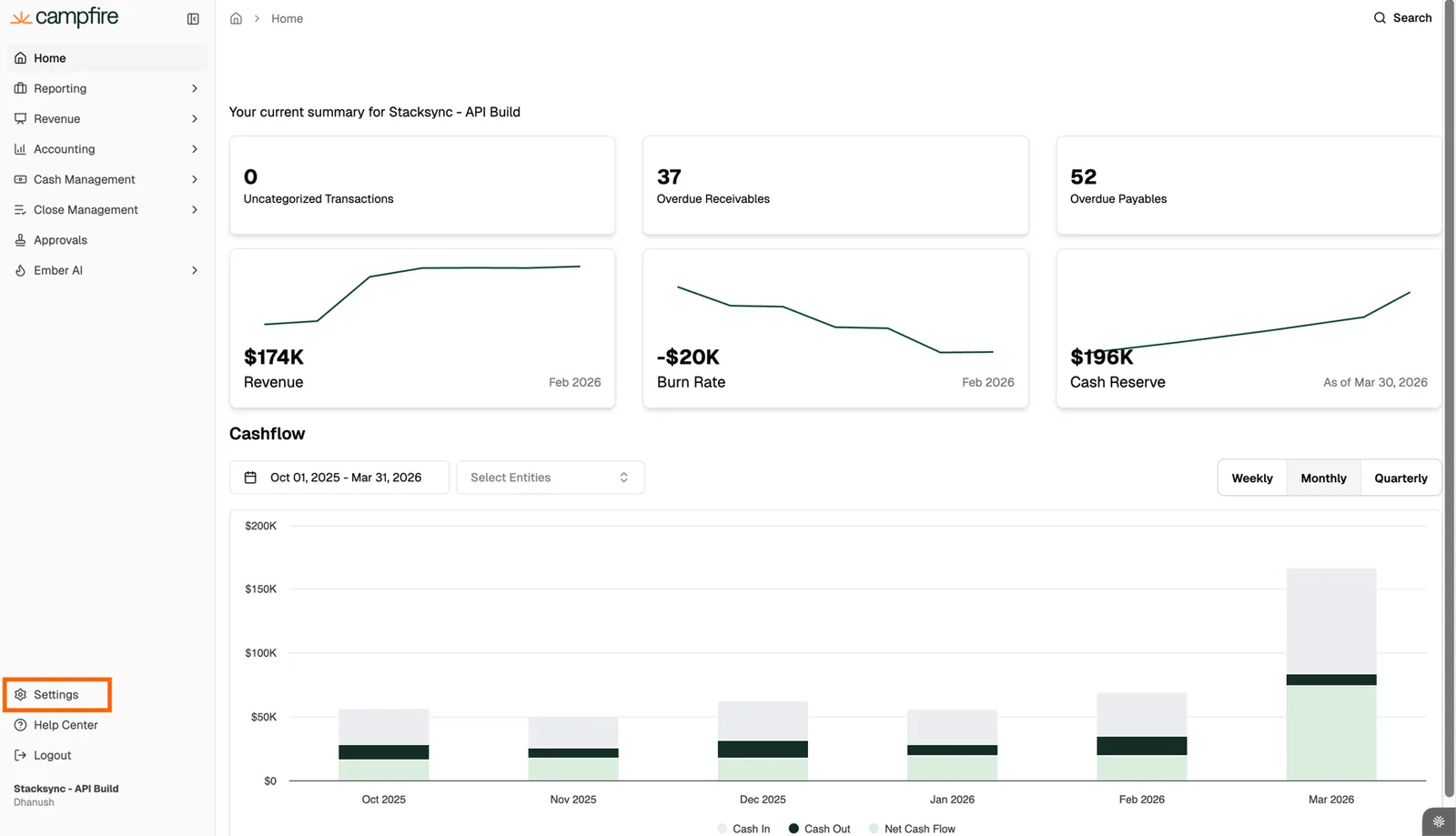
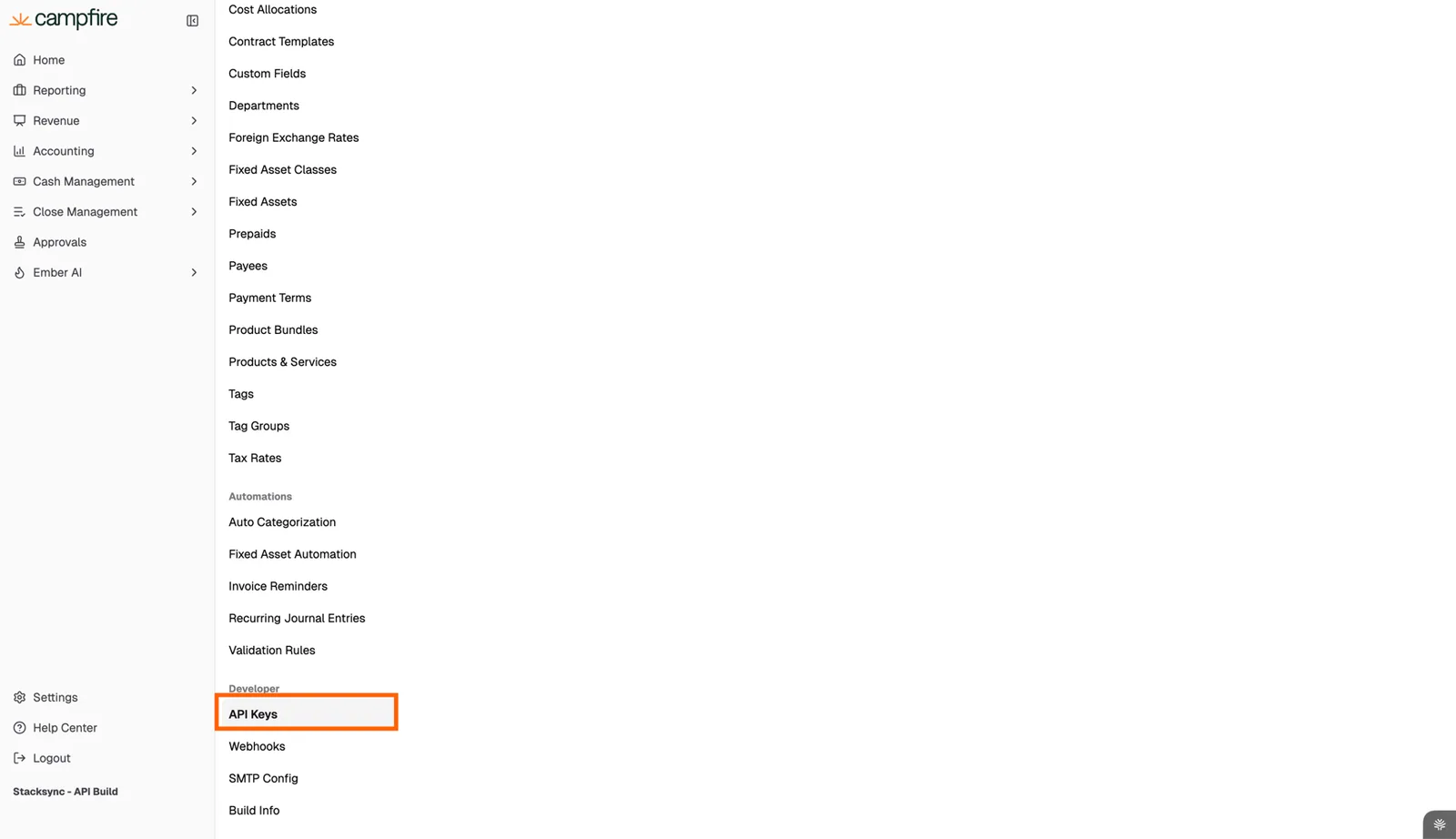
  2. Navigate to Setting -> API Keys
Campfire home dashboard with the "Settings" item highlighted at the bottom of the left sidebar.
Campfire Settings menu with "API Keys" highlighted under the Developer section.
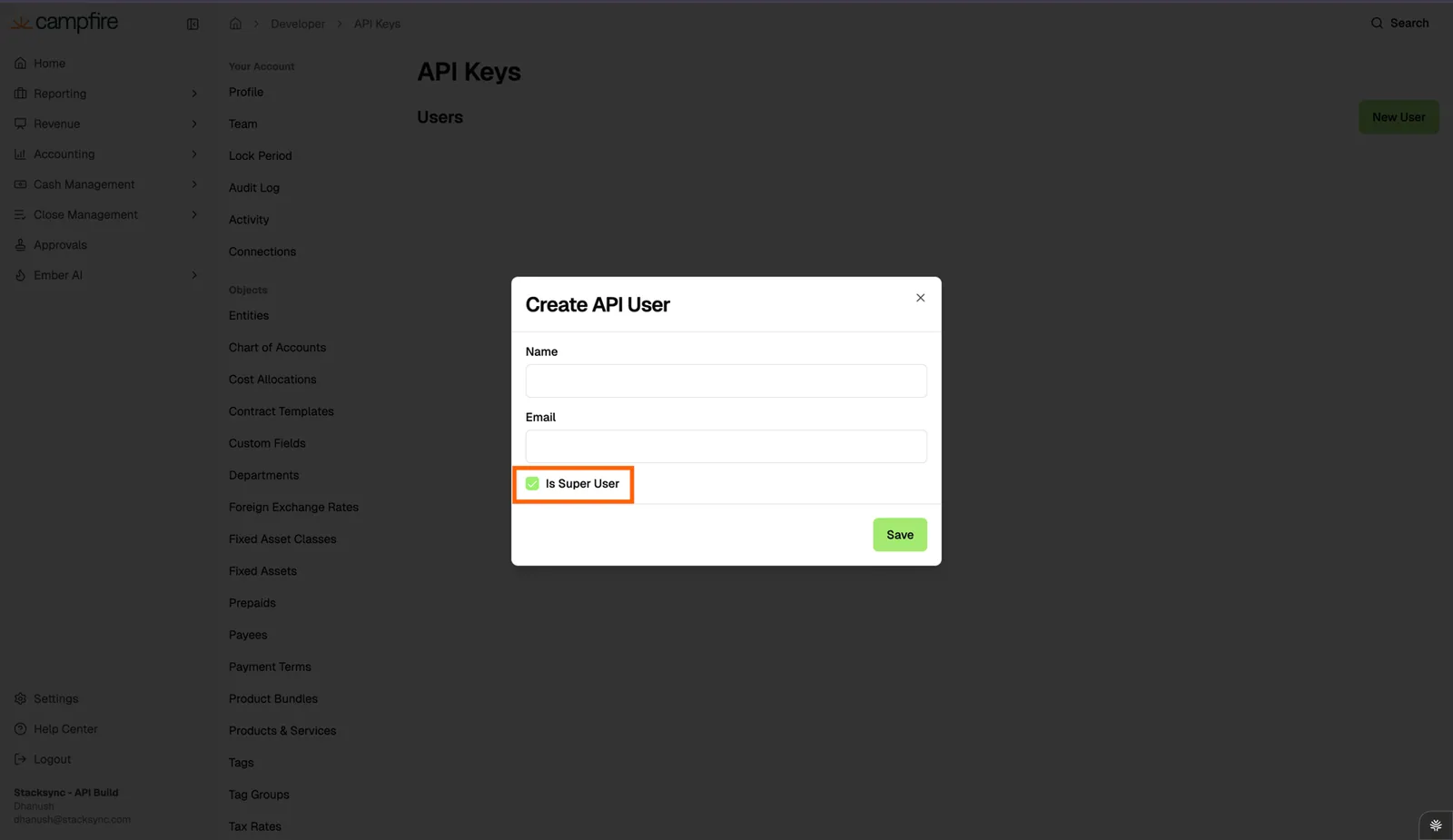
  1. Click on New User and Create a API user with a Super User Role.
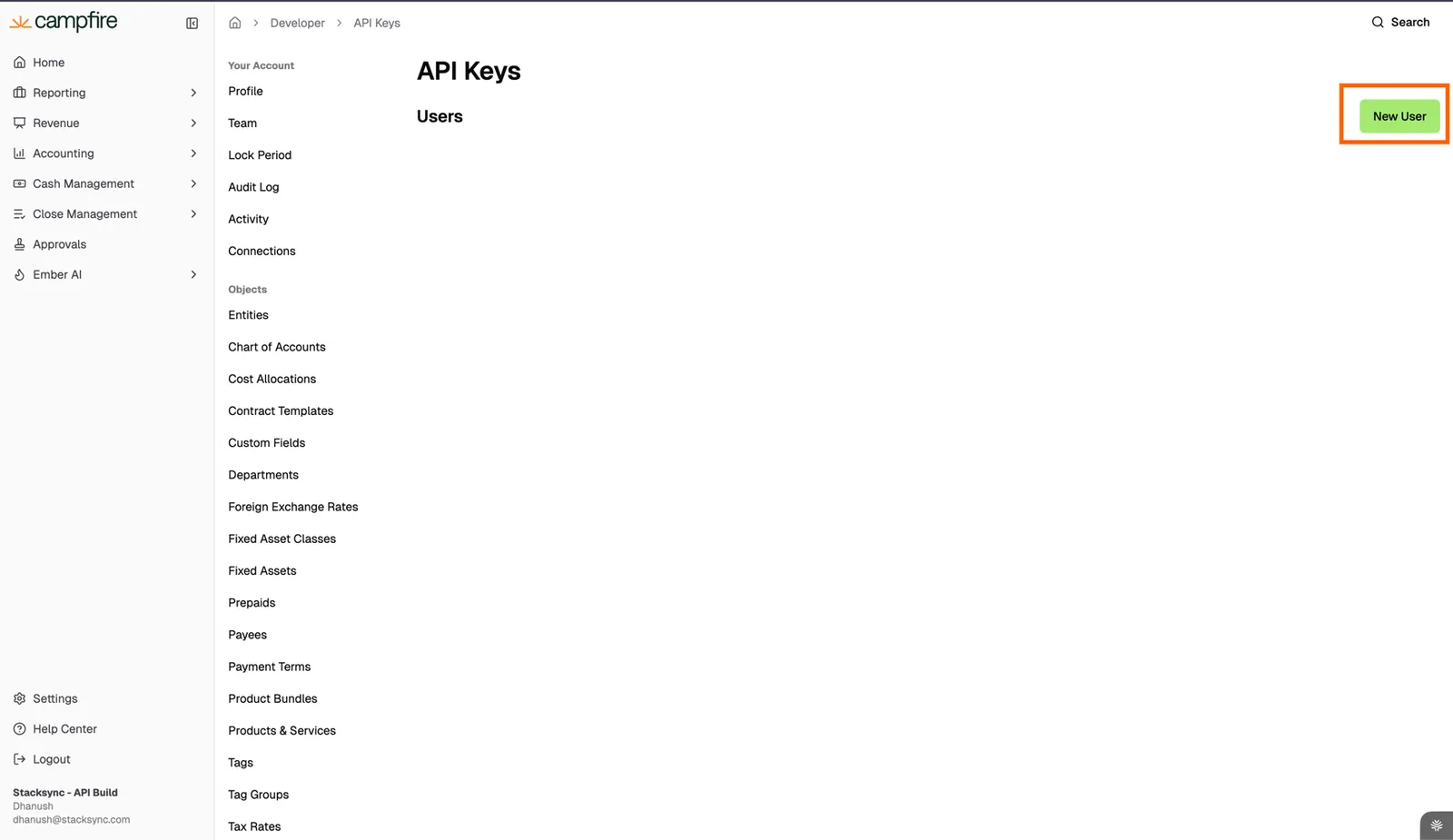
Campfire API Keys page with the "New User" button highlighted.
Campfire "Create API User" dialog with Name and Email fields and the "Is Super User" checkbox highlighted.
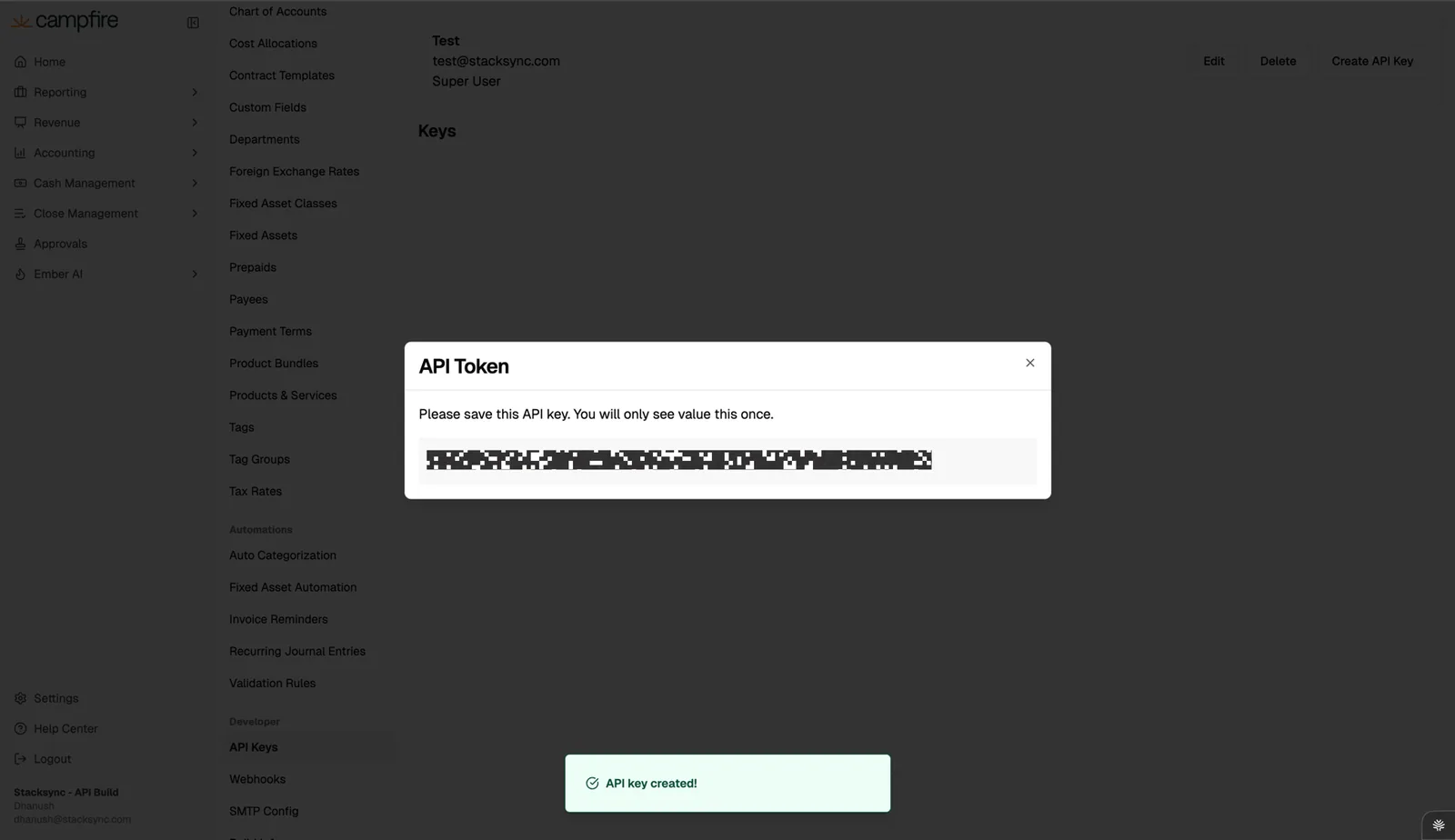
  1. Click on Create API Key and Copy the API Key secret generated.
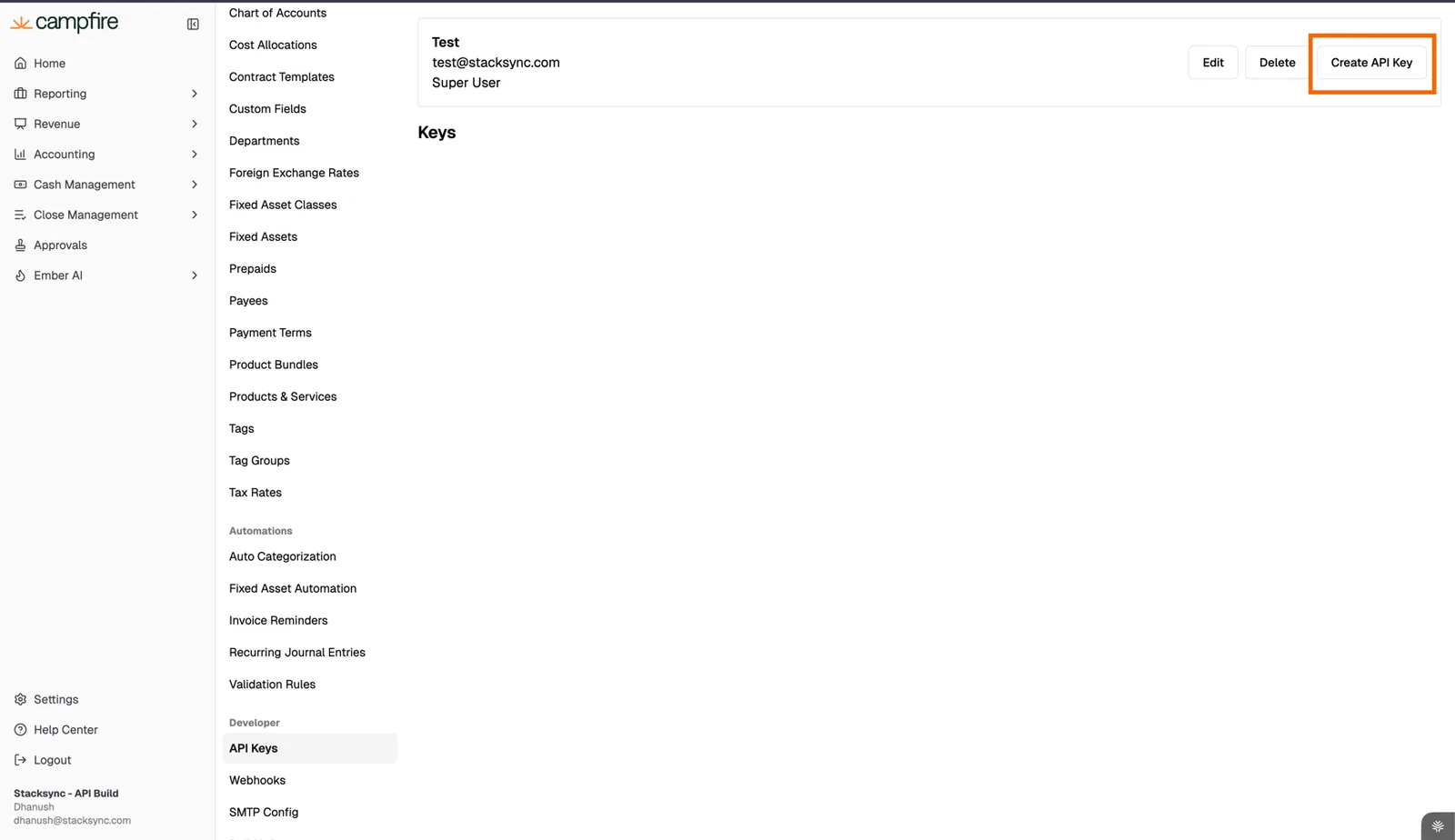
Campfire API user "Test" (Super User) with the "Create API Key" button highlighted.
Campfire "API Token" dialog showing the masked new API key, to be copied once, with an "API key created!" notice.

2. Create a Connection in Stacksync App

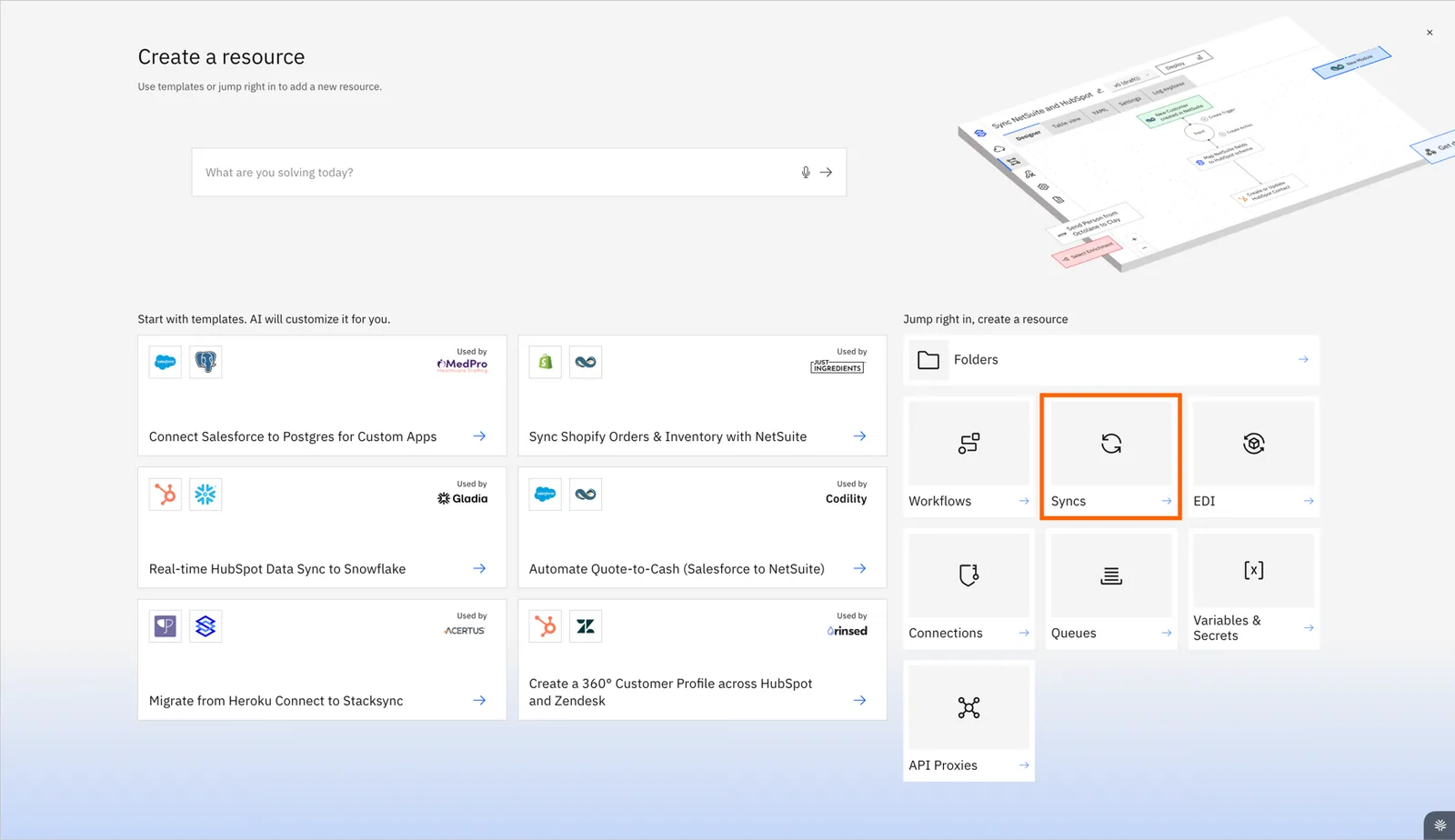
  1. Click Create Resource
  2. Select Syncs
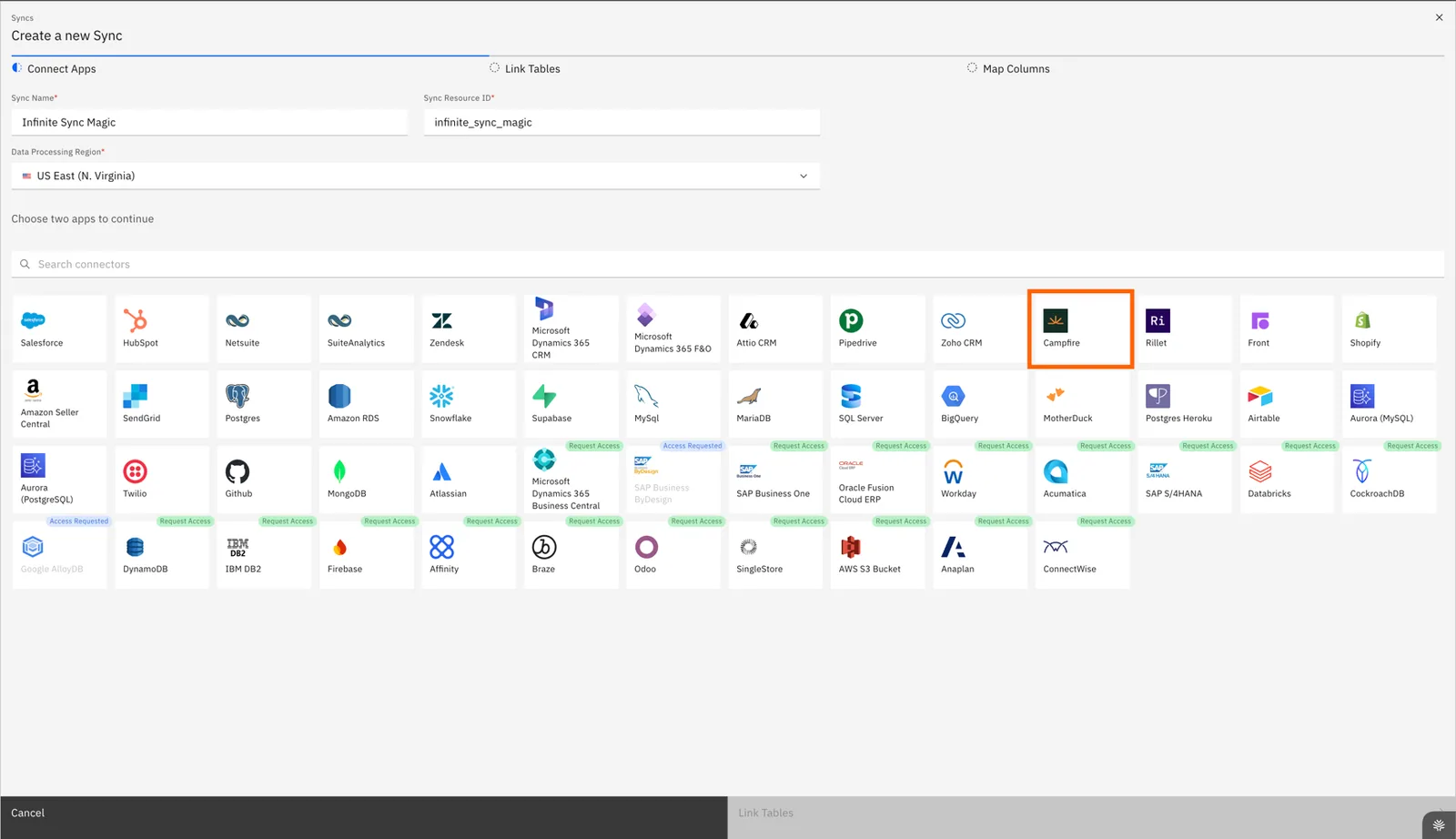
  3. Choose the Campfire connector
Stacksync "Create a resource" screen with templates on the left and the "Syncs" tile highlighted under "Jump right in".
Stacksync "Create a new Sync" Connect Apps step with the connector grid and the Campfire tile highlighted.

This opens the authorization flow.

3. Complete the Connection Setup

  1. Provide the Campfire API key generated in Step 1.
  2. Follow the on-screen steps to finalize the connection
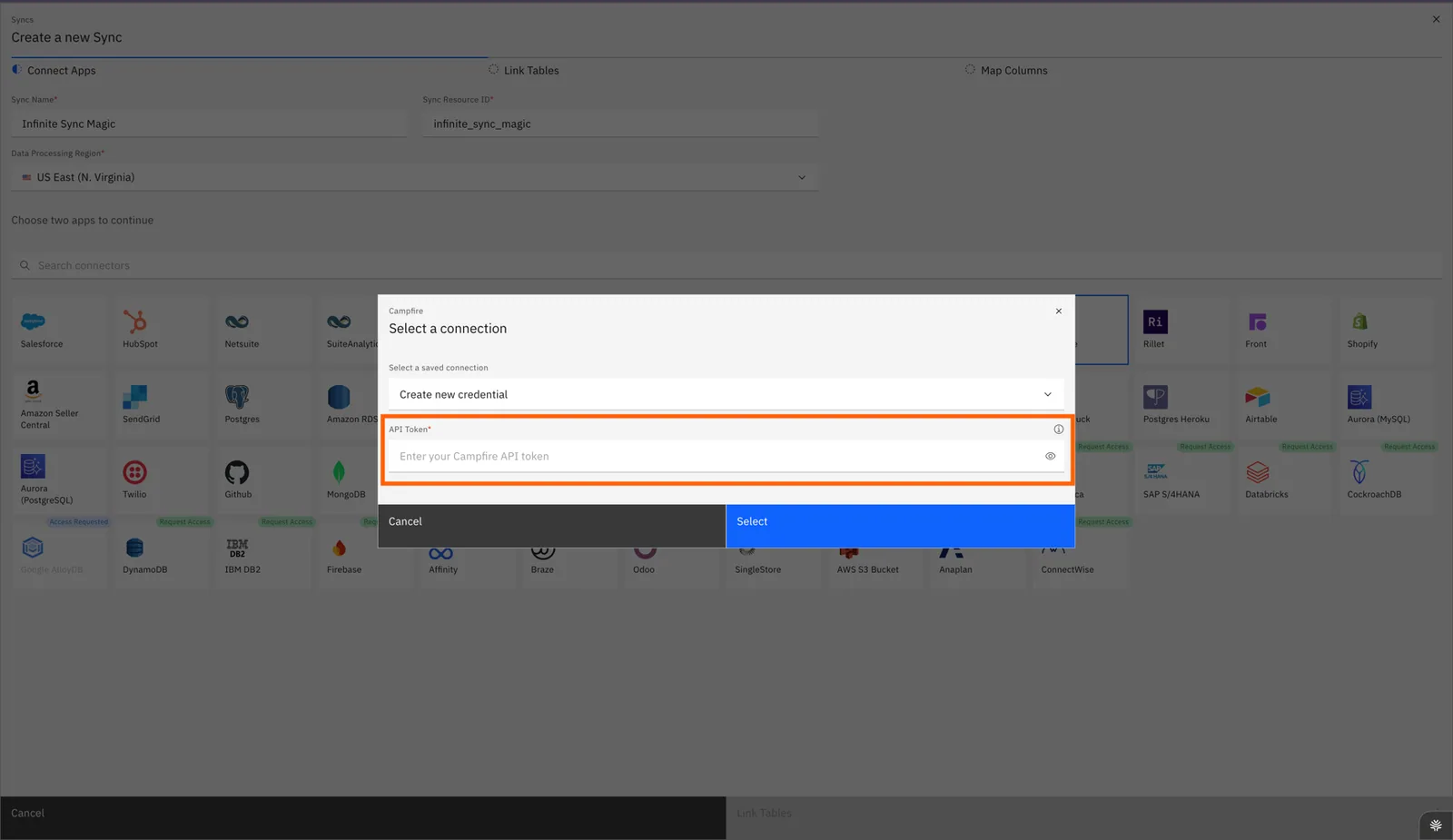
Stacksync Campfire "Select a connection" dialog with "Create new credential" chosen and the "API Token" field highlighted.

If you have any questions or run into any blockers, reach out anytime at hello@stacksync.com and the Stacksync team will be happy to help.

On this page