

Authorize HubSpot
Authorize your HubSpot app and sync data with Stacksync
You need to be 'Super Admin' in HubSpot to be able to grant Stacksync access to HubSpot.
This is because only the 'Super Admins' have the OAuth scope which is required to connect your HubSpot to an external service such as Stacksync (more info here).
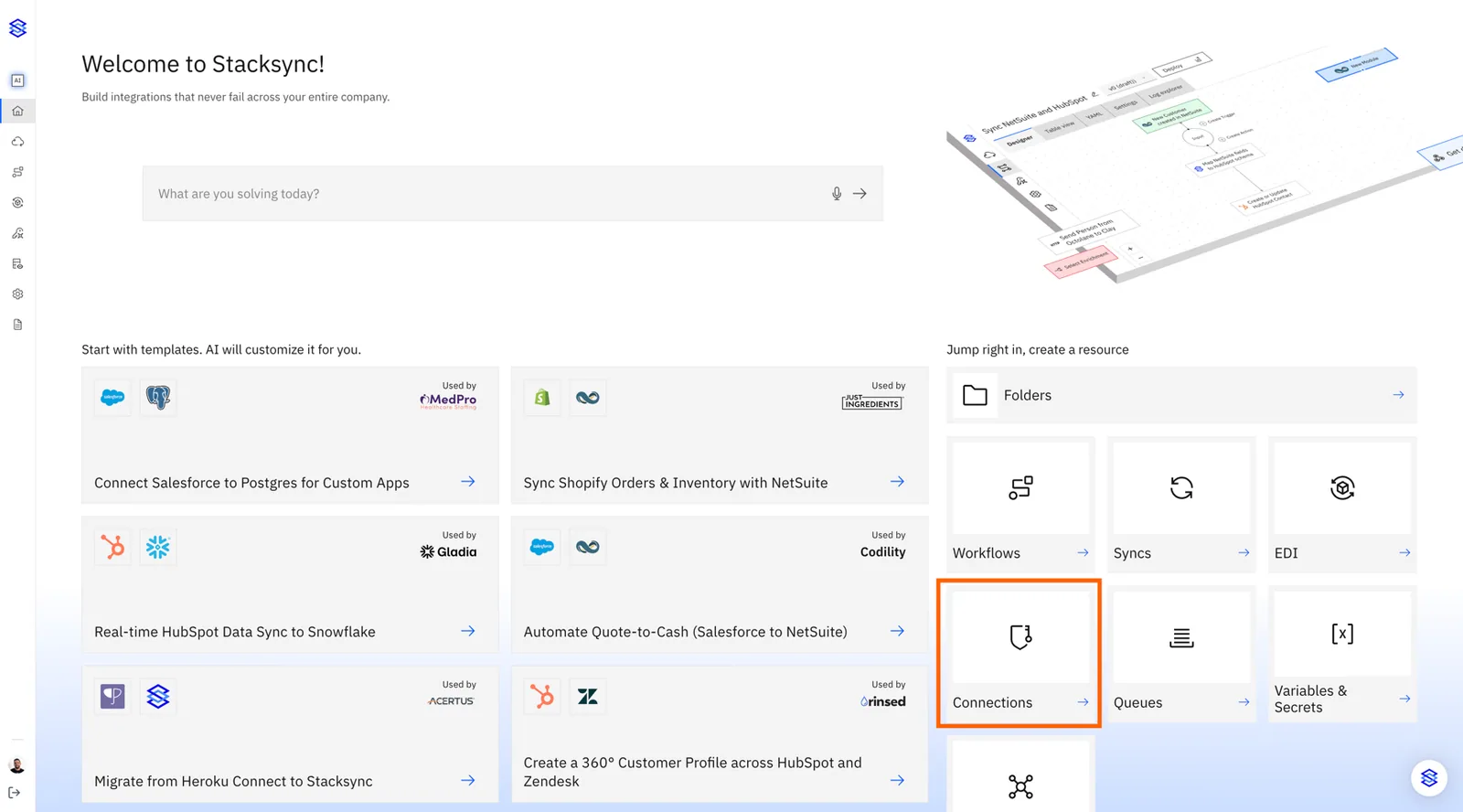
1. Click the connection tile
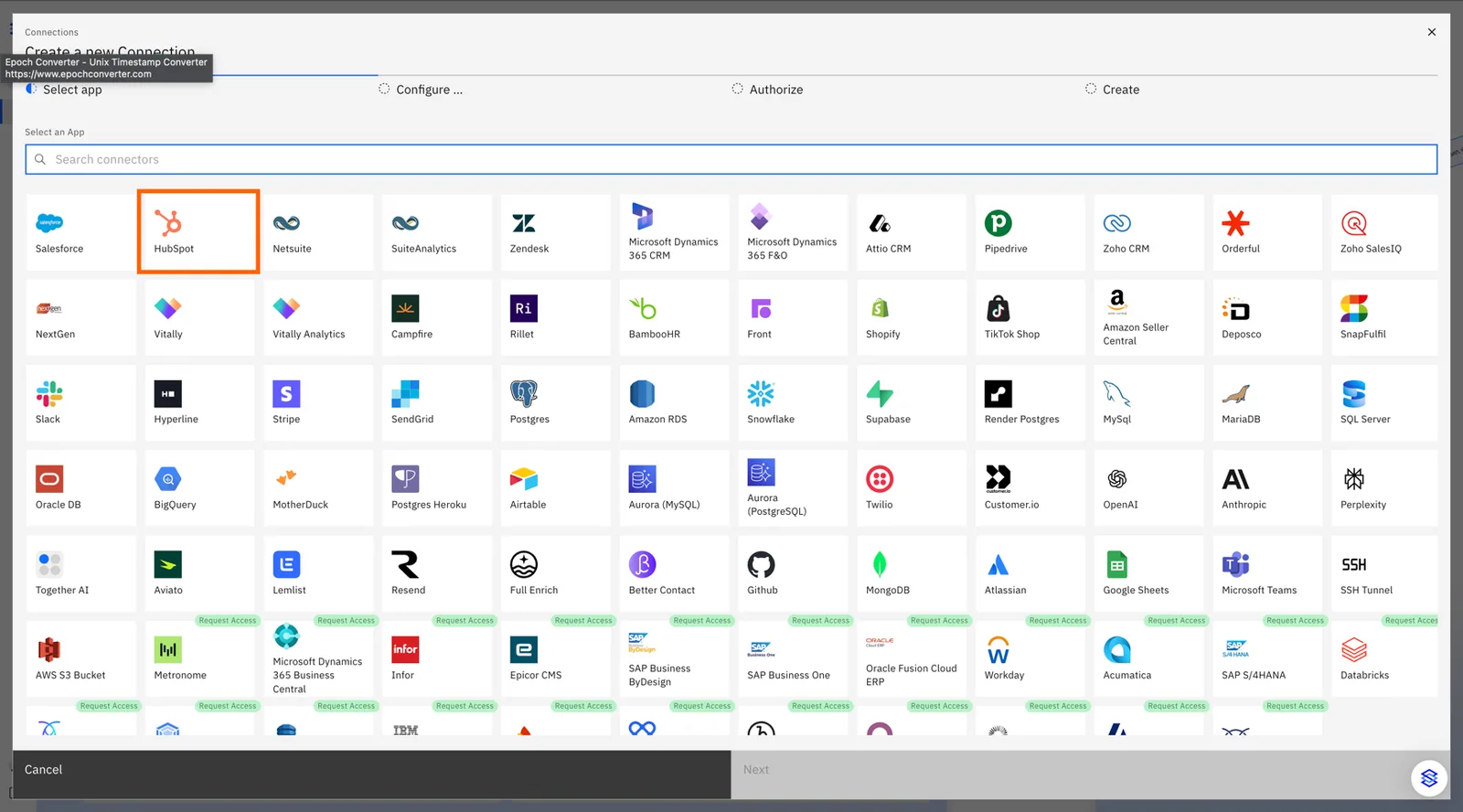
2. Select the HubSpot connector
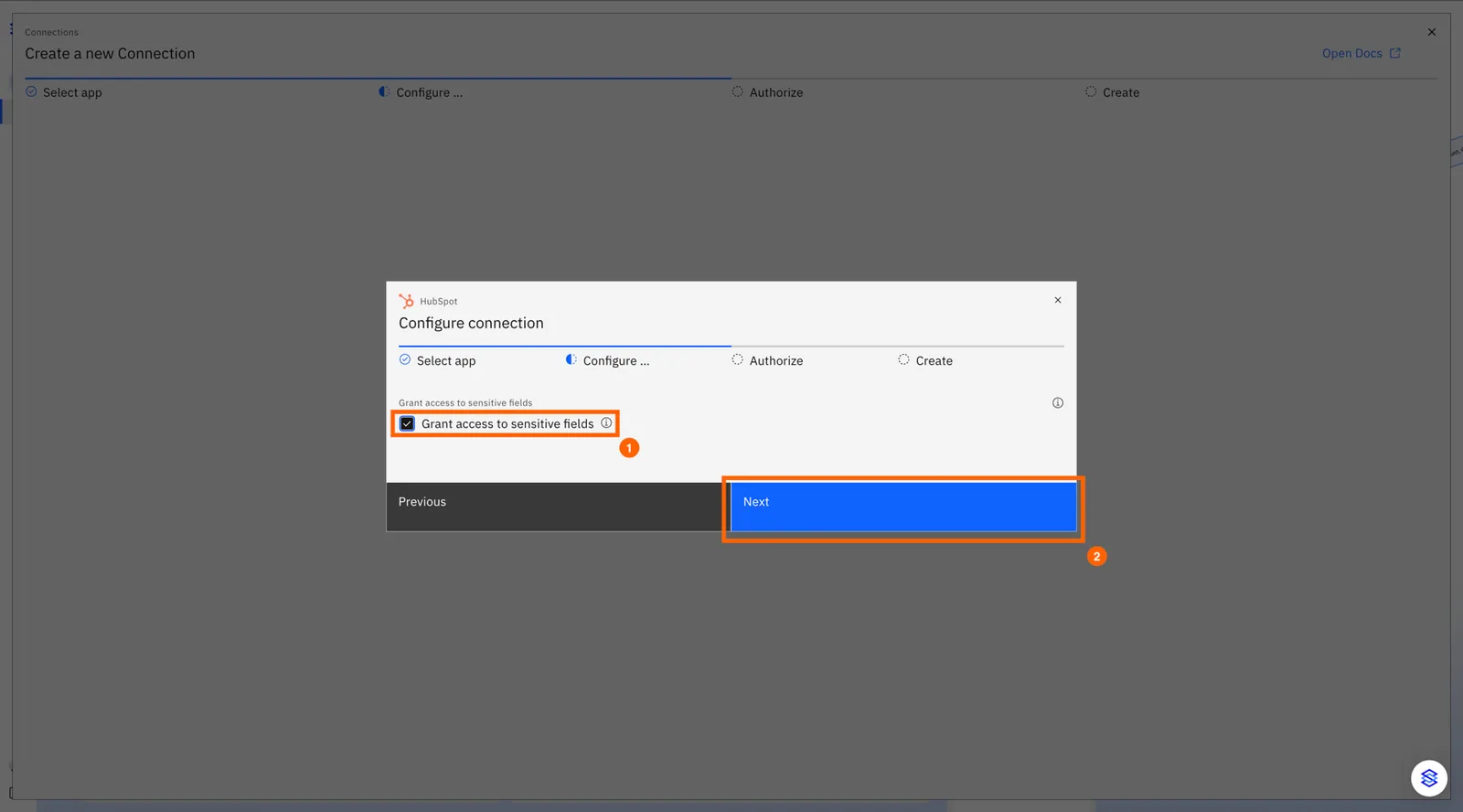
3. Optional: Check the Grant access to sensitive fields checkbox.
This will allow our system to read sensitive and highly sensitive fields from your hubspot account
4. Choose the hubspot account you want to use
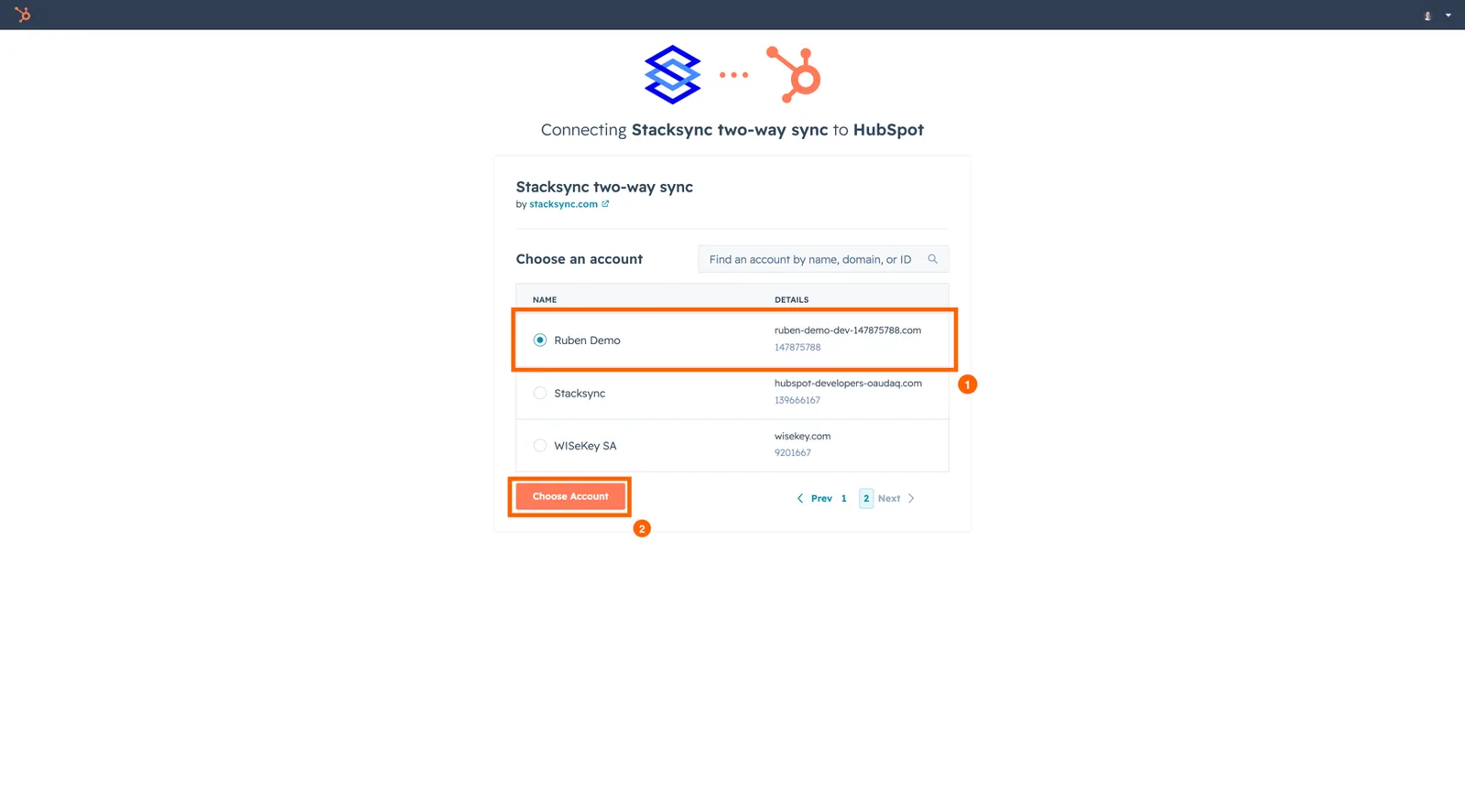
5. Authorize access to stacksync
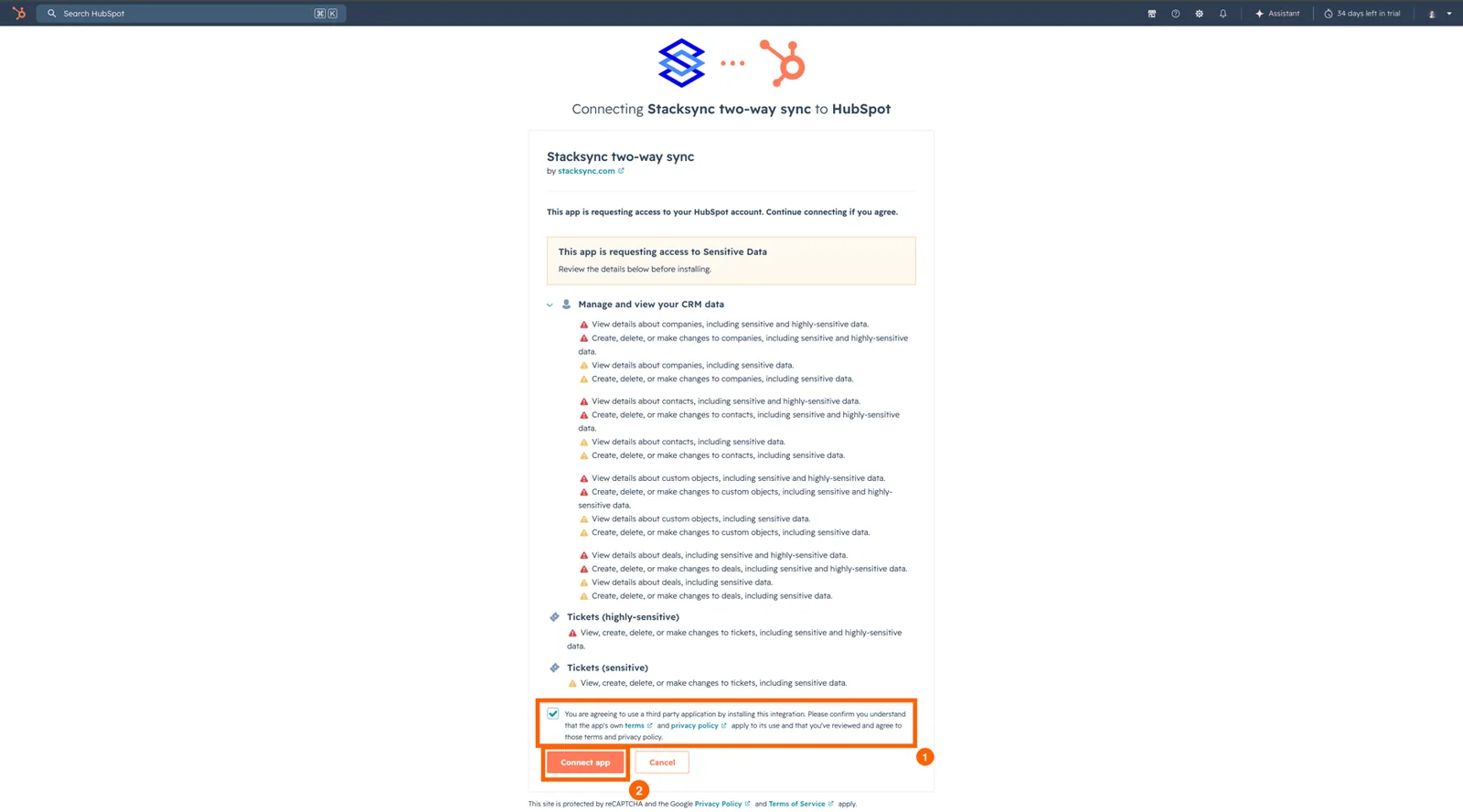
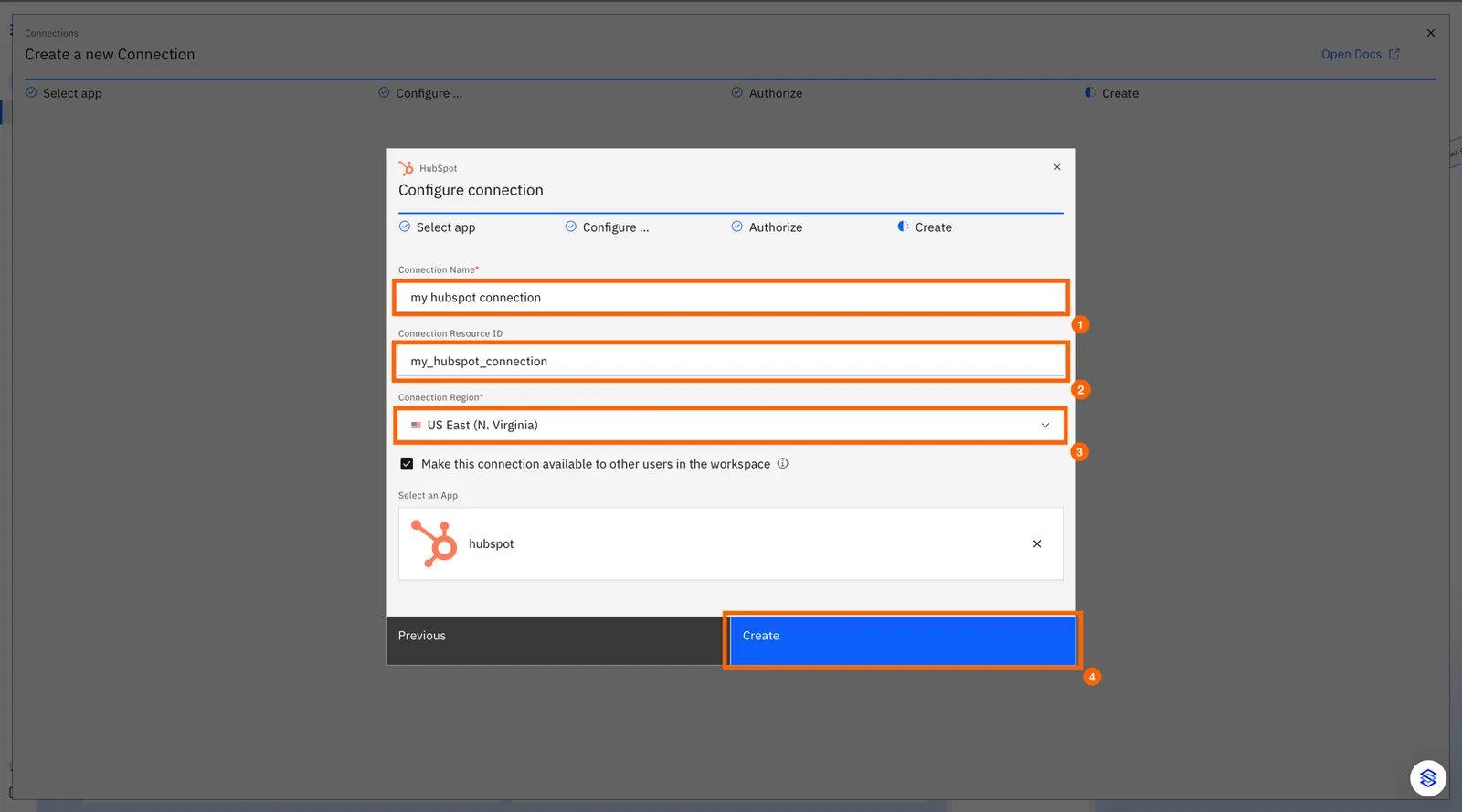
6. Configure your connection on stacksync
6.1 Choose your connection name
6.2 Choose your connection resource id. This is auto generated based on the name - changing it is optional.
6.3 Choose the region you wish to create your connection in. Resources in one region cannot access resources created in other regions
That's it! Your HubSpot instance is connected 🎉