
See Stacksync in action with a solution architect. Book a demo β†—

Authorize Zoho

Authorize your Zoho app and sync data with Stacksync

Connecting to Zoho is done without any coding required in a few steps.

  1. In Stacksync, click on "Create new sync".
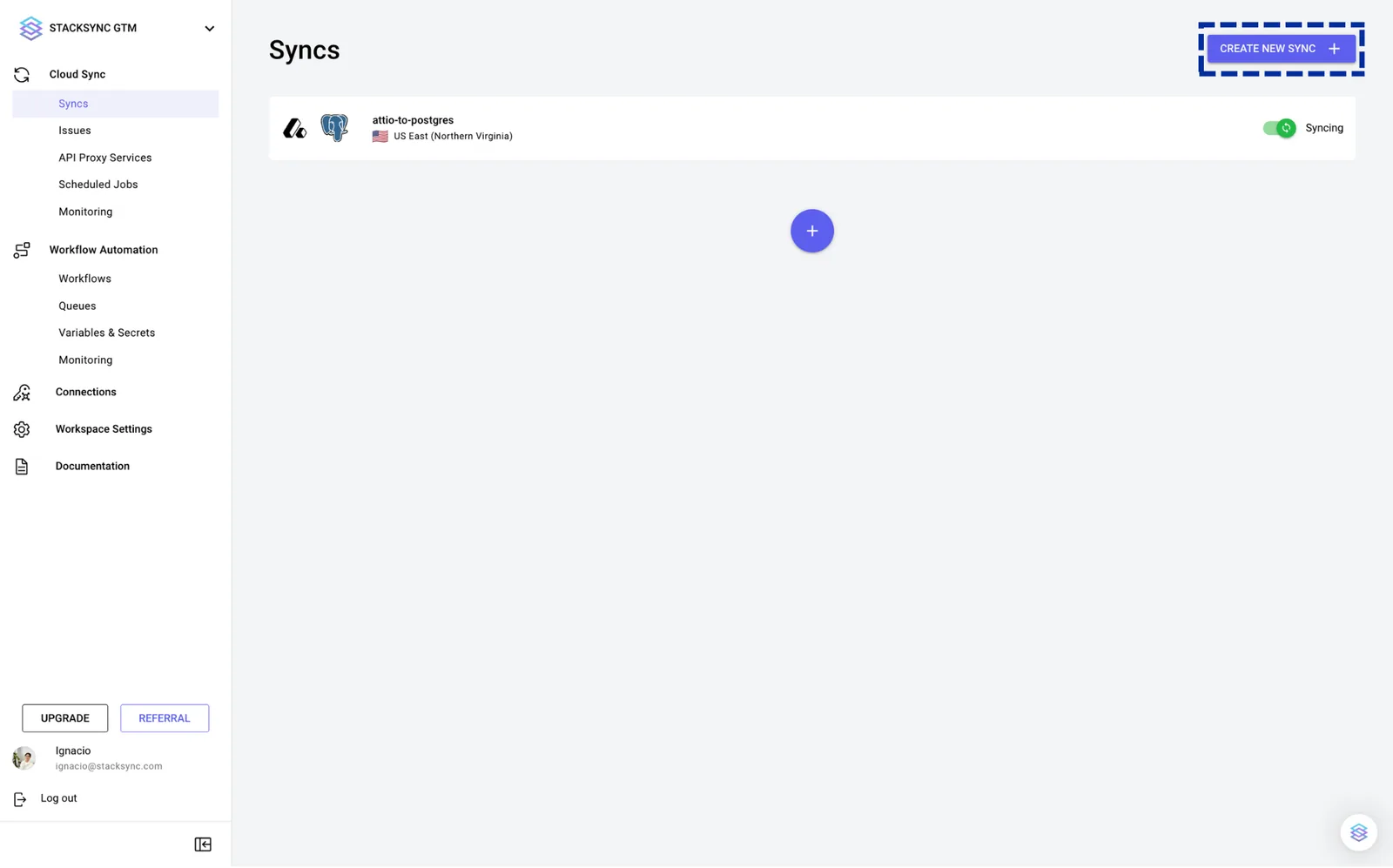
    Stacksync Syncs page listing an existing sync, with the "Create New Sync" button highlighted in the top right.
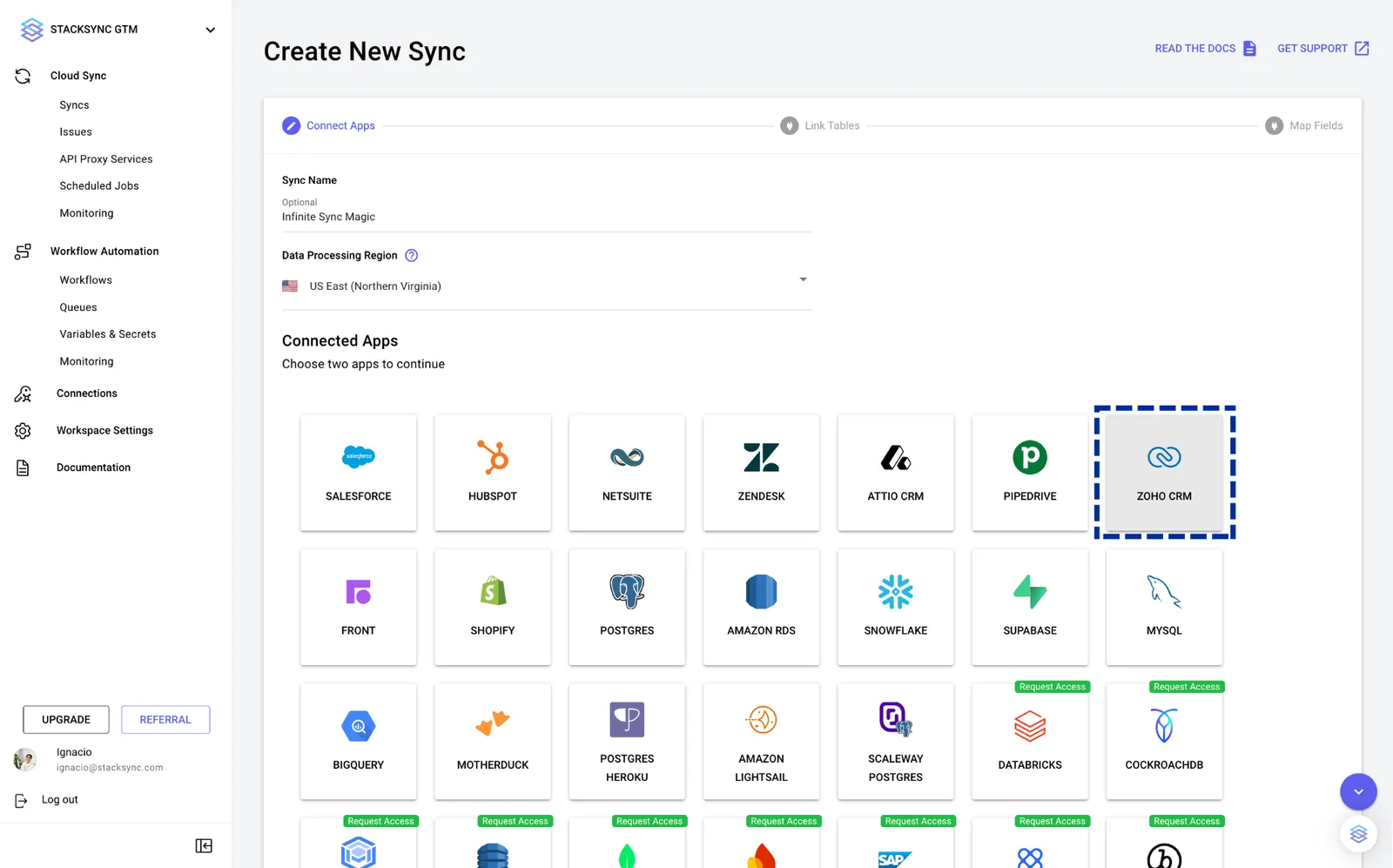
  2. Select "Zoho CRM".

    Stacksync Create New Sync page, Connect Apps step, with the Zoho CRM app tile highlighted.
  3. A new tab will open. Log in to Zoho and authorize Stacksync.
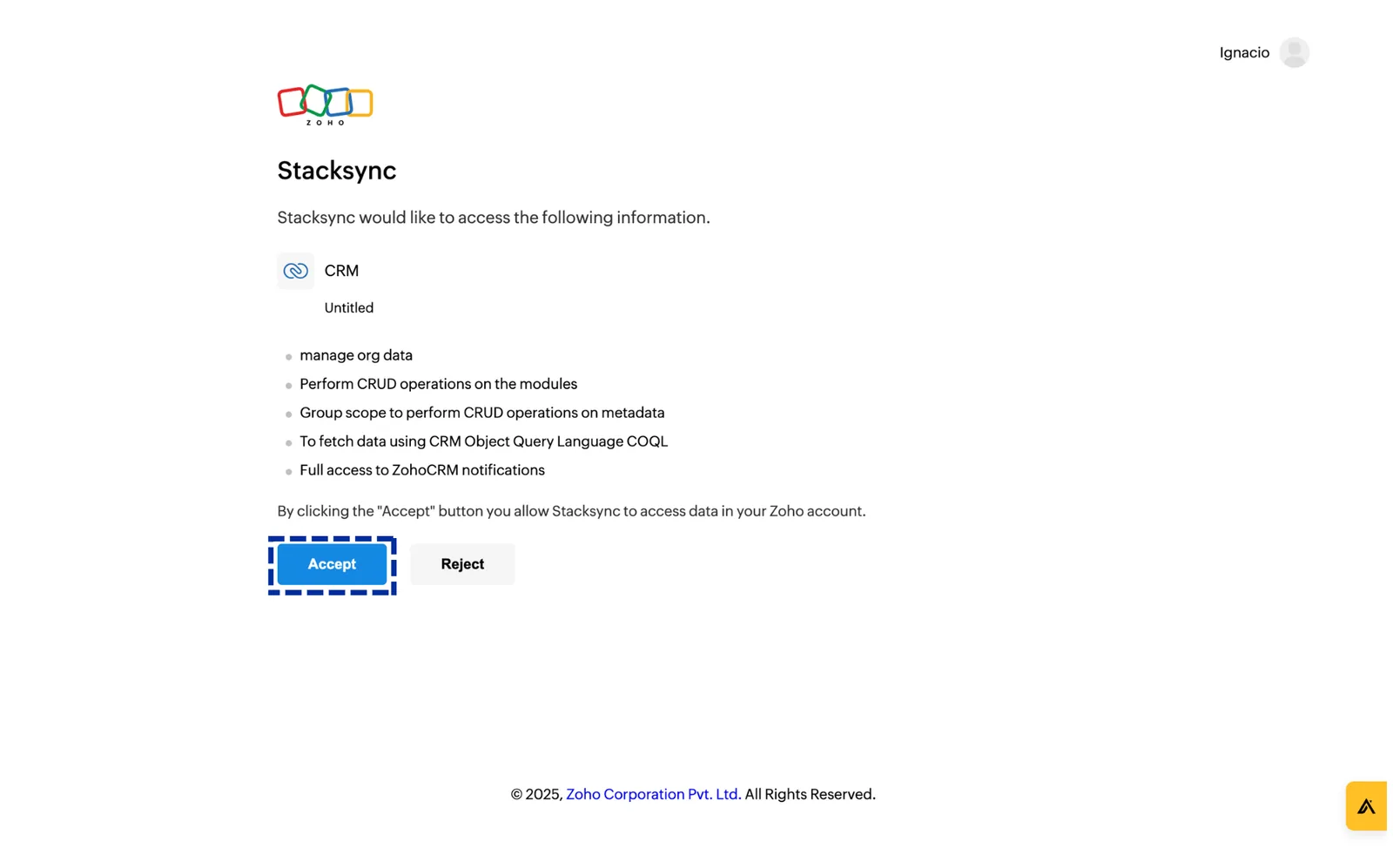
    Zoho consent screen listing CRM permissions requested by Stacksync, with the "Accept" button highlighted.
  4. Connect your database and click continue.

  5. Map which Zoho objects to sync. Choose between an existing table in your database, or generating a new one.
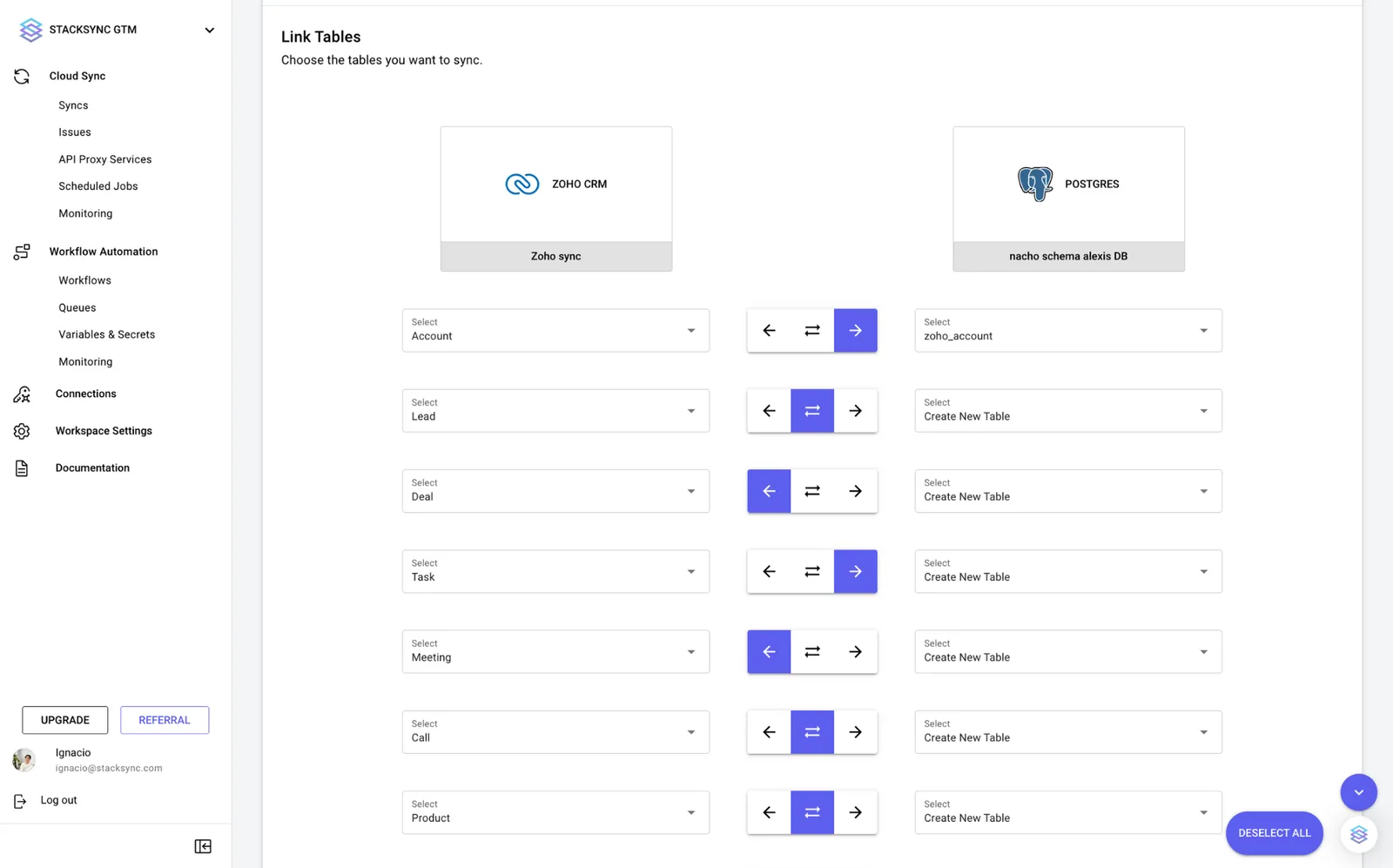
    Stacksync Link Tables step mapping Zoho CRM objects like Account, Lead and Deal to Postgres tables with sync direction arrows.
  6. Finally, link the fields to sync between Zoho and your target database.
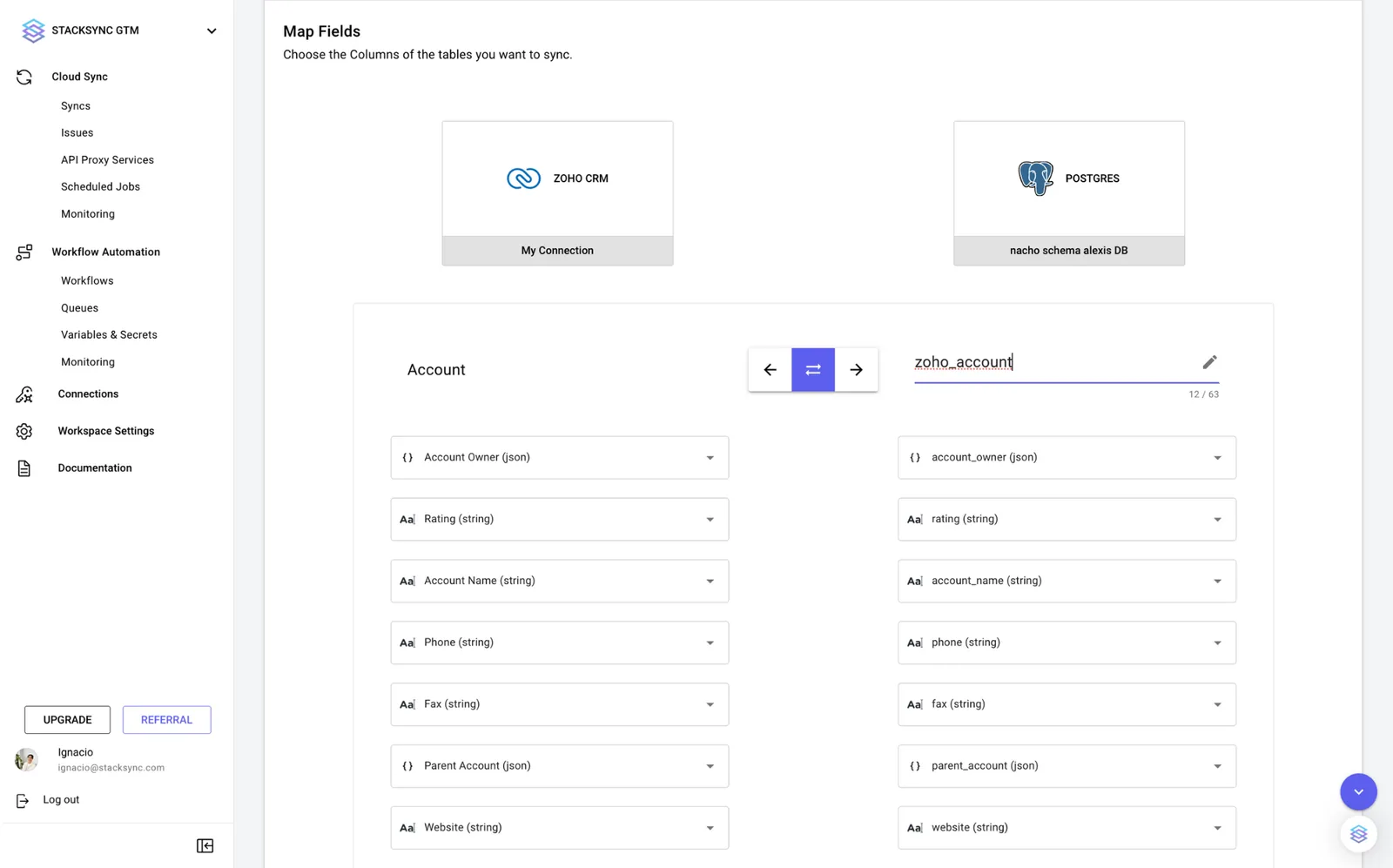
    Stacksync Map Fields step linking Zoho CRM Account fields such as Account Name and Phone to Postgres zoho_account columns.
  7. Click "Create sync". Click on the toggle to activate your sync. Data is now flowing!