

Create an Acumatica Connected Application
Create an Acumatica connected application for Stacksync.
Create a connected application to generate the credentials Stacksync requires.
Prerequisites
Before you begin, confirm that you have:
- Administrative access to Acumatica
- Permission to manage connected applications
- Your Acumatica instance URL
1. Open the Connected Applications screen
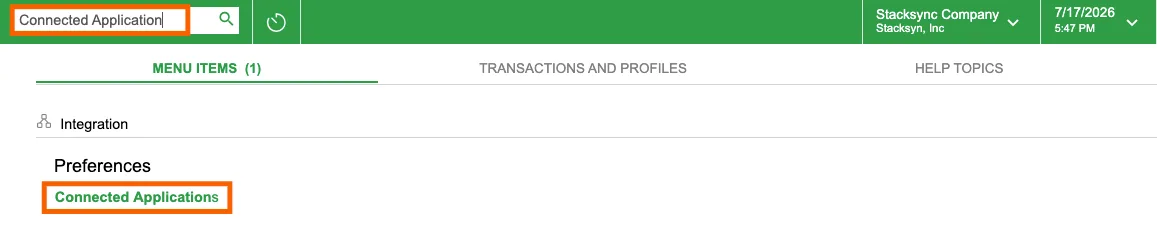
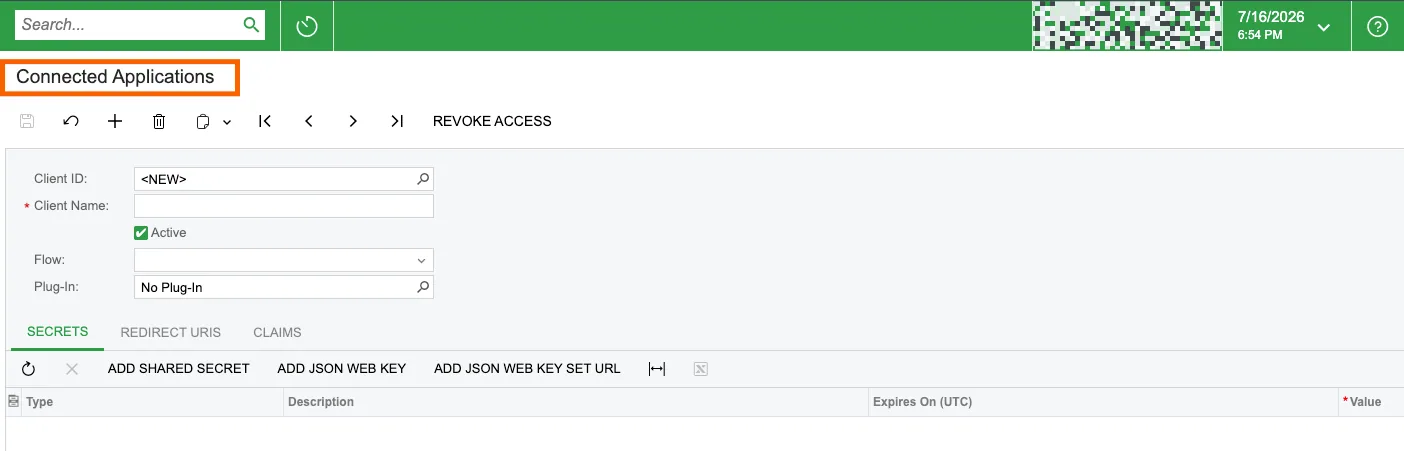
Sign in to Acumatica. Use the search bar to find Connected Applications.
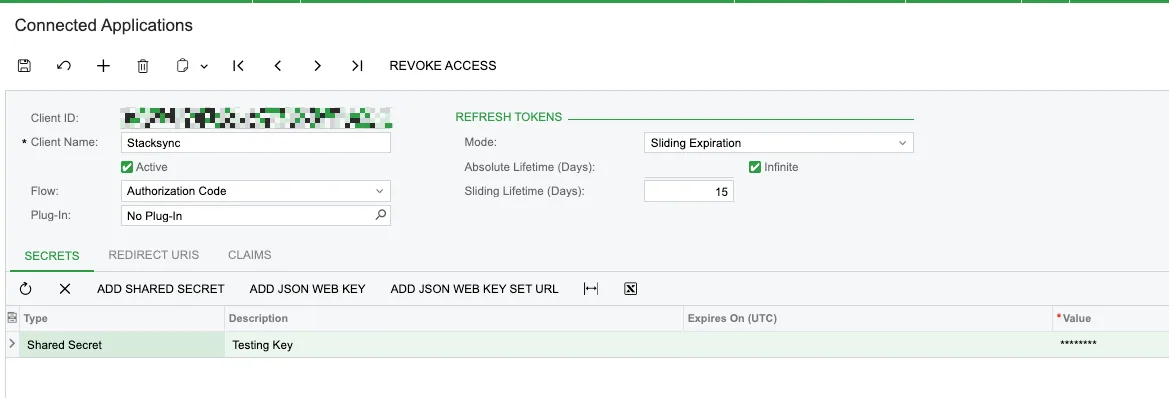
2. Create a connected application
Create a new application record.
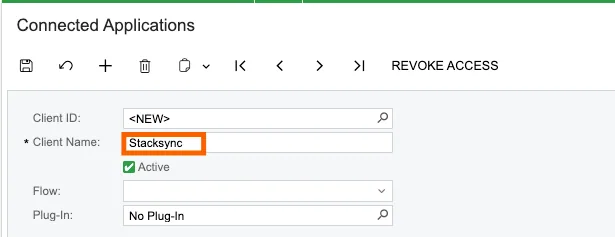
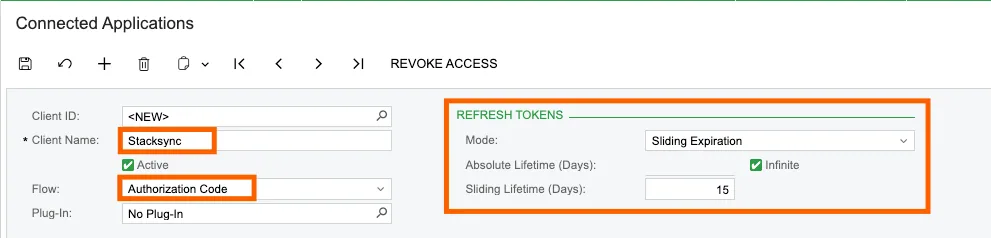
Enter a recognizable name, such as Stacksync.
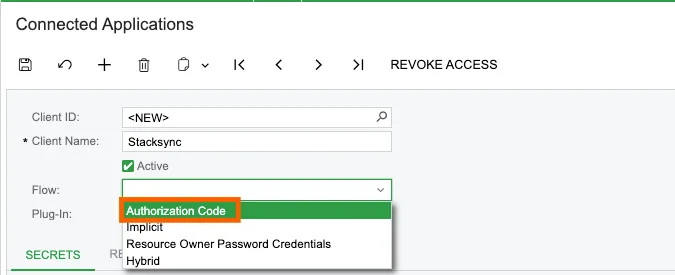
Set Flow to Authorization Code.
Configure the token expiration:
- Set Mode to Sliding Expiration.
- Set Absolute Lifetime (Days) to
Infinite. - Set Sliding Lifetime (Days) to 15.
3. Configure the redirect URI
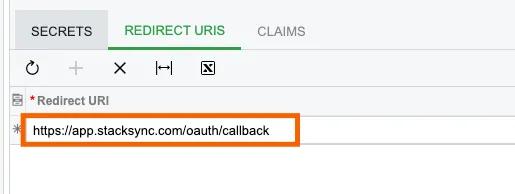
Add this redirect URI:
https://app.stacksync.com/oauth/callbackEnter the redirect URI exactly. An incorrect value prevents authorization.
4. Create a client secret
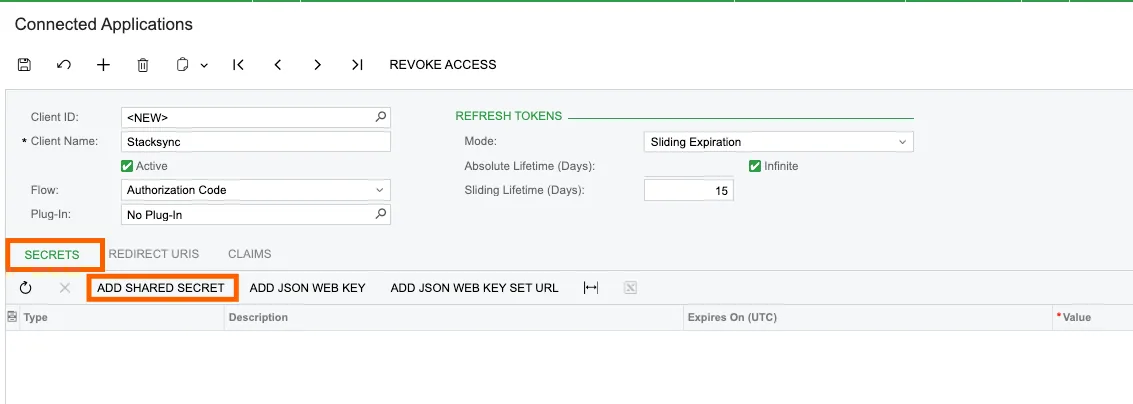
Open the SECRETS tab. Add a new shared secret.
In the Add Shared Secret dialog:
- Enter a recognizable description.
- Leave Expires On (UTC) blank.
- Copy and store the Value securely.
- Click OK.
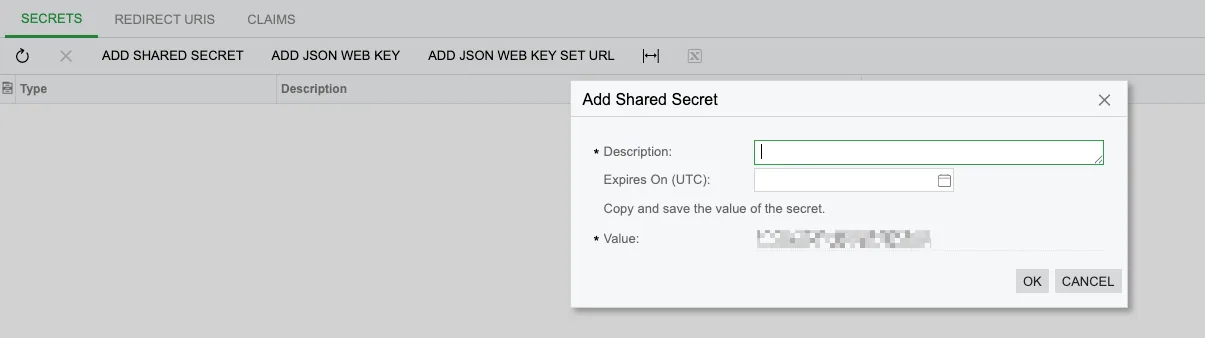
Copy the secret before closing the dialog. Acumatica does not show it again.
5. Save the application
Save the connected application. Acumatica then generates the Client ID.
Use these values to connect Acumatica to Stacksync:
- Acumatica instance URL
- Client ID
- Client Secret
If you have any questions or run into any blockers, reach out anytime at hello@stacksync.com and the Stacksync team will be happy to help.