


Create a Postgres Database with Supabase (free forever)
Create your free Postgres database in 4 minutes with Supabase 😍
Supabase is an open-source backend-as-a-service that provides developers with a database built on top of PostgreSQL. This guide shows you how to create your database for free in the Supabase cloud.
Create a Postgres Database with Supabase Cloud in 4 minutes!
Let's first go to supabase.com
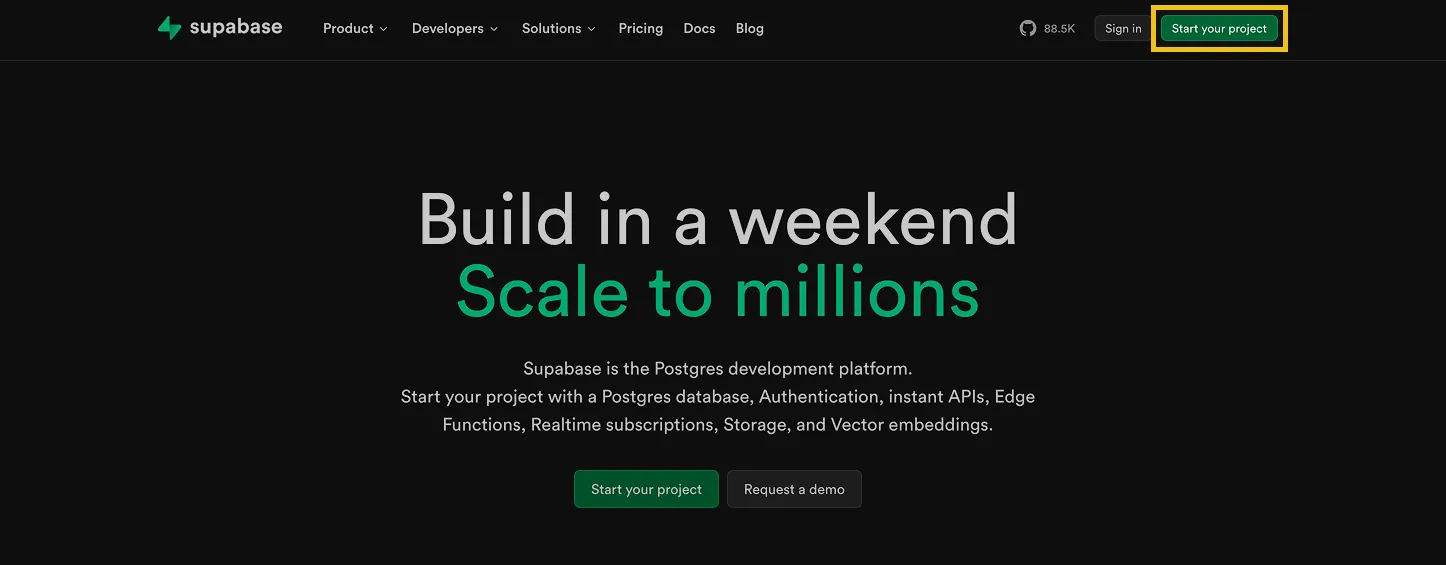
1. Click "Start your project"
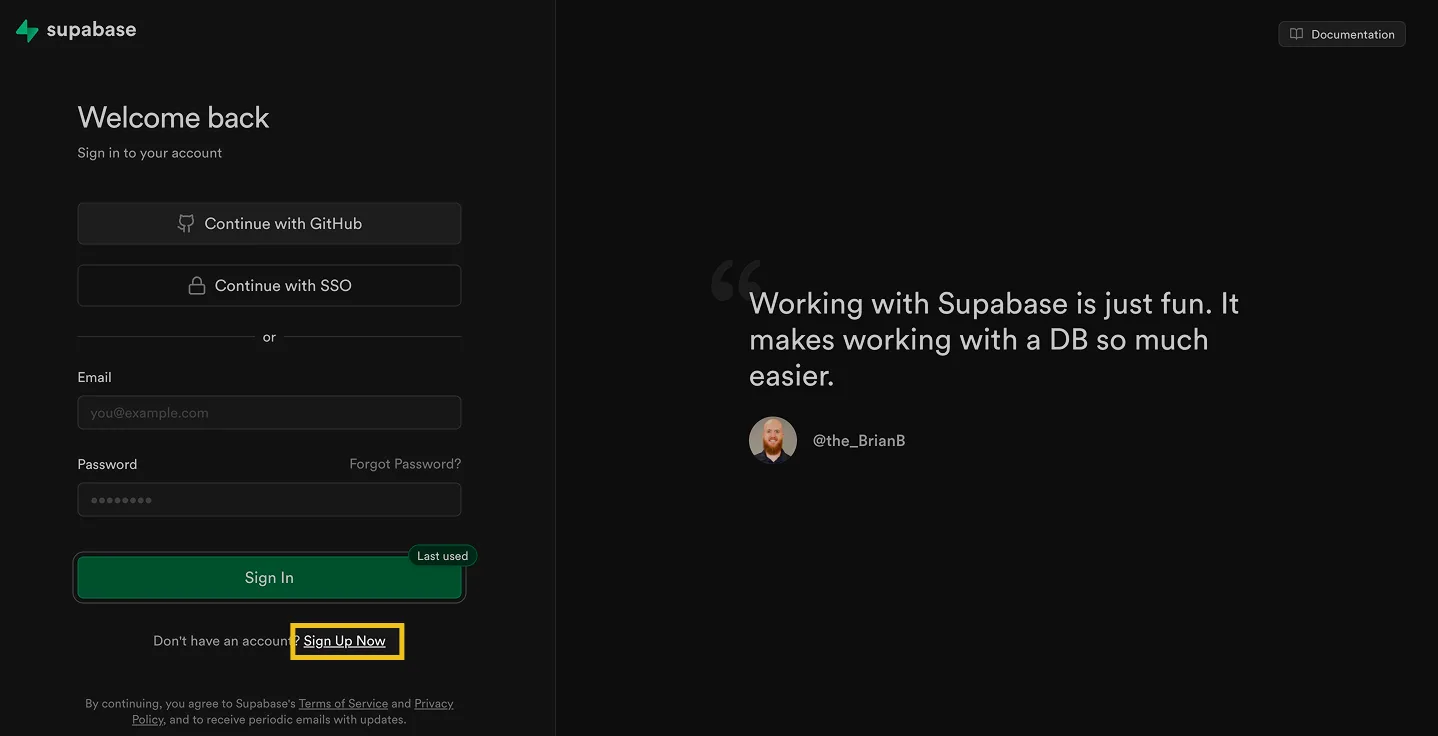
2. Click "Sign Up Now" to create a new account or "Sign in" to log in to an existing account
3. Switch to app.supabase.com
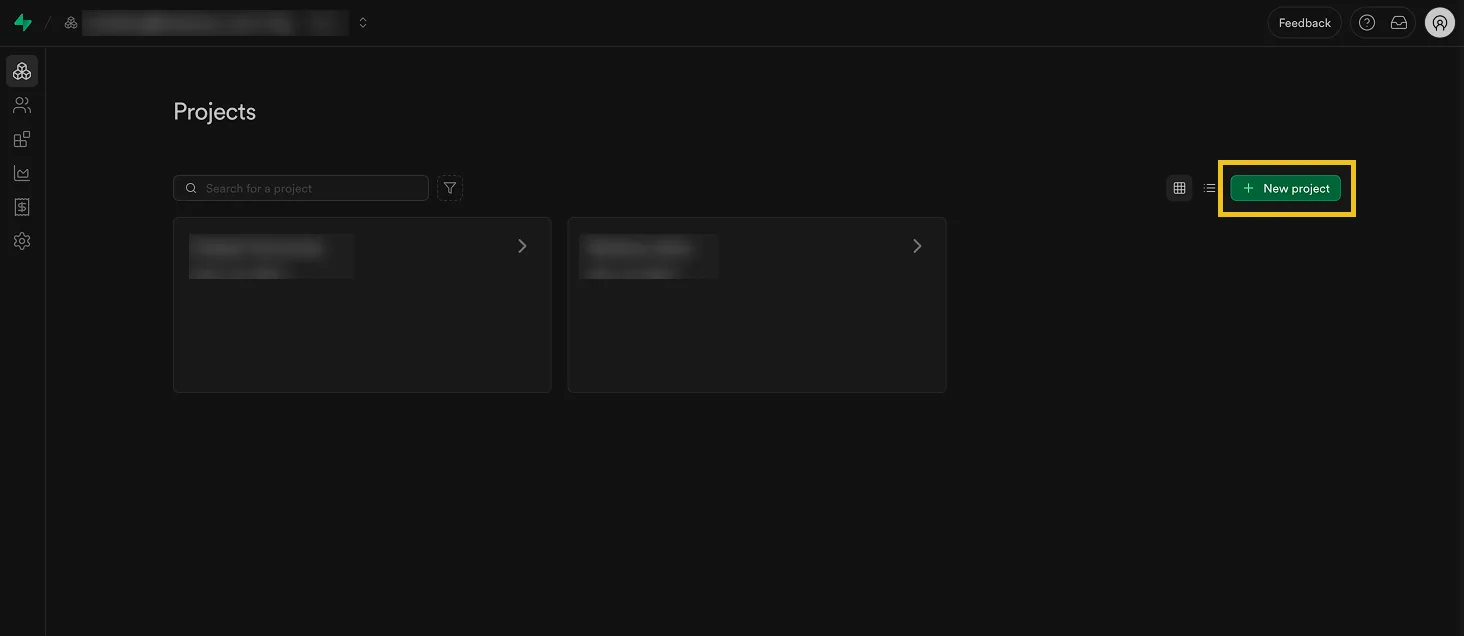
4. Click "New project" and select your organization (typically the default one)
5. Fill in "Project name"
This can be any name such as "Stacksync pilot project"
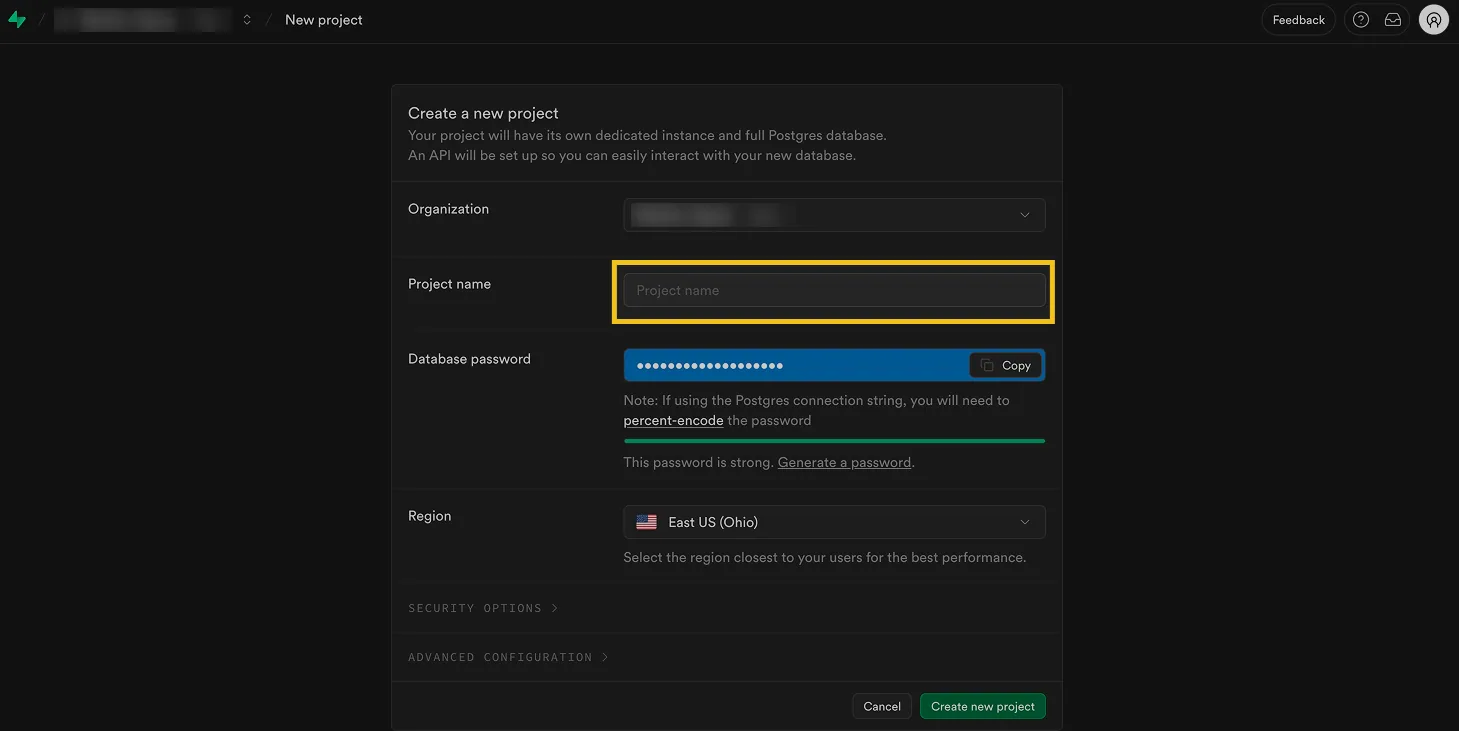
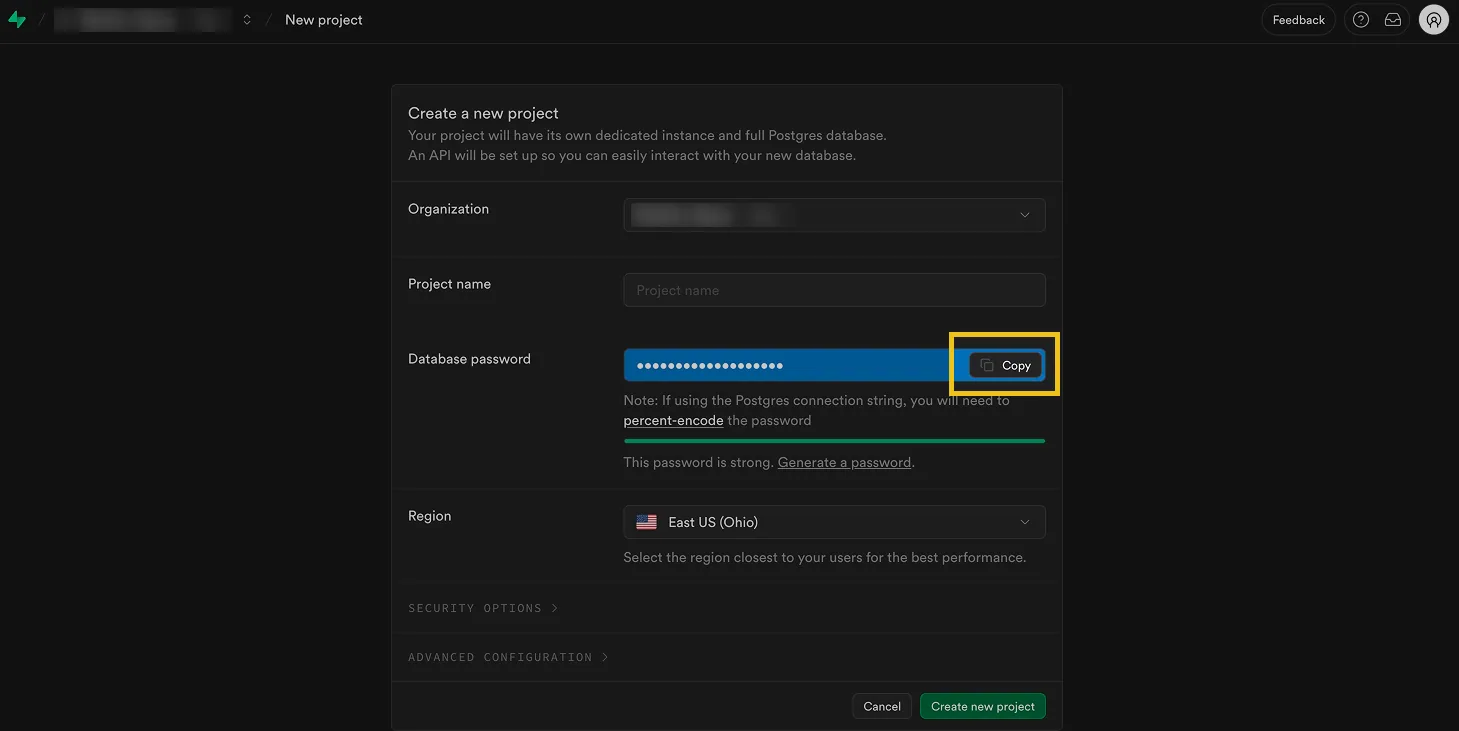
6. Click "Copy the suggested strong password"
☝ Before creating a new project, it is crucial to COPY the database password, as it will not be accessible again. The only way to retrieve your database password later is by regenerating it, which will invalidate previous passwords (potentially breaking existing database connections).
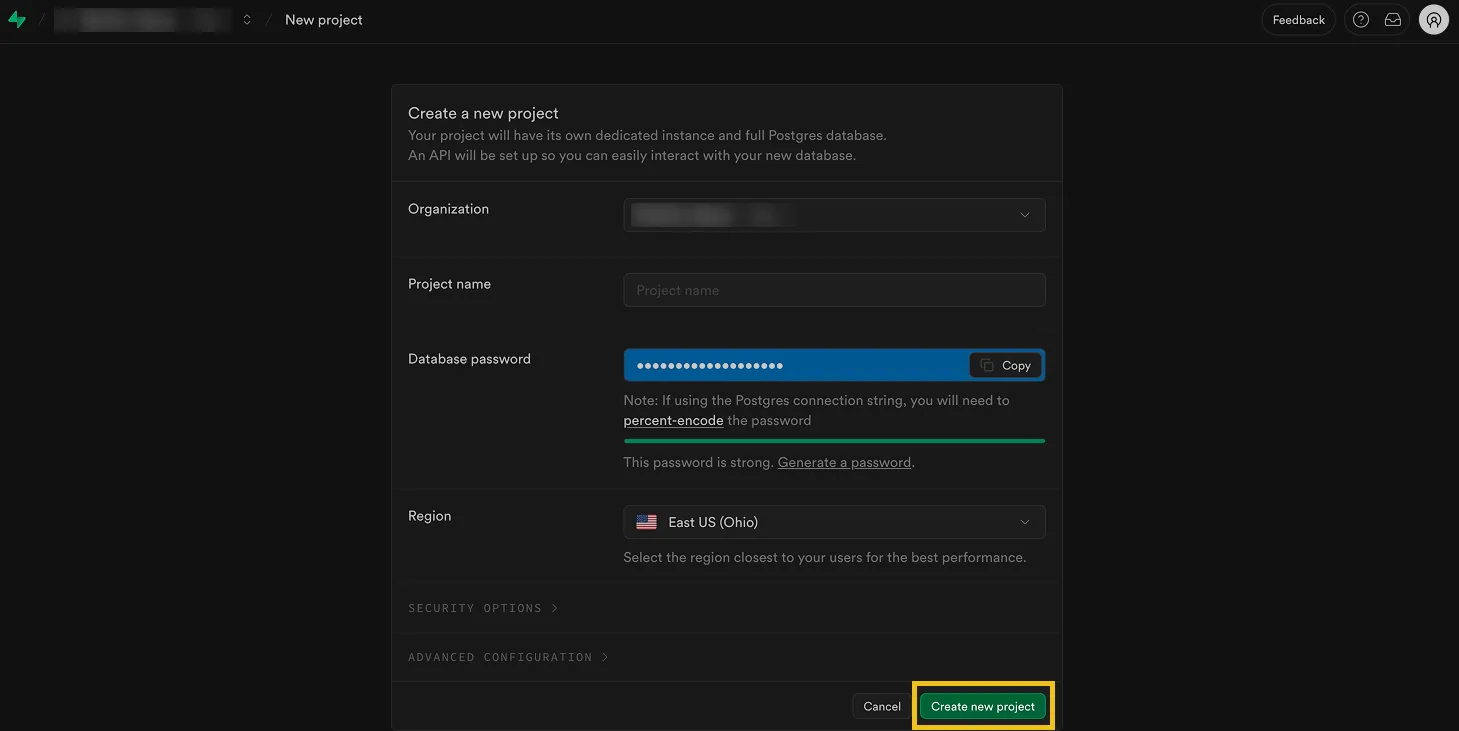
7. Click "Create new project"
8. Click on "Connect"
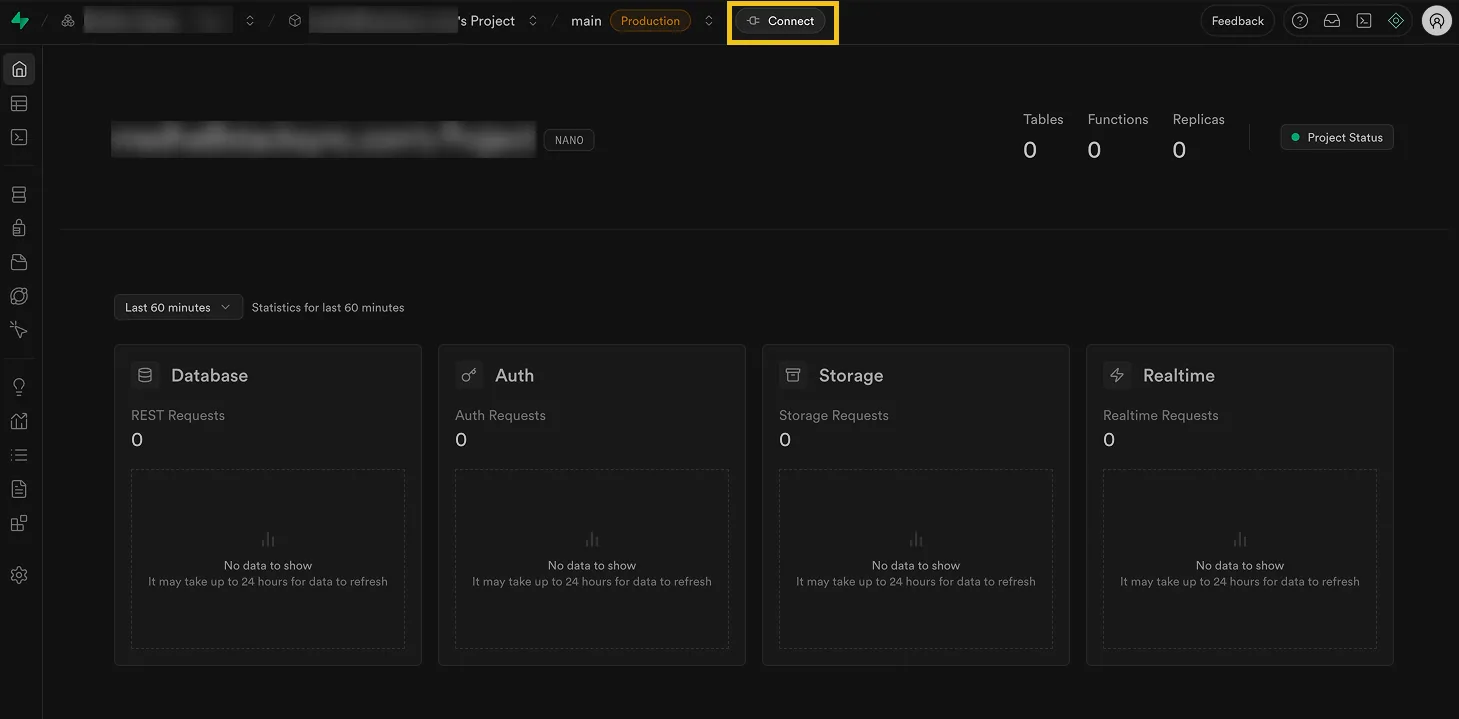
You just created your first database project in Supabase! 🎉
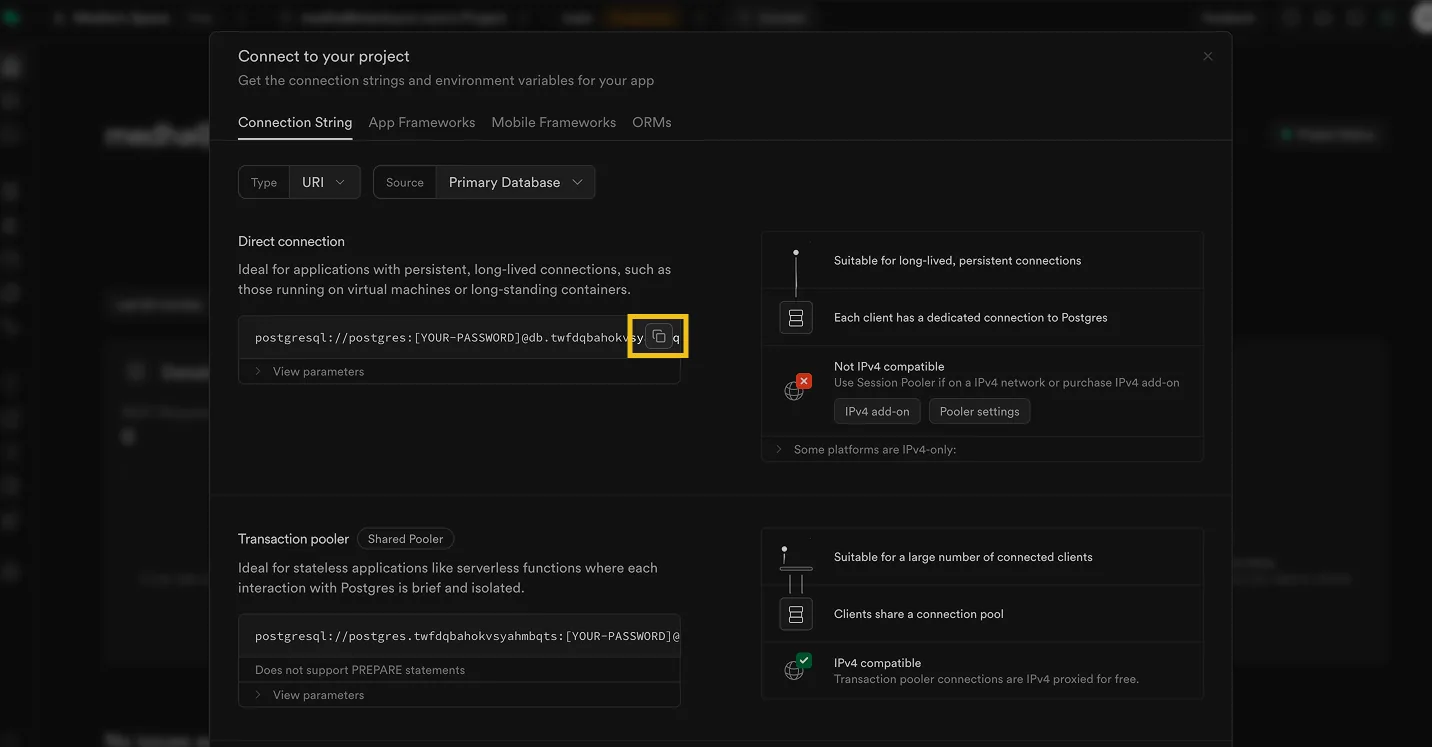
Now let's get the Database Connection URL which is the fastest way to connect your Supabase instance to Stacksync.
9. Click "URI" and copy the connection URL
That's it! 🥳
Now that you have created your Postgres Database with Supabase, you can connect it to your existing Salesforce CRM (if you don't have a Salesforce CRM instance yet, check out this guide to create a new Salesforce CRM developer instance, free forever!