

Email Trigger
Email Trigger enables inbound email ingestion for workflows by exposing a dedicated, Stacksync-managed address. Each received email deterministically creates a workflow execution and provides the normalized email payload to downstream modules for processing.
1. Add the Email Trigger Module
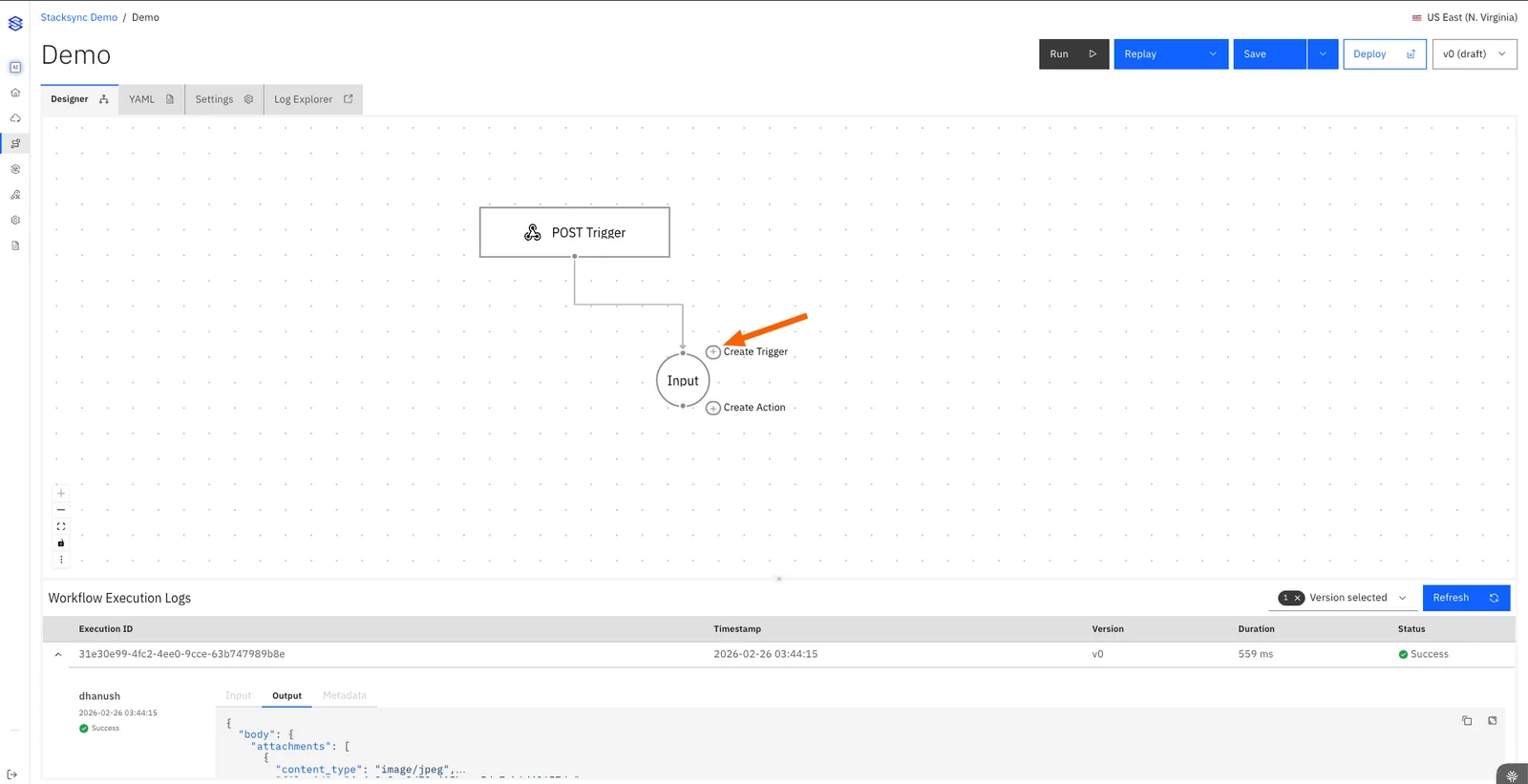
1.1 Create a workflow and click on Create Trigger.
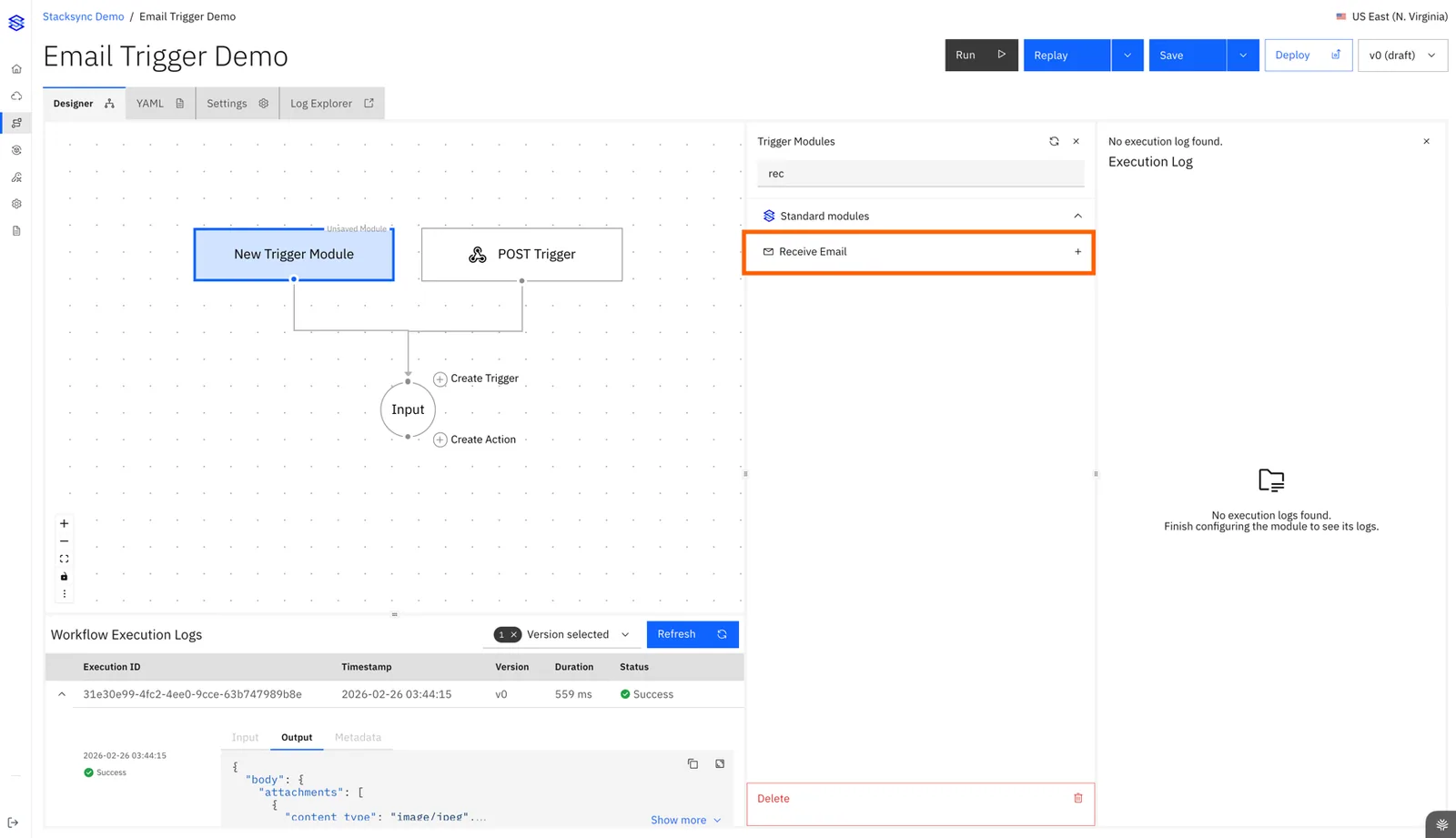
1.2 Add Receive Email from the Stacksync modules.
1.3 Connect the trigger to Input module to enable processing.
1.4 Save the workflow to activate the trigger.
Operational Behavior
- Each Email Trigger instance provisions a unique email address bound to this workflow.
- Multiple Email Trigger modules can be added to the same workflow, each receives a distinct email address.
- Activation requires a edge connection to input node.
- Disconnecting edge pauses ingestion.
- Deleting the module disables ingestion.
2. Get the Workflow Email Address
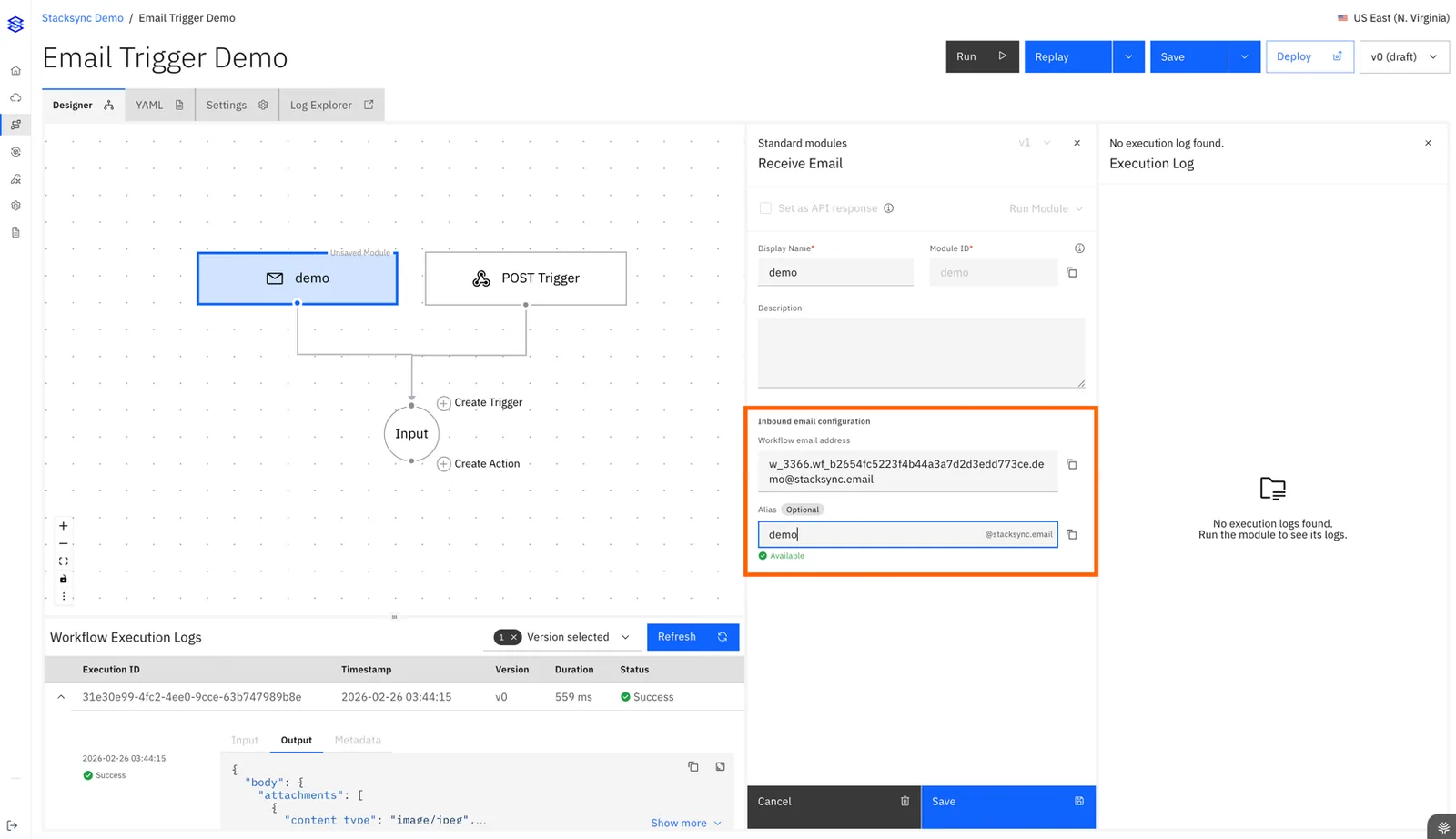
2.1 Open the module configuration panel.
2.2 Copy the Workflow Email Address displayed.
Example
w_6.wf_3279abcf0fac48e18ca437478844035c.example@stacksync.emailConstraints
- Domain:
@stacksync.email. - Activation: immediate after connect and saved.
3. Configure a Custom Alias (Optional)
3.1 Enter a human-friendly alias in the alias field.
3.2 Confirm availability.
3.3 Save to apply changes.
Alias Format
{alias}@stacksync.emailExamples
order-intake@stacksync.emailteam.alerts@stacksync.emailonboarding_requests@stacksync.email
Alias Requirements
- Length greater then 3 characters.
- Characters: lowercase letters, numbers,
.,-,_.
Alias Behavior
-
Alias activation is immediate upon save.
-
The previously configured alias is disabled immediately upon change.
-
The system-generated workflow email address remains permanently active.
-
When an alias is configured, both the workflow email address and the alias independently trigger the same workflow.
4. Email Payload Available to the Workflow
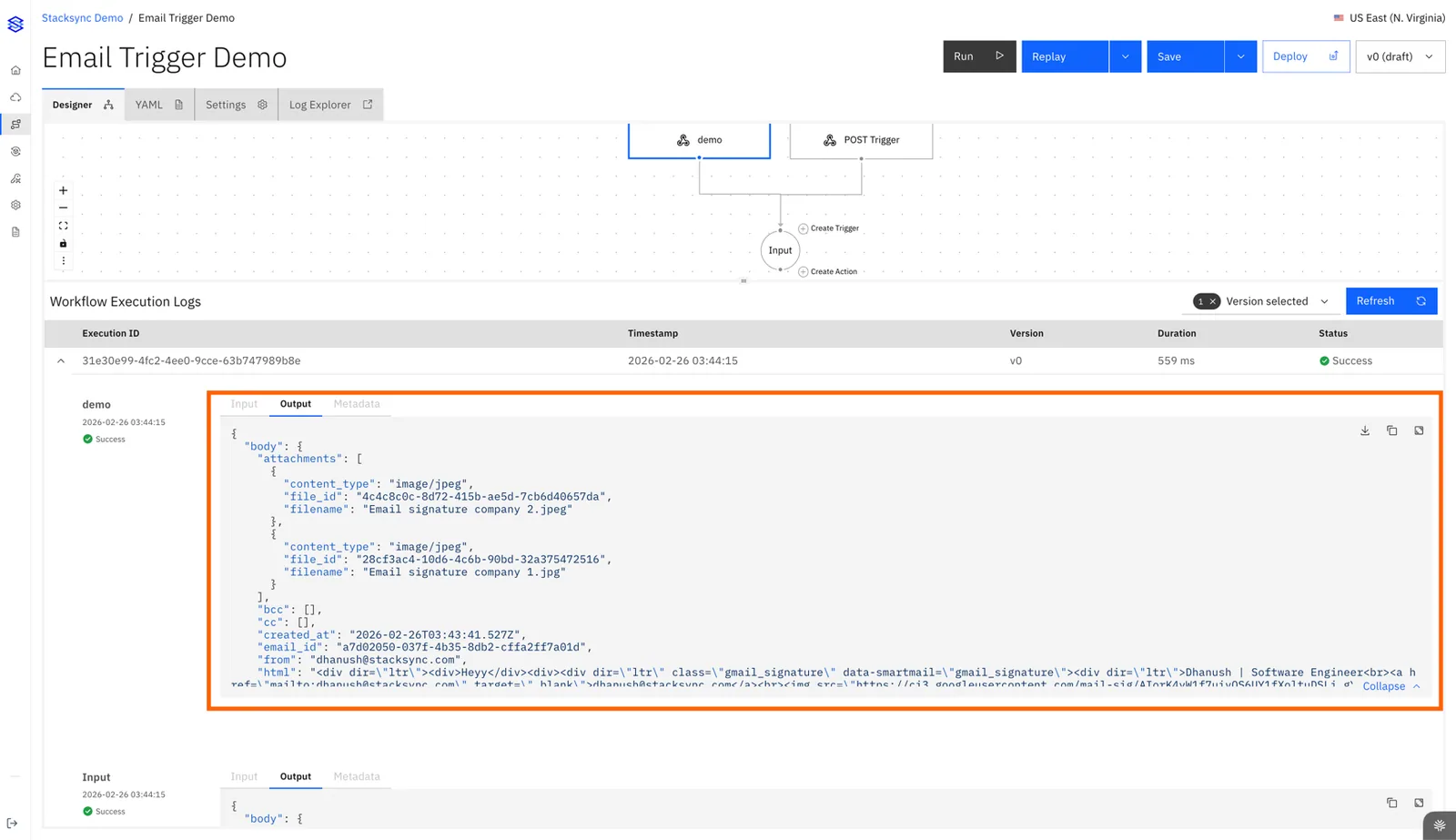
4.1 Email Fields
| Field | Description | Example |
|---|---|---|
| from | Sender address | customer@example.com |
| to | Recipient address(es) | order-intake@stacksync.email |
| subject | Subject line | New order — #4021 |
| text | Plain-text body | Please process the order... |
| html | HTML body (if present) | <p>Please process the order...</p> |
| headers | Standard headers (message-id, reply-to, etc.) | — |
| attachments | Attachment list | See 4.2 |
4.2 Attachments (auto-ingested and stored securely)
| Property | Description | Example |
|---|---|---|
| filename | Original file name | invoice.pdf |
| content_type | MIME type | application/pdf |
| file_id | Reference for downstream access | file_a1b2c3d4 |
5. Email Routing & Operations
5.1 Address Uniqueness & Isolation
- Each Email Trigger is assigned a unique, Stacksync-managed email address.
- Emails sent to that address are routed exclusively to the workflow where the trigger is configured.
5.2 Pause ingestion: disconnect the Email Trigger module.
5.3 Resume ingestion: reconnect and save.
5.4 Address rotation: update alias and notify senders.