
See Stacksync in action with a solution architect. Book a demo β†—

Cloud SQL

Find your Cloud SQL connection URL.

1. Go to your Google Cloud Console

2. Click on SQL
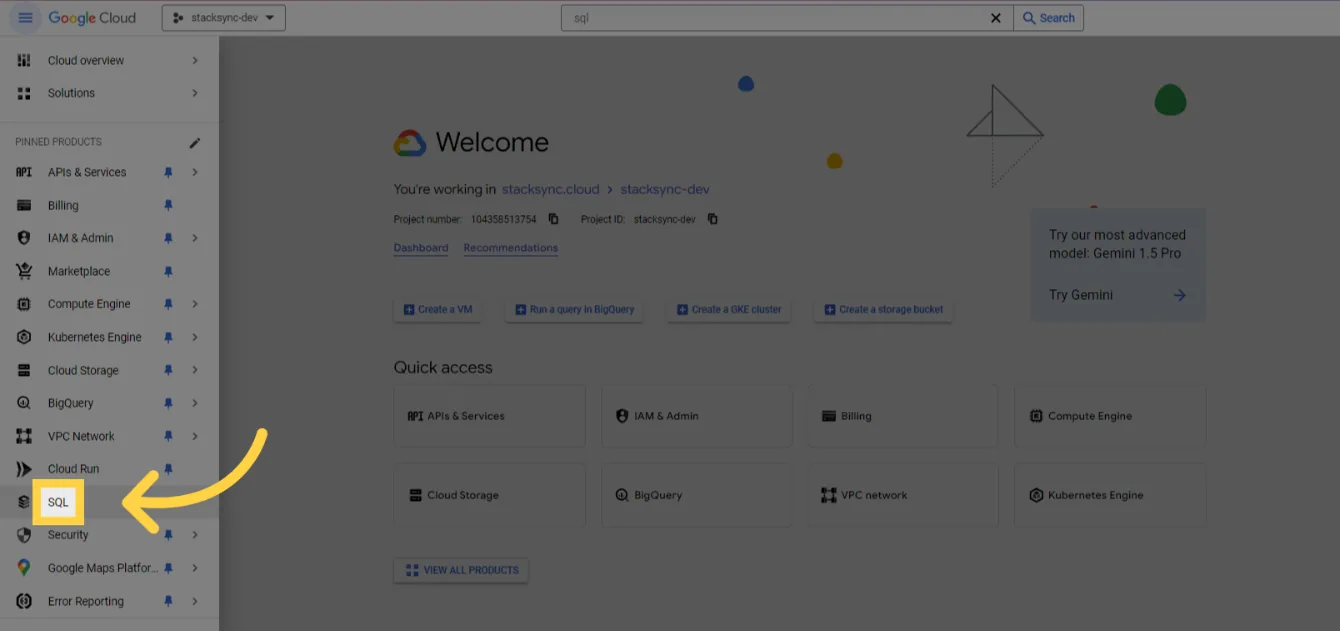
Google Cloud console navigation menu with an arrow pointing to the "SQL" product.

3. Write down the public IP address of the SQL Instance you want to use
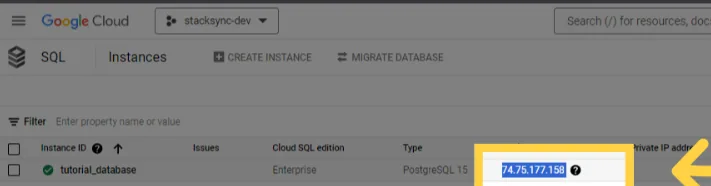
Google Cloud SQL Instances list with the public IP address of the "tutorial_database" instance highlighted.

4. Click on the instance you want to use
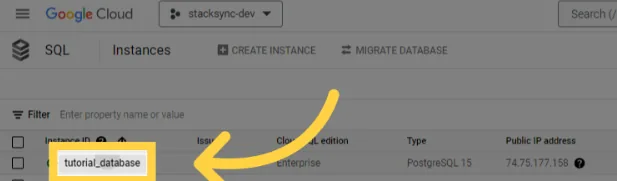
Google Cloud SQL Instances list with an arrow pointing to the "tutorial_database" instance ID.

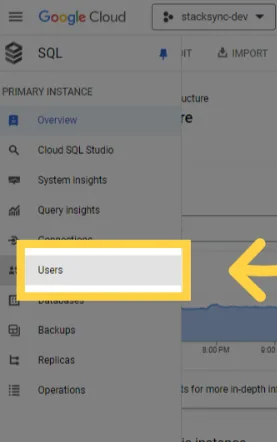
5. Go to "Users"

Google Cloud SQL instance side menu with "Users" highlighted.

6. Make sure the user you want to use is listed here, let's take "fake_user"

Google Cloud SQL Users list with the built-in user "fake_user" highlighted.

NOTE: You can manage the user's password by clicking on the 3 dots
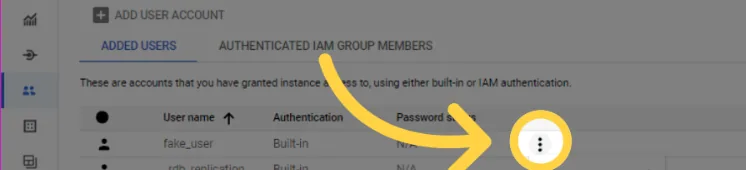
Google Cloud SQL Users list with an arrow pointing to the three-dot actions menu for "fake_user" to manage its password.

NOTE: you can add a new user by clicking "ADD USER ACCOUNT"
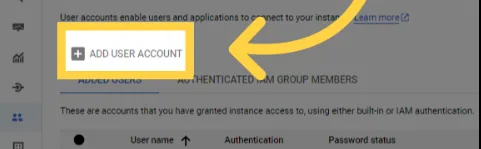
Google Cloud SQL Users page with an arrow pointing to the "ADD USER ACCOUNT" button.

7. Click on "Databases" and find the database inside the SQL Instance
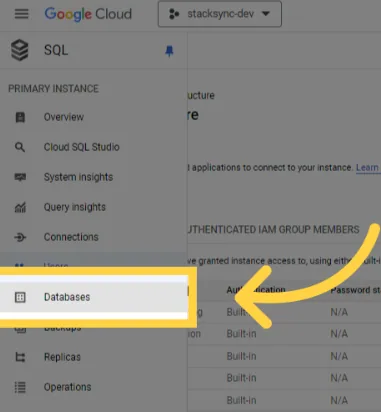
Google Cloud SQL instance side menu with an arrow pointing to "Databases".
  1. Write down the Database Name you want to use, here let's take "my_tutorial_database"
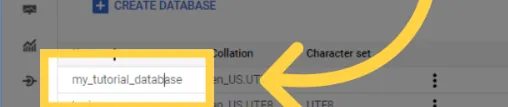
Google Cloud SQL Databases list with the database name "my_tutorial_database" highlighted.
  1. In Cloud SQL the port is always 5432, the connection string will then have the form: postgres://[USER]:[PASSWORD]@[PUBLIC_IP_ADDRESS]:5432/[DATABASE_NAME] In our example: postgres://fake_user:********@74.75.177.158:5432/my_tutorial_database- you can now paste into Stacksync
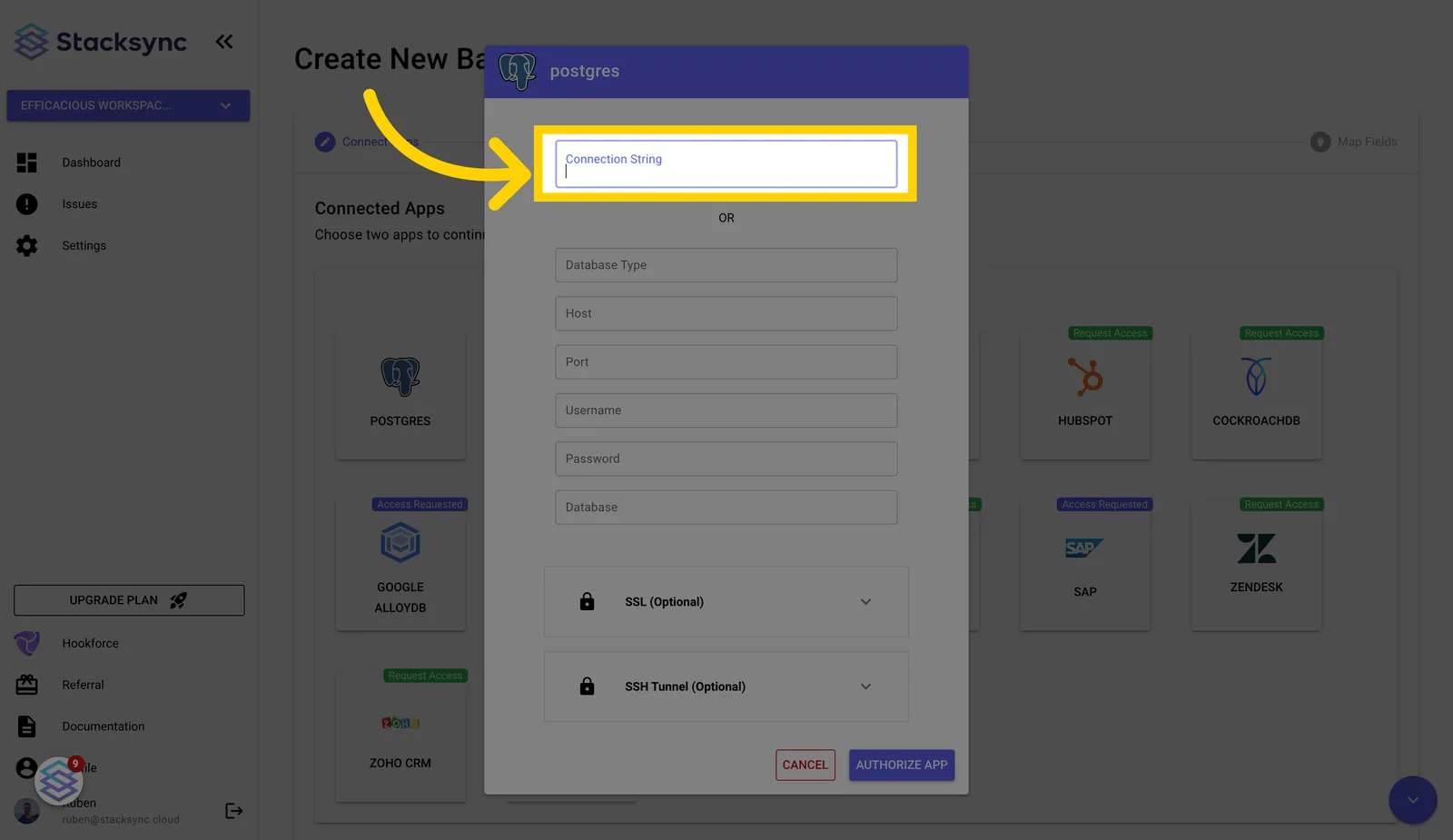
Stacksync Postgres connection dialog with an arrow pointing to the empty "Connection String" field.

Paste your database connection URL into Stacksync

That's it! πŸ₯³

On this page