
See Stacksync in action with a solution architect. Book a demo β†—

Retool

Authenticate your Retool app and sync data with Stacksync

1. Access your dashboard

2. Click on "Database"
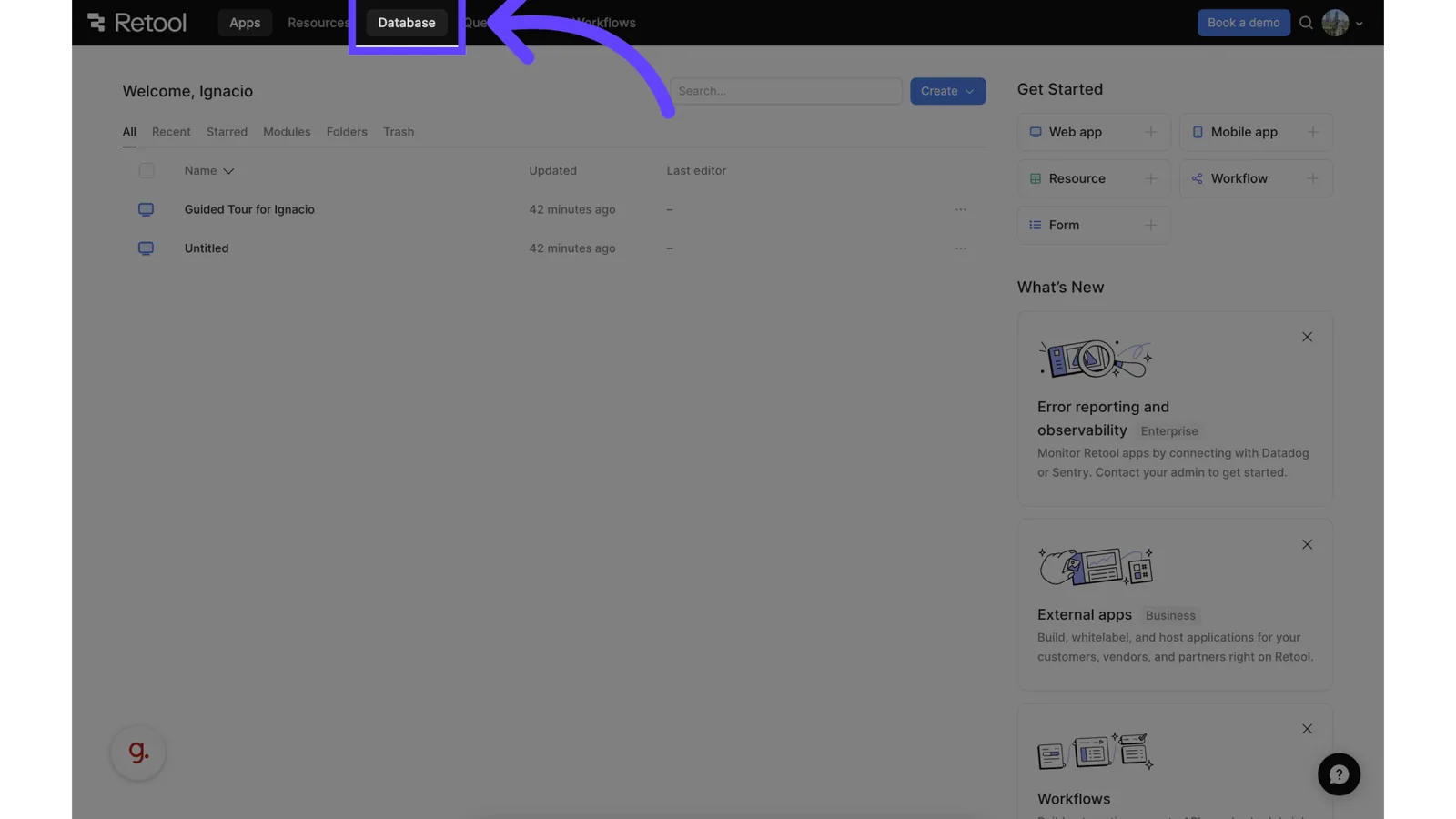
Retool home page with an arrow pointing to the "Database" tab in the top navigation.

Click on "Database"

3. Reveal Database Options
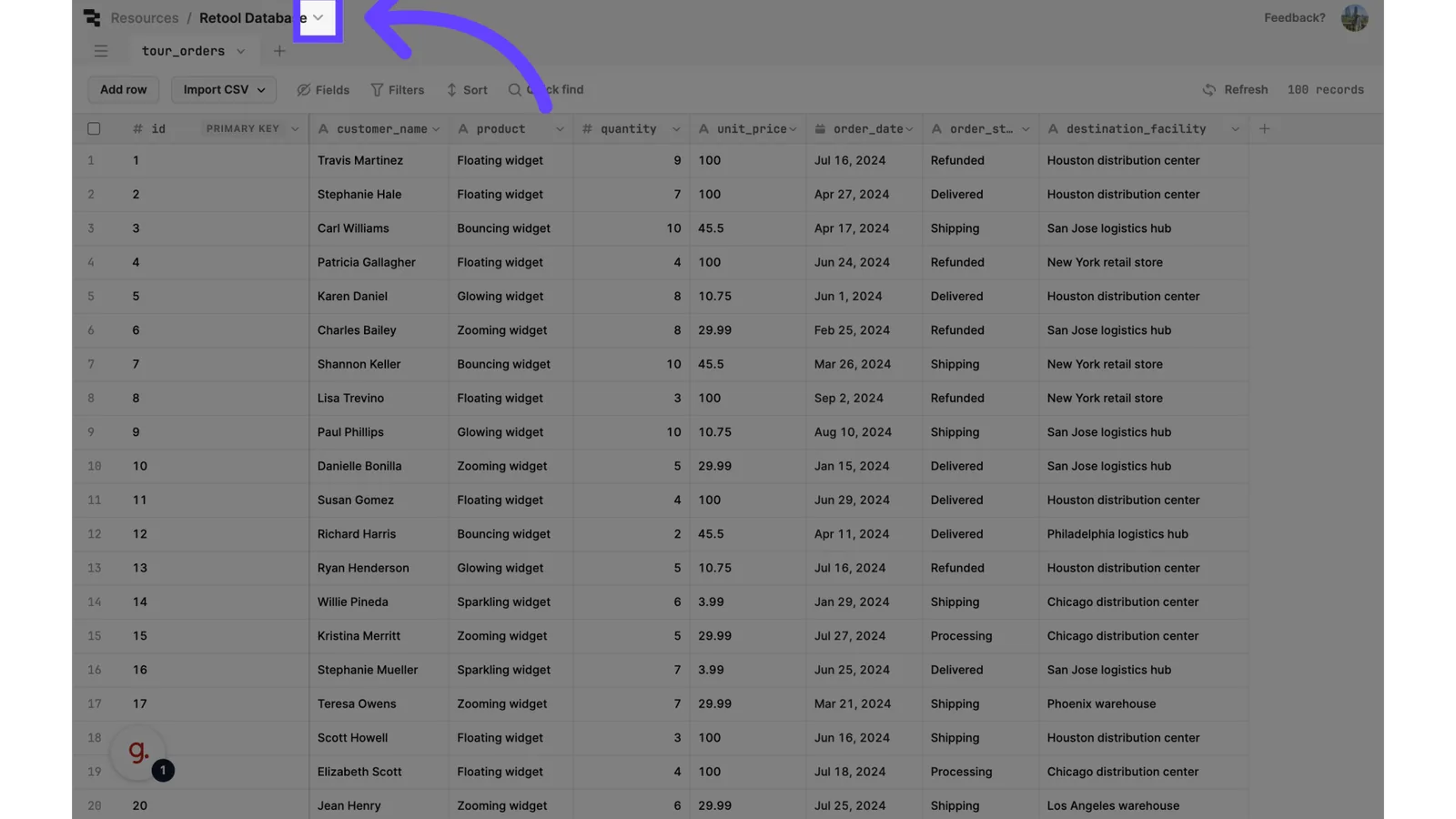
Retool Database table view with an arrow pointing to the dropdown next to "Retool Database" to reveal options.

Click and reveal options

4. Click "Connection"
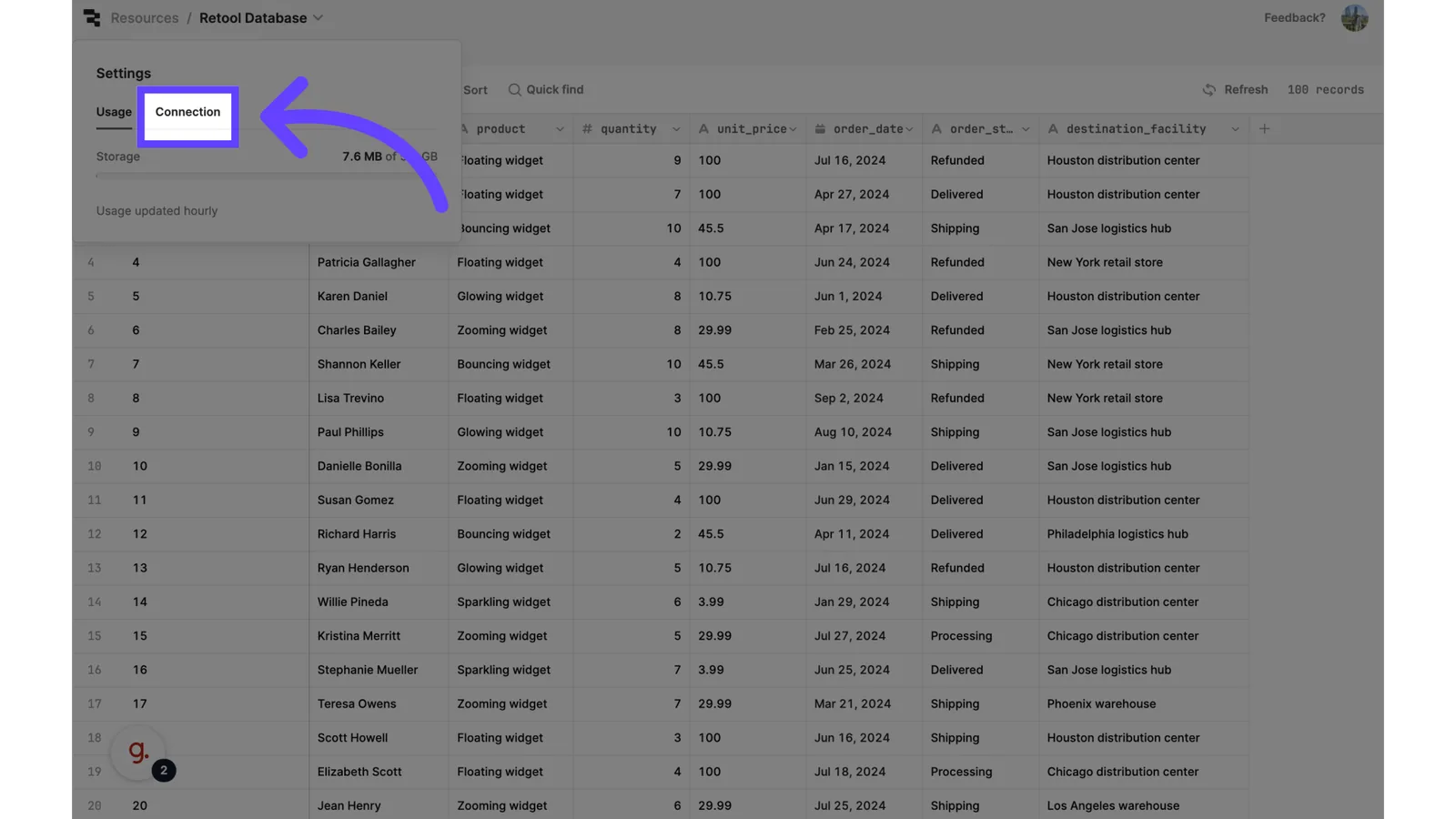
Retool Database Settings popover with an arrow pointing to the "Connection" tab.

Click "Connection"

5. Reveal Postgres Connection URL
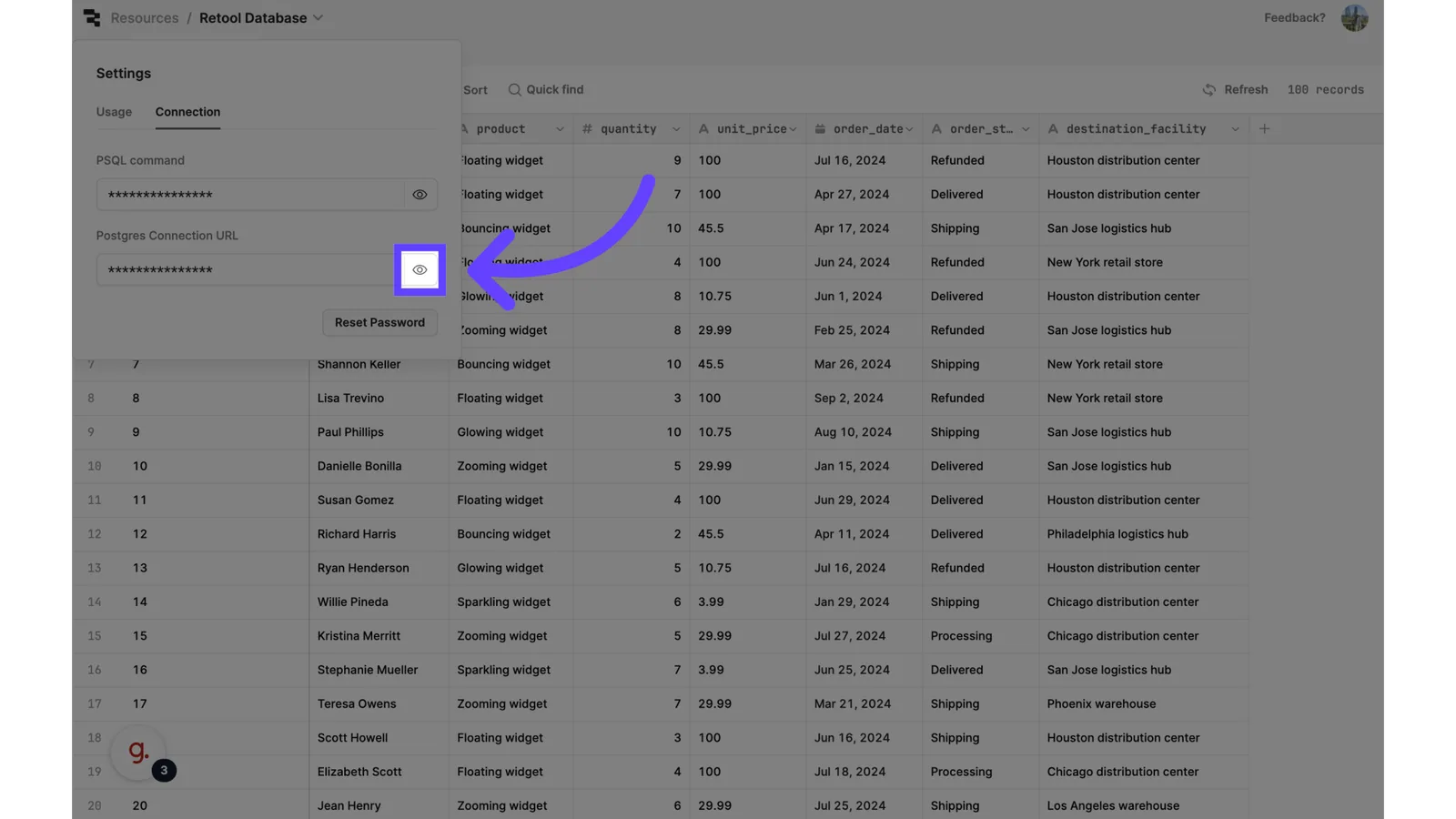
Retool Database Connection settings with an arrow pointing to the eye icon that reveals the "Postgres Connection URL".

Reveal the Connection URL

6. Copy connection URL
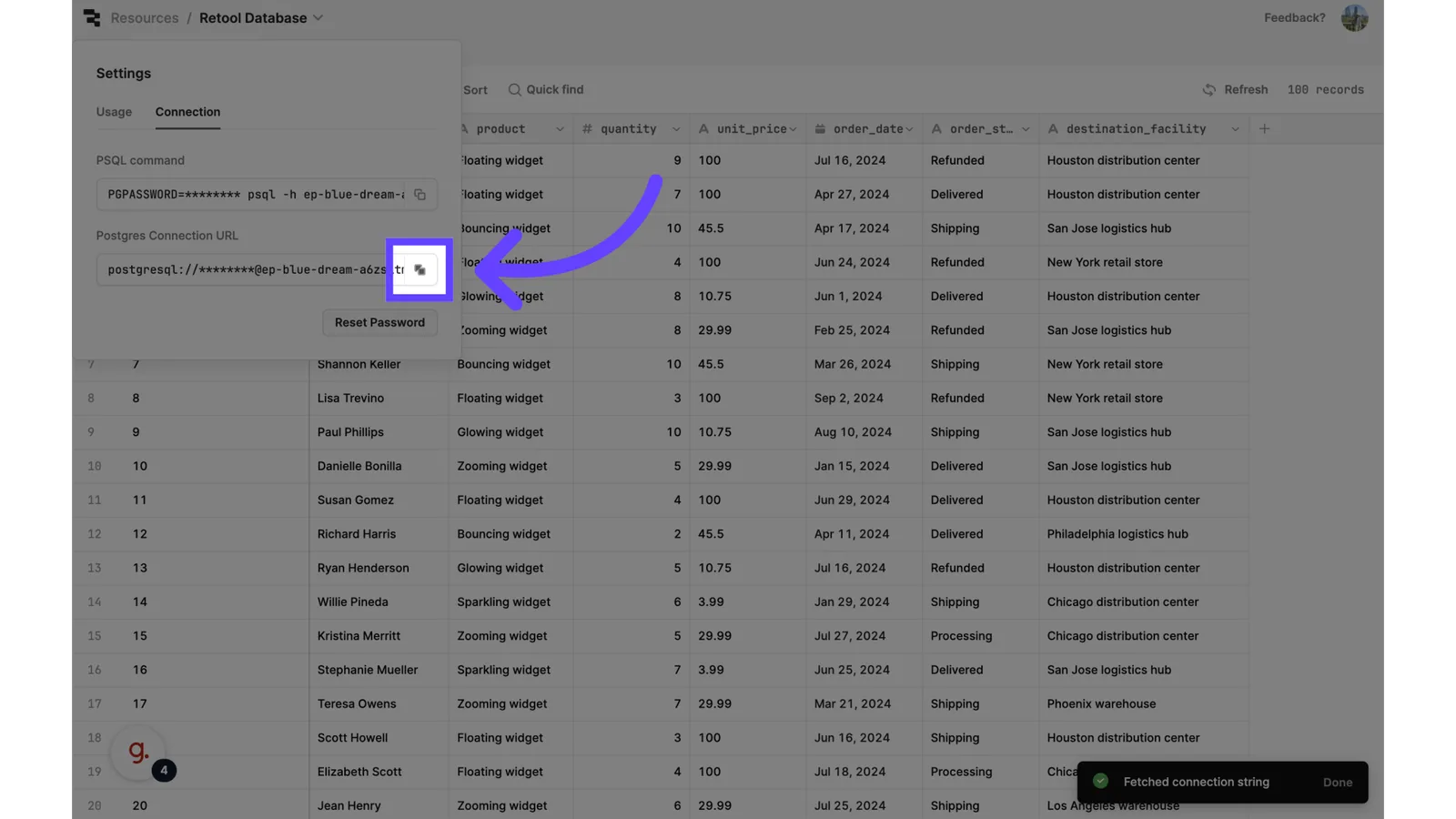
Retool Database Connection settings with the revealed postgresql:// URL and an arrow pointing to the copy button.

Copy the connection URL

7. Get credentials from connection URL

Retool doesn't give you the port info to connect Postgres via connection URL.

From your connection URL. Manually get the data needed to fill the connection form that will be shown in Step 9.

  • Database Type
  • Host
  • Port
  • Username
  • Password
  • Database
  • Schema

6. Click on "Connections"

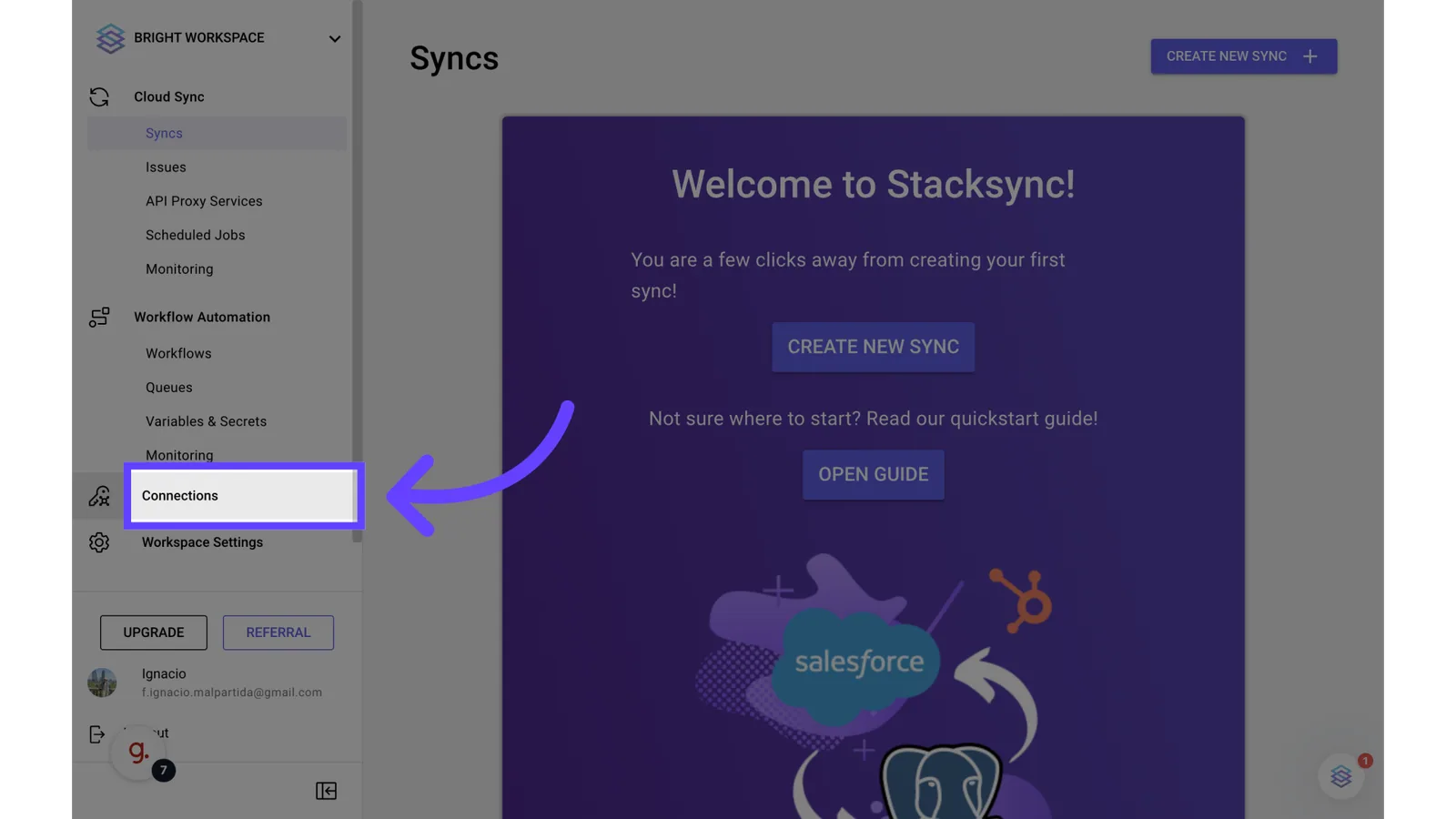
Stacksync Syncs page with an arrow pointing to "Connections" in the left sidebar.

Go to "Connections" on Stacksync

7. Click on "Create New Connection"
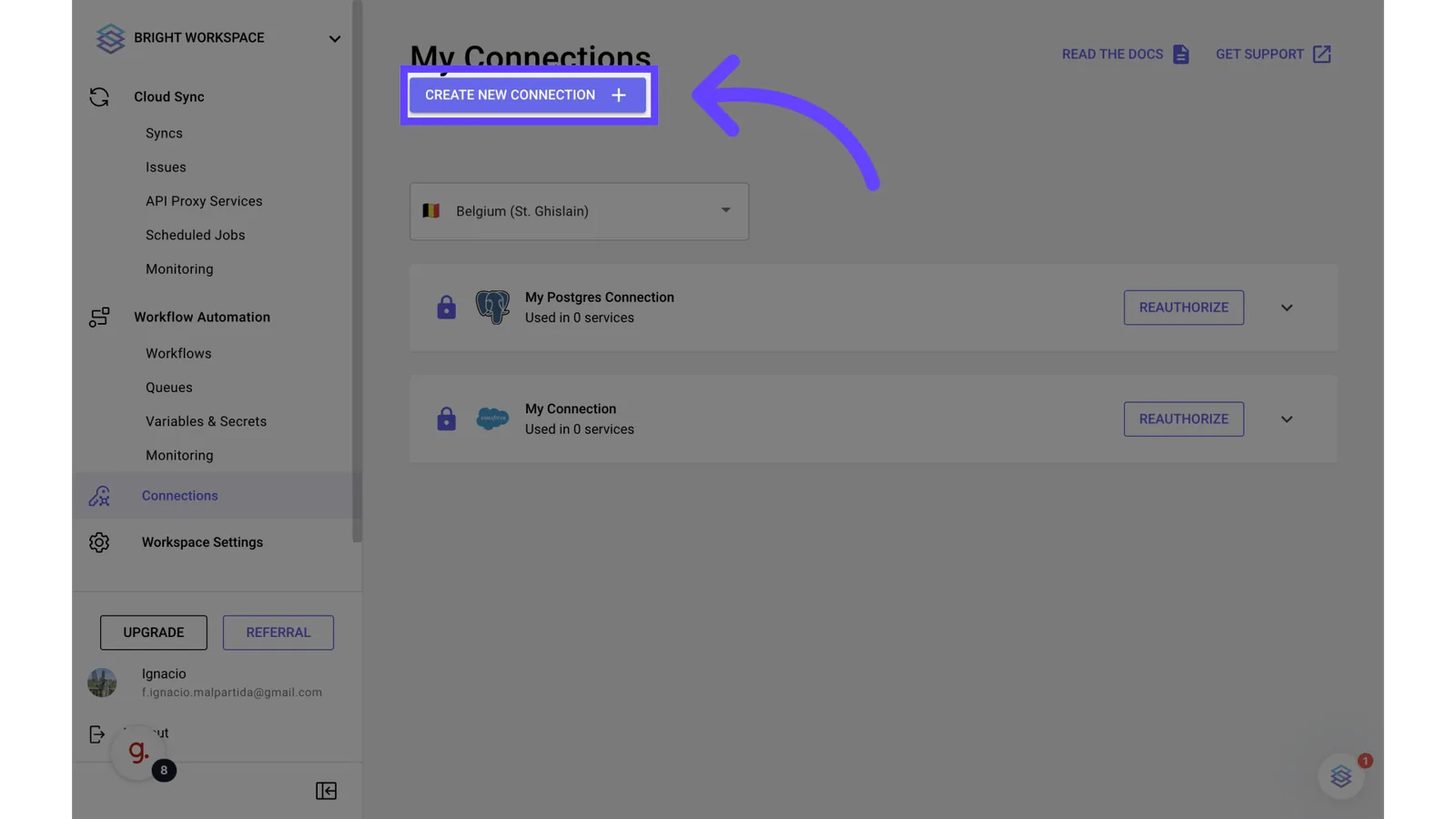
Stacksync "My Connections" page with an arrow pointing to the "Create New Connection" button.

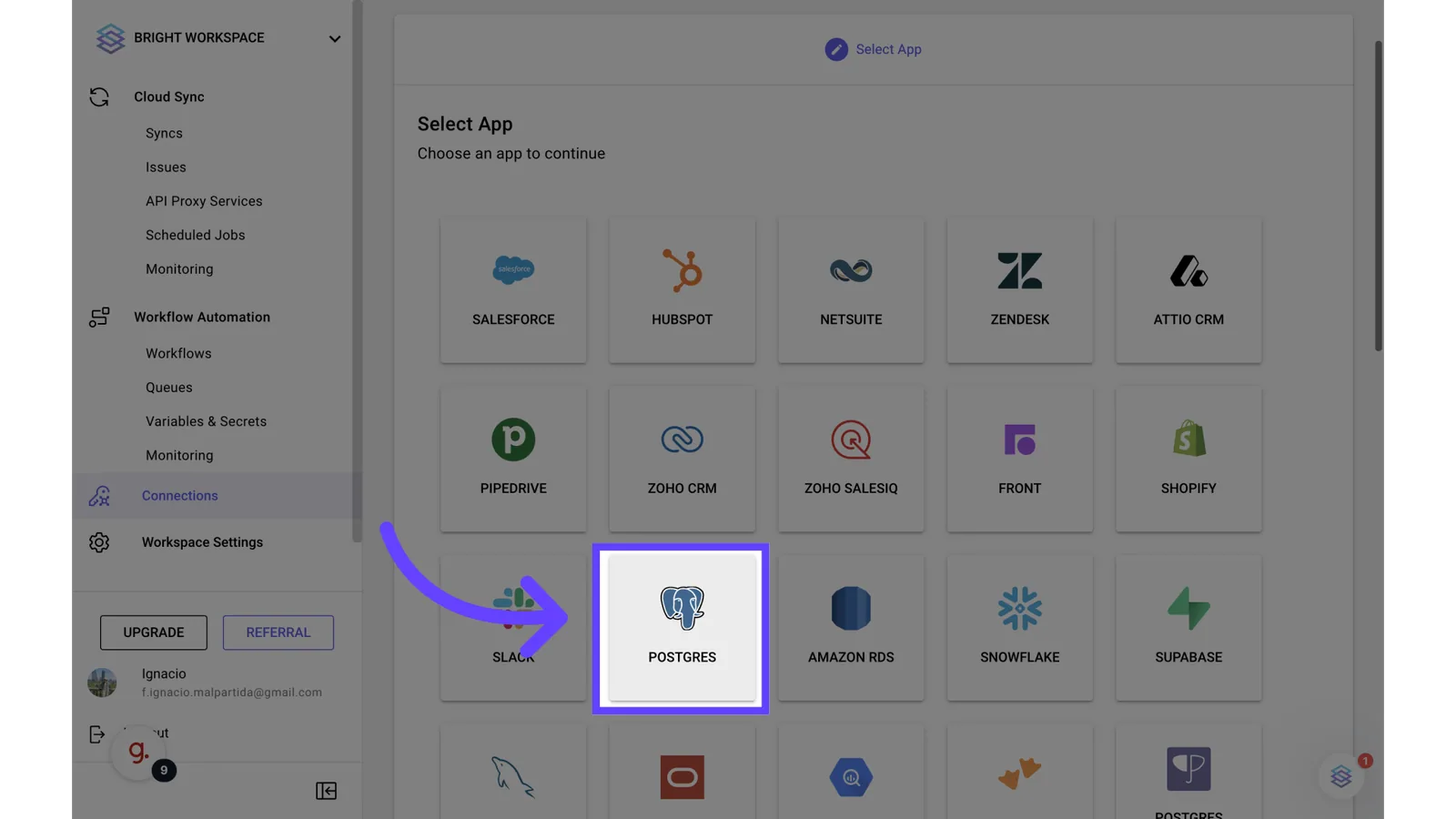
8. Click "Postgres"

Stacksync "Select App" grid with an arrow pointing to the Postgres connector tile.

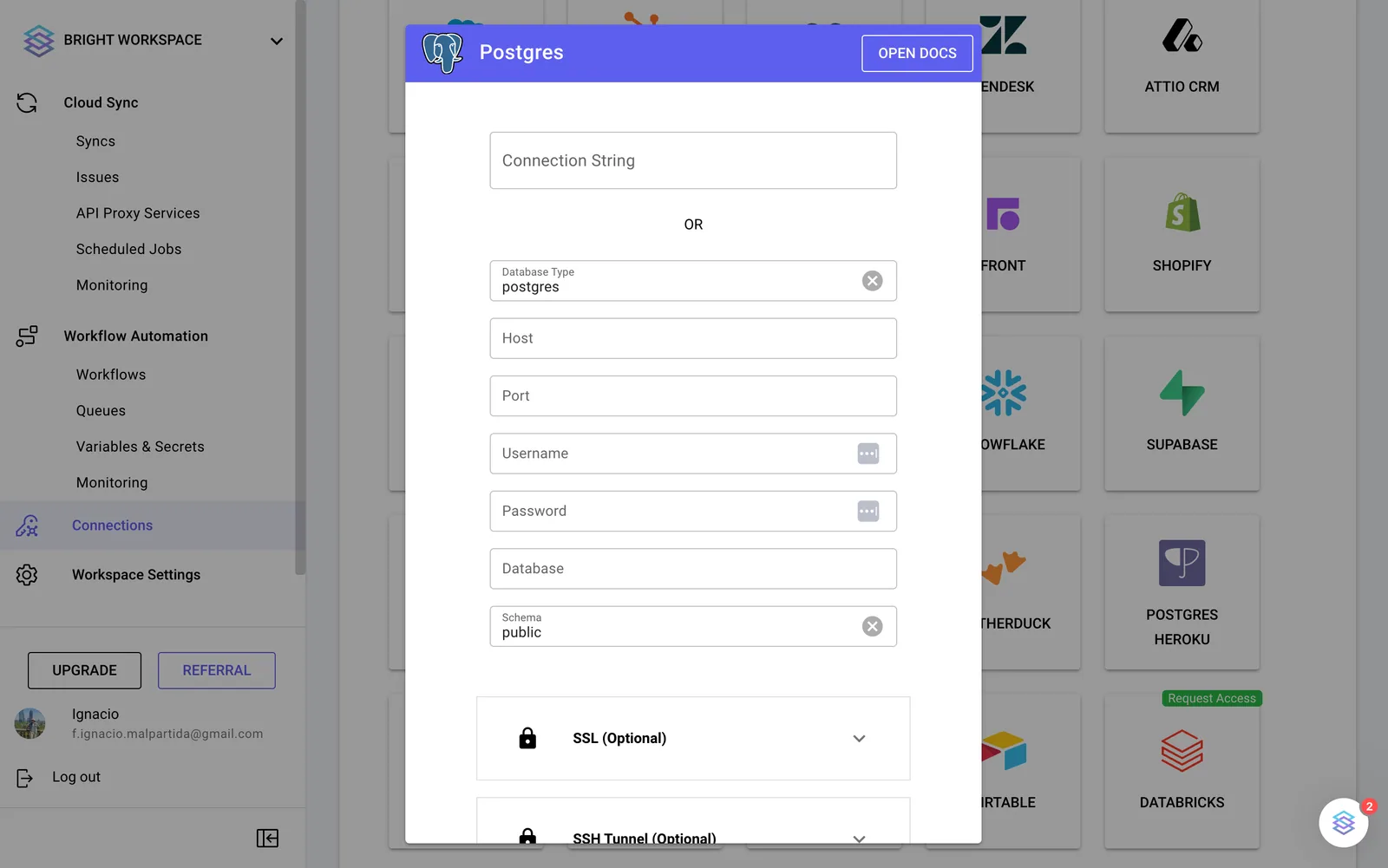
9. Fill the connection form

Stacksync Postgres connection dialog with Connection String or Database Type, Host, Port, Username, Password, Database and Schema fields.

Fill the connection form with all the data from step 7

On this page