

Heroku
Find your Postgres Heroku connection string
For Heroku, use the "Postgres Heroku" connector.
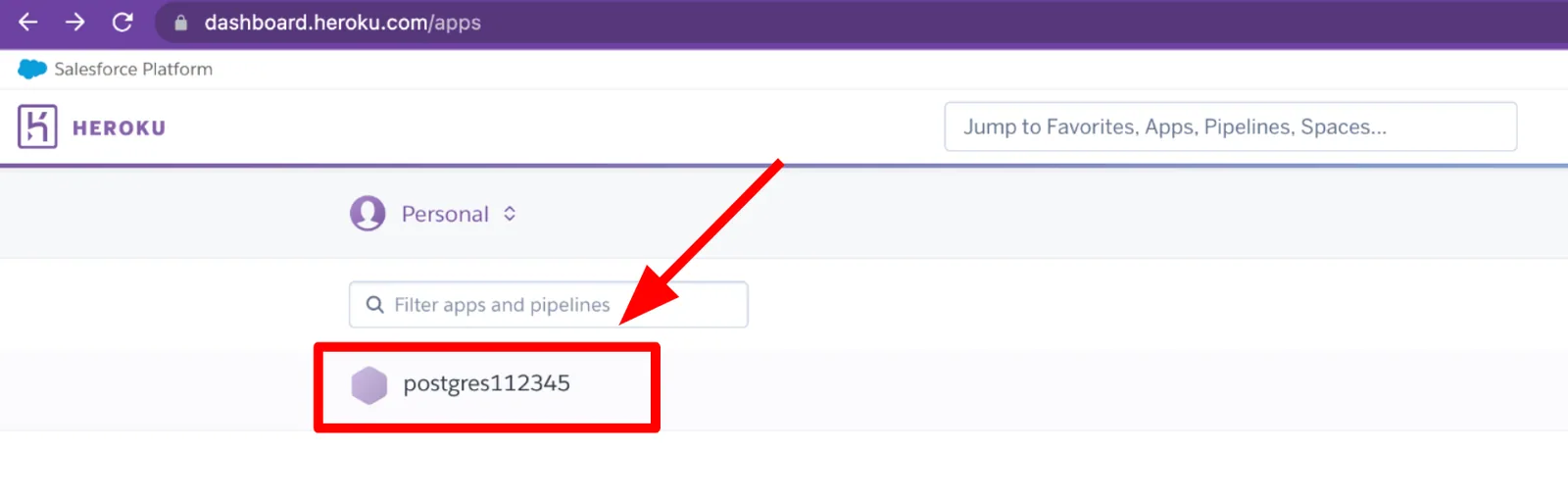
1. Go to https://dashboard.heroku.com/apps
2. Open one of your apps
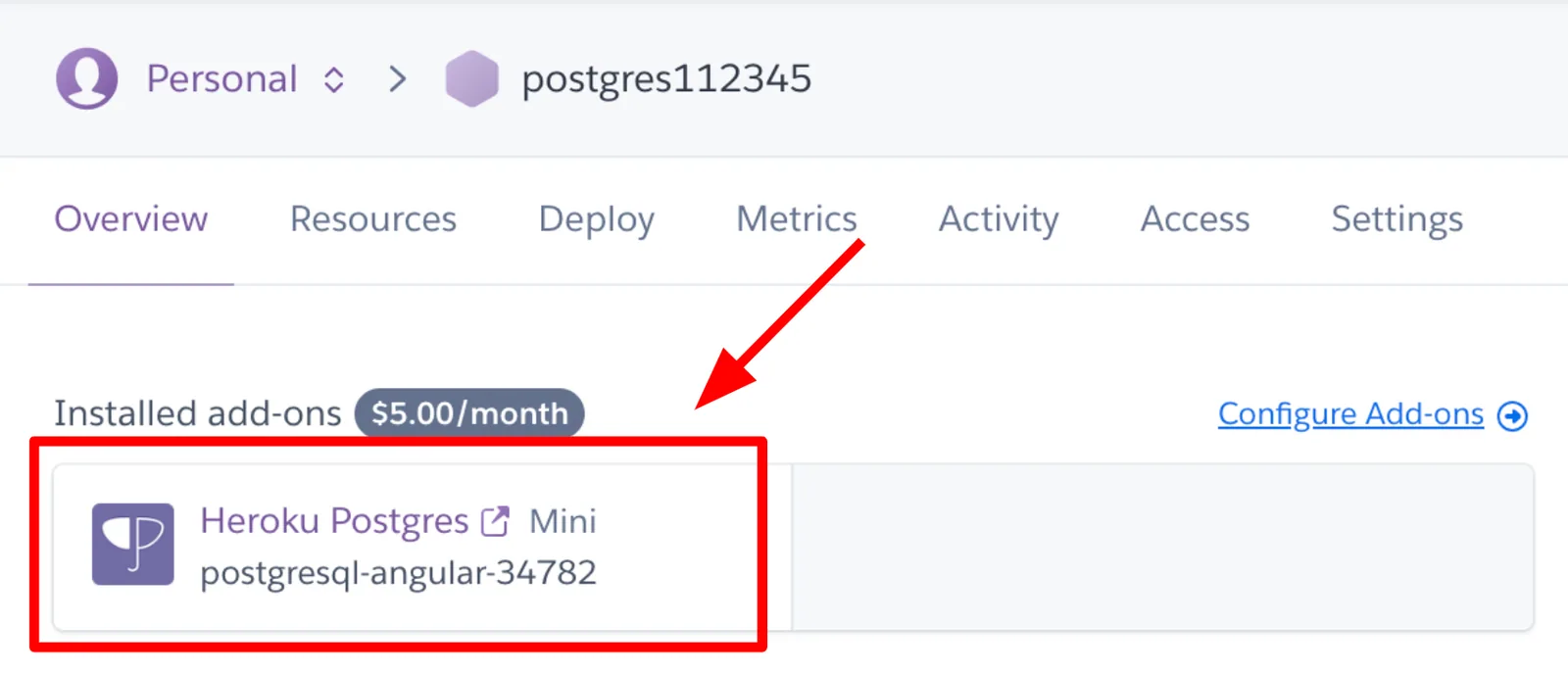
3. Open your database add-on
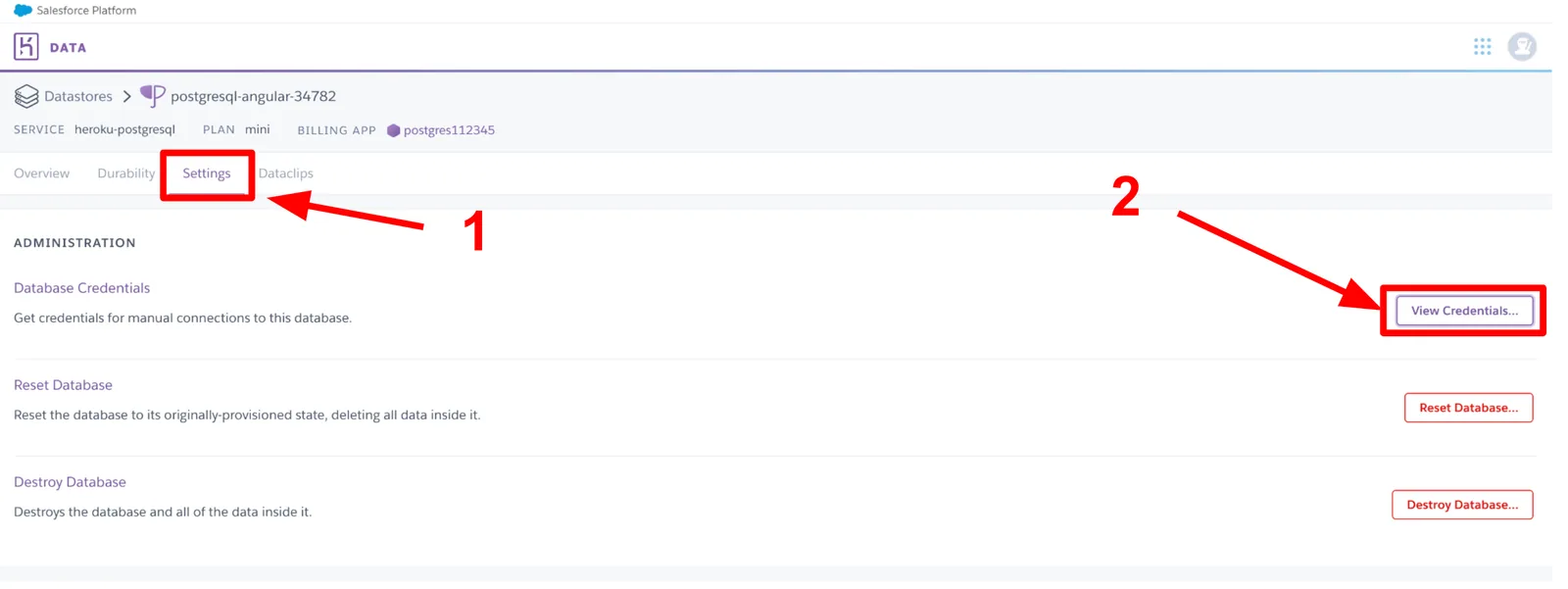
4. Go to settings and view Database credentials
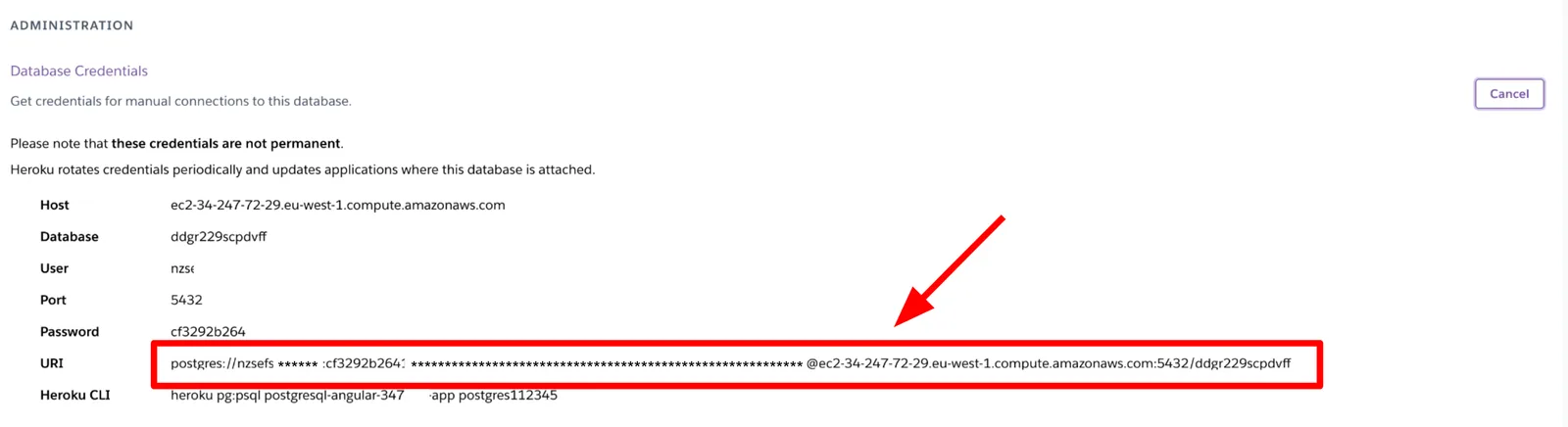
5. Copy Connection URI
6. Paste the connection URI into Stacksync to connect your database
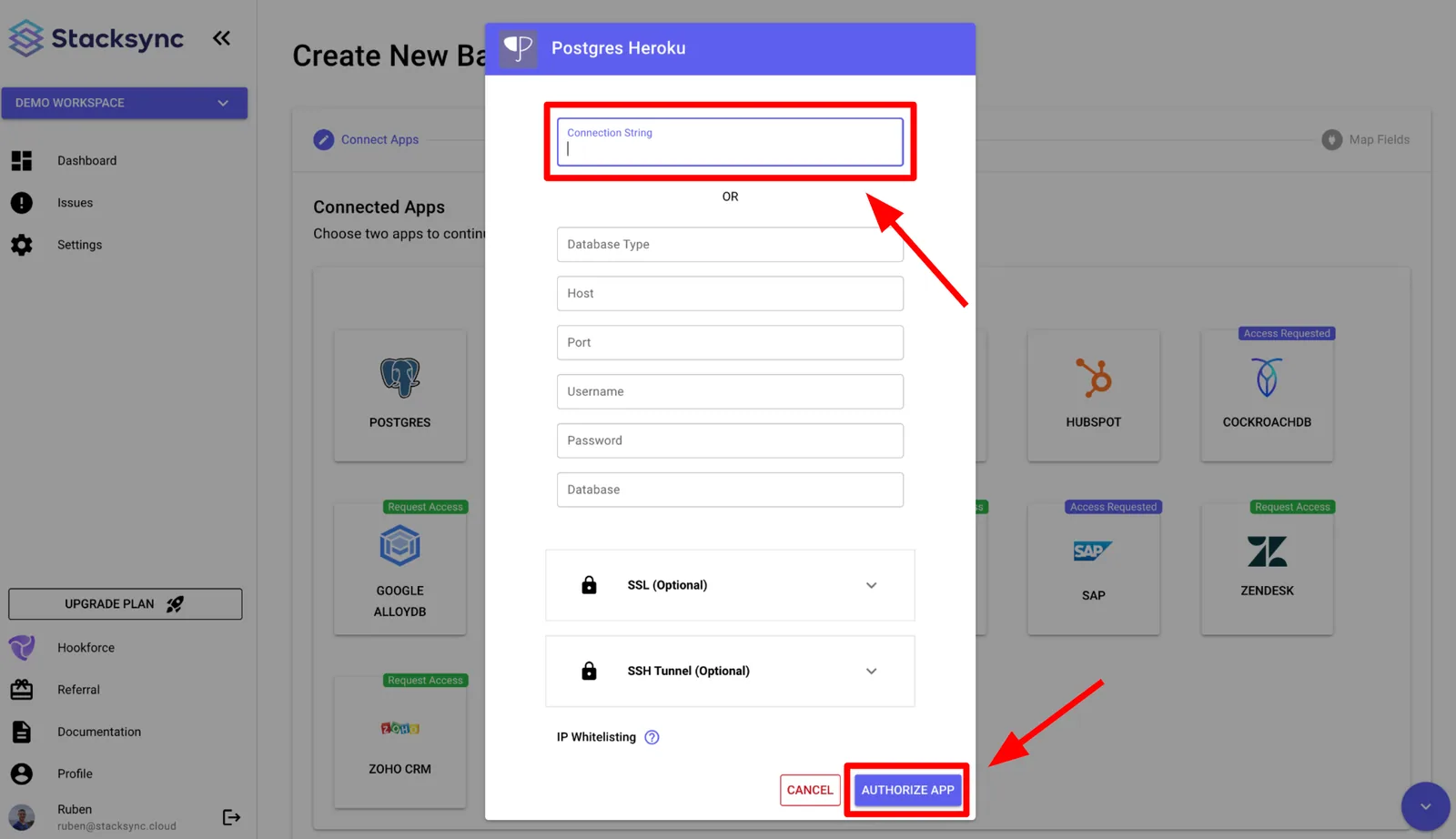
Paste your connection URL to connect your database
For the Heroku connector, the user is required to have the Create privilege on the database.
This privilege can be enabled for the user using the following SQL query:
GRANT CREATE ON DATABASE database_name TO user_name;Finally, click "Authorize App" to connect!
That's it, your Postgres Heroku instance is connected! 🎉